# Visual Studio - Information for Support
When contacting Aikido Support about the Visual Studio IDE plugin, please include the information below. This helps us diagnose issues faster and avoid unnecessary back and forth.
### Issue reproducibility
* Is the issue consistently reproducible?
* Does it occur with a single file or with multiple files?
* If possible share the file with us
* [Did you check connection to Aikido platform?](https://help.aikidogov.us/ai-and-dev-tools/ide-plugins-overview/troubleshooting/troubleshooting-ide-plugin-connectivity)
### Plugin & Repository information
* [Plugin version (instructions below)](https://help.aikidogov.us/ai-and-dev-tools/ide-plugins-overview/troubleshooting/visual-studio-information-for-support#visual-studio-version-details)
* Operating System
* IDE Version
* Link to repository in Aikido
* Usage of Docker, WSL or any other remote development environment
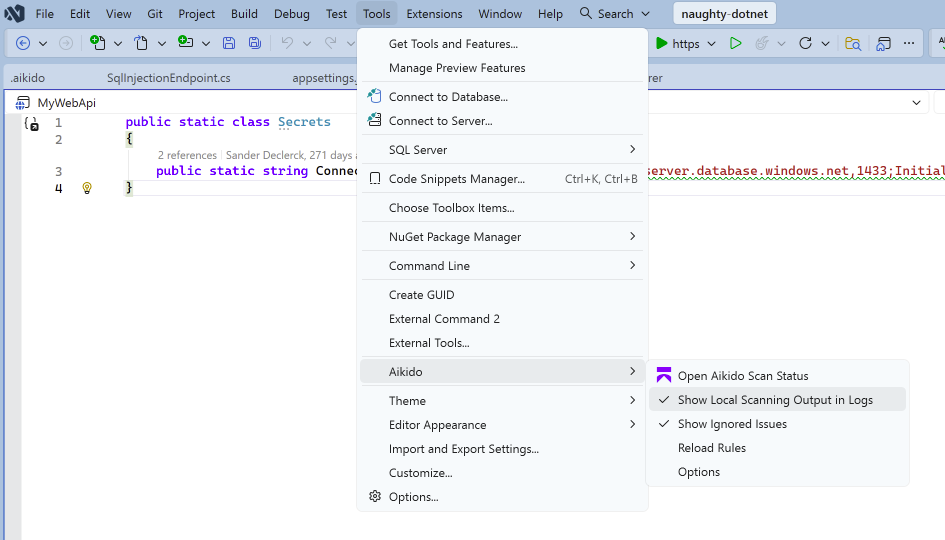
### Enable local scanning logs
1. Open Tools > Aikido.
2. Enable Show Local Scanning Output in Logs.
3. Reproduce the issue.
4. Copy and send the relevant log output.
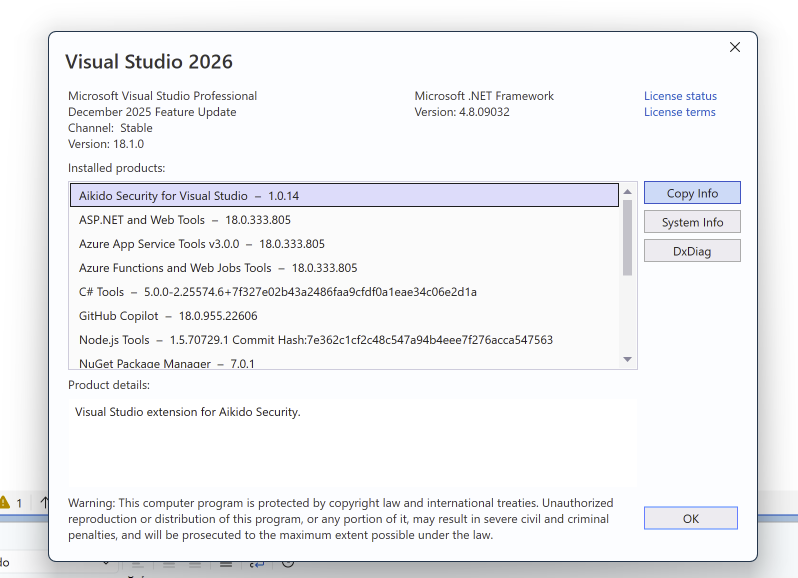
### Visual Studio version details
1. Open Help > About Microsoft Visual Studio.
2. Click Copy Info.
3. Share the copied information so we can verify the exact Visual Studio and extension versions.
Providing all of the above allows us to identify IDE, plugin, or environment specific issues more efficiently.