# Custom Registries
If your team installs packages through a private registry like AWS CodeArtifact or JFrog Artifactory, add its domain in Aikido. Device Protection only inspects installs on domains it knows about.
Packages served through a registered domain are checked for malware exactly like packages from the public registry, and your existing installation policies apply to them too.
## How it works
When you register a custom registry, Device Protection recognizes its domain as a proxy for a public ecosystem. Package installs that flow through that domain are inspected on the device and checked against Aikido's malware signatures, just like installs from the public registry itself. Your existing [installation policies](https://help.aikidogov.us/aikido-device-protection/using-aikido-endpoint/configuring-installation-policies) apply to these installs too.
## Add a custom registry
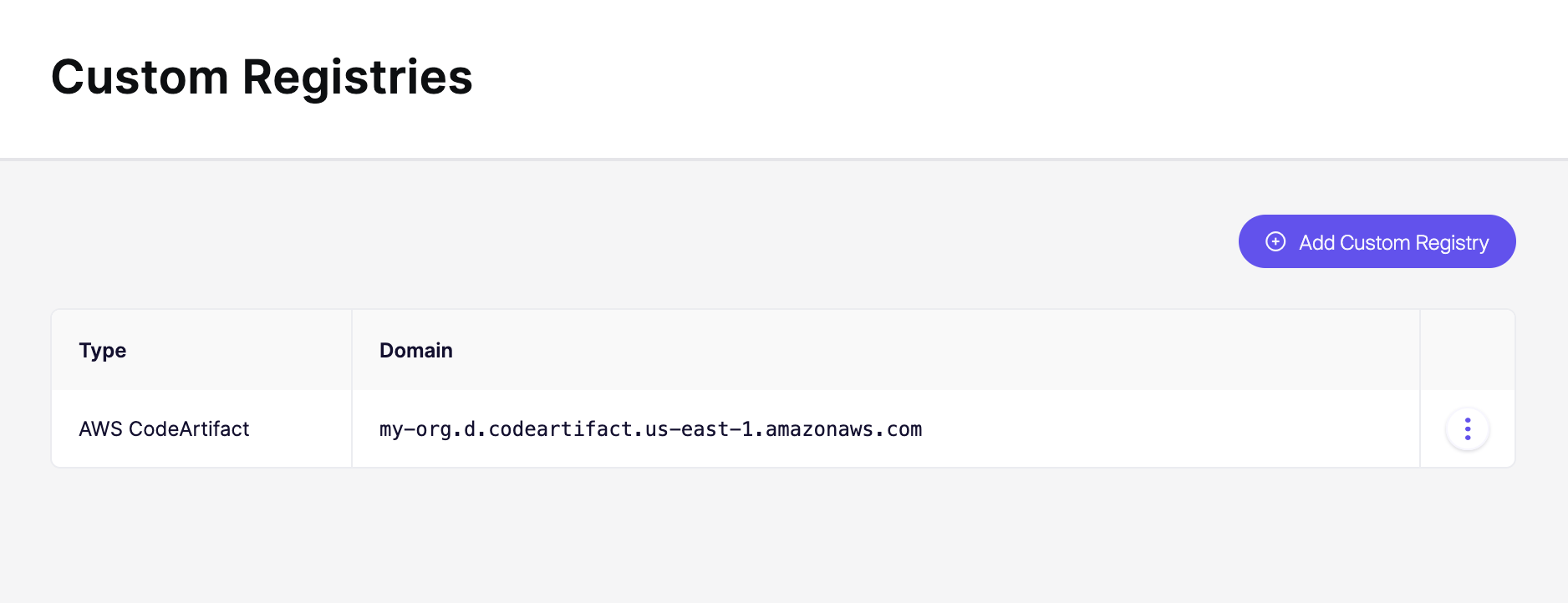
1. Go to [Custom Registries](https://app.aikido.dev/endpoint-protection/custom-registries) in your Aikido account.
2. Click **Add Custom Registry**.
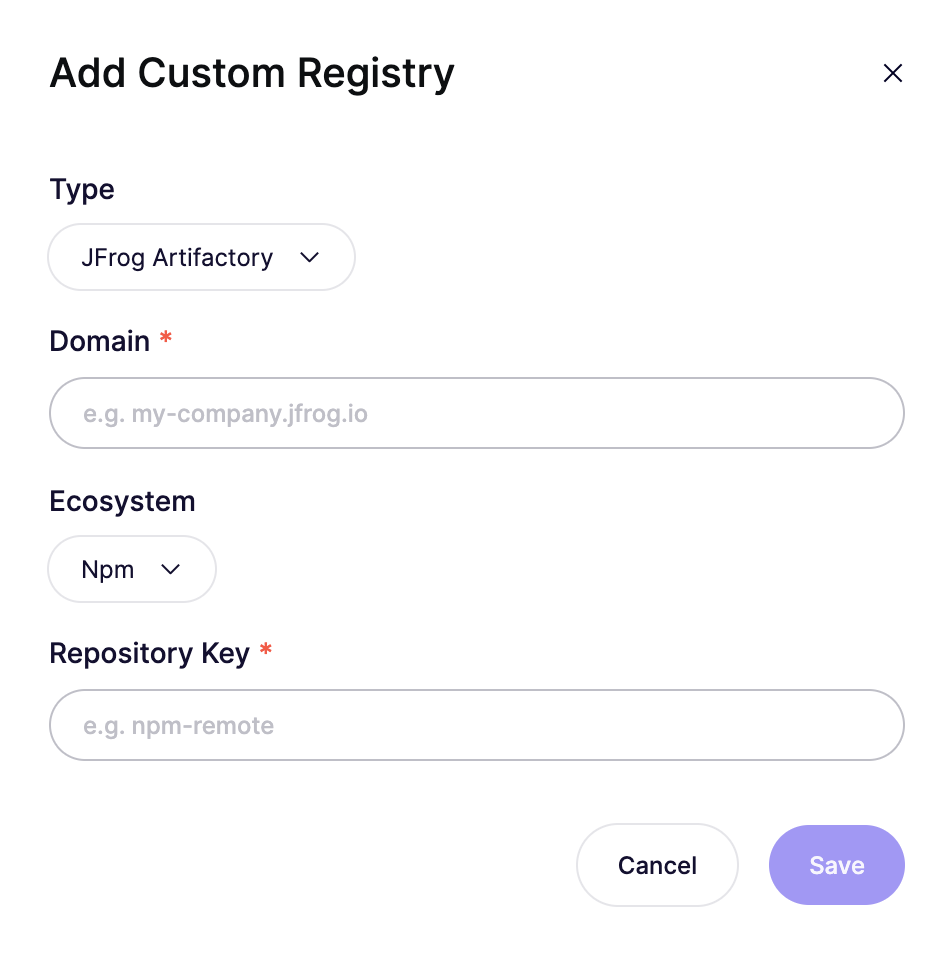
3. Select the registry **Type**: AWS CodeArtifact or JFrog Artifactory.
4. Enter the registry **Domain**, for example `my-org.d.codeartifact.us-east-1.amazonaws.com` or `my-company.jfrog.io`.
5. For JFrog Artifactory, select the **Ecosystem** that the repository proxies (for example Npm) and enter its **Repository Key** (for example `npm-remote`).
6. Save.
A JFrog repository key maps to a single ecosystem, so add a separate entry for each repository you use.
The registry now appears in the list with its type and domain. Use the **⋮** menu on a row to edit or remove it.