# Device Firewall
The Device Firewall controls which domains your connected devices can reach. Use it to keep developers away from risky package marketplaces, unapproved registries, malware and phishing domains, and other sites you don't want on work machines.
## How it works
Device Protection monitors network traffic on each device. When a device tries to reach a blocked domain, the request is stopped at the network level before it connects.
## Recommended, optional, and exceptions
The Firewall tab has three tabs at the top.
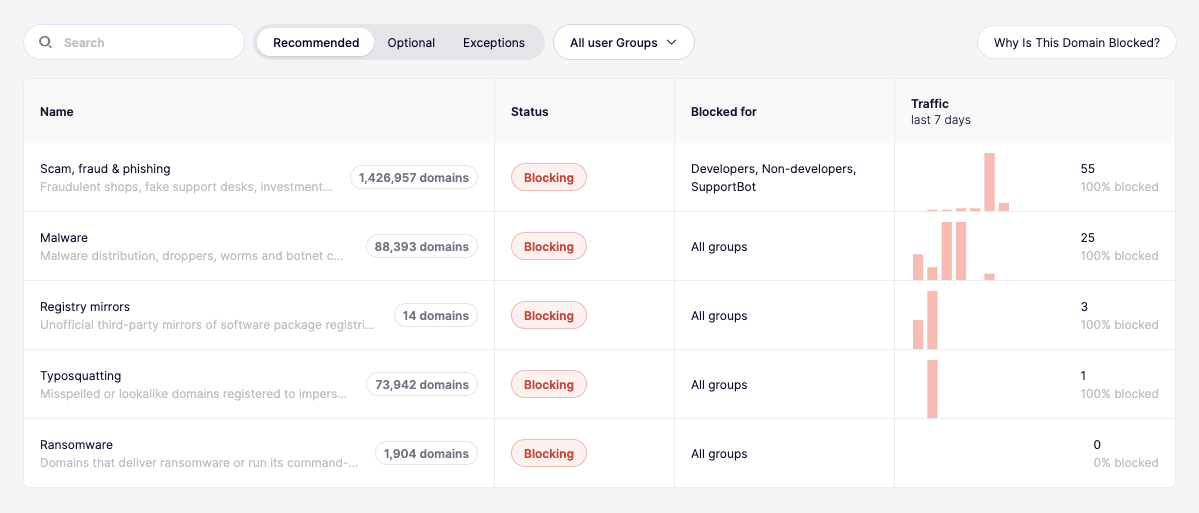
* **Recommended** shows the security lists Aikido advises you to block, such as Malware, Scam, fraud & phishing, and Typosquatting.
* **Optional** shows content category lists, such as Gambling, Advertising & tracking, Social media, and Gaming.
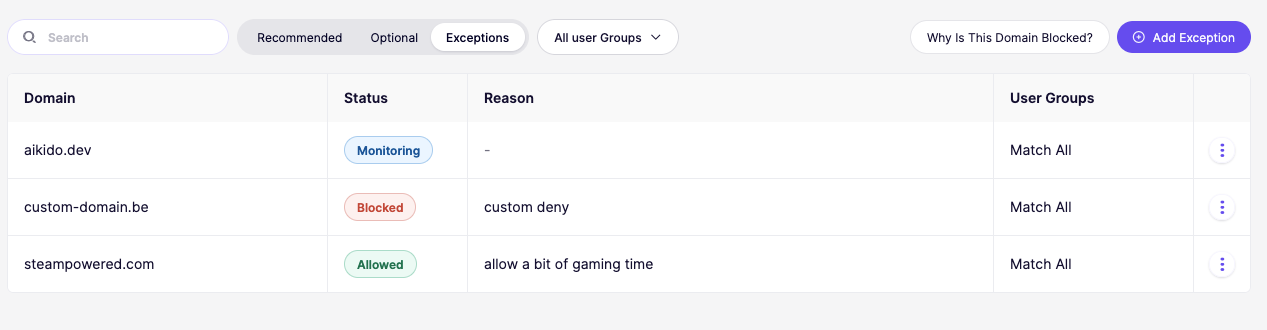
* **Exceptions** shows the individual domains you added yourself, to allow, block, or monitor them.
Aikido maintains the lists on the **Recommended** and **Optional** tabs and keeps them up to date for you. Each list bundles many domains, from a couple of dozen to several hundred thousand, so you set one policy instead of maintaining your own blocklist. Every row shows the list's description and its current domain count.
## Set a policy on a domain list
1. Go to [Device Protection and open the Firewall tab](https://app.aikido.dev/endpoint-protection/firewall).
2. Open the **Recommended** or **Optional** tab.
3. Select the list you want to configure.
4. Set its status:
* **Monitoring** lets requests through and records the traffic. Use this to see what your devices actually reach before you block anything.
* **Blocking** stops every request to a domain on the list.
5. Choose which **user groups** the policy applies to. Pick all groups, or a specific group such as Developers.
The **Blocked for** column shows the groups a list applies to, and **Traffic (last 7 days)** shows how many requests went to the list's domains and what share of them was blocked. A list set to Monitoring shows 0% blocked.
For the security lists below, the traffic also shows which device made each request, so you can follow up with the person whose machine reached a risky domain:
* Malware
* Ransomware
* VPN & proxy
* Dynamic DNS
* Scam, fraud & phishing
* Remote access
{% hint style="info" %}
Start new lists on Monitoring for a week, check the traffic numbers, then switch to Blocking. That way you see what you are about to break before you break it.
{% endhint %}
## Add an exception
Use an exception to set a policy on one of your own domains, or to override the domain lists for a single domain.
1. Go to [Device Protection and open the Firewall tab](https://app.aikido.dev/endpoint-protection/firewall).
2. Open the **Exceptions** tab.
3. Click **Add Exception**.
4. Enter the domain (for example `clawhub.ai`).
5. Set its status:
* **Allowed** lets every request to the domain through, even when the domain is on a list set to Blocking.
* **Blocked** stops every request to the domain.
* **Monitoring** lets requests through and records the traffic.
6. Choose which **User Groups** the exception applies to. Select **Match All** to apply it to every device, or pick a specific group such as Developers.
7. Optionally add a **Reason** so your team knows why the exception exists.
8. Save the exception.
The domain now appears on the **Exceptions** tab and applies to the selected devices.
{% hint style="info" %}
An exception overrides the domain lists for its user groups. For example, set `steampowered.com` to **Allowed** to let it through while the Gaming list stays on Blocking.
{% endhint %}
## Check whether a domain is blocked
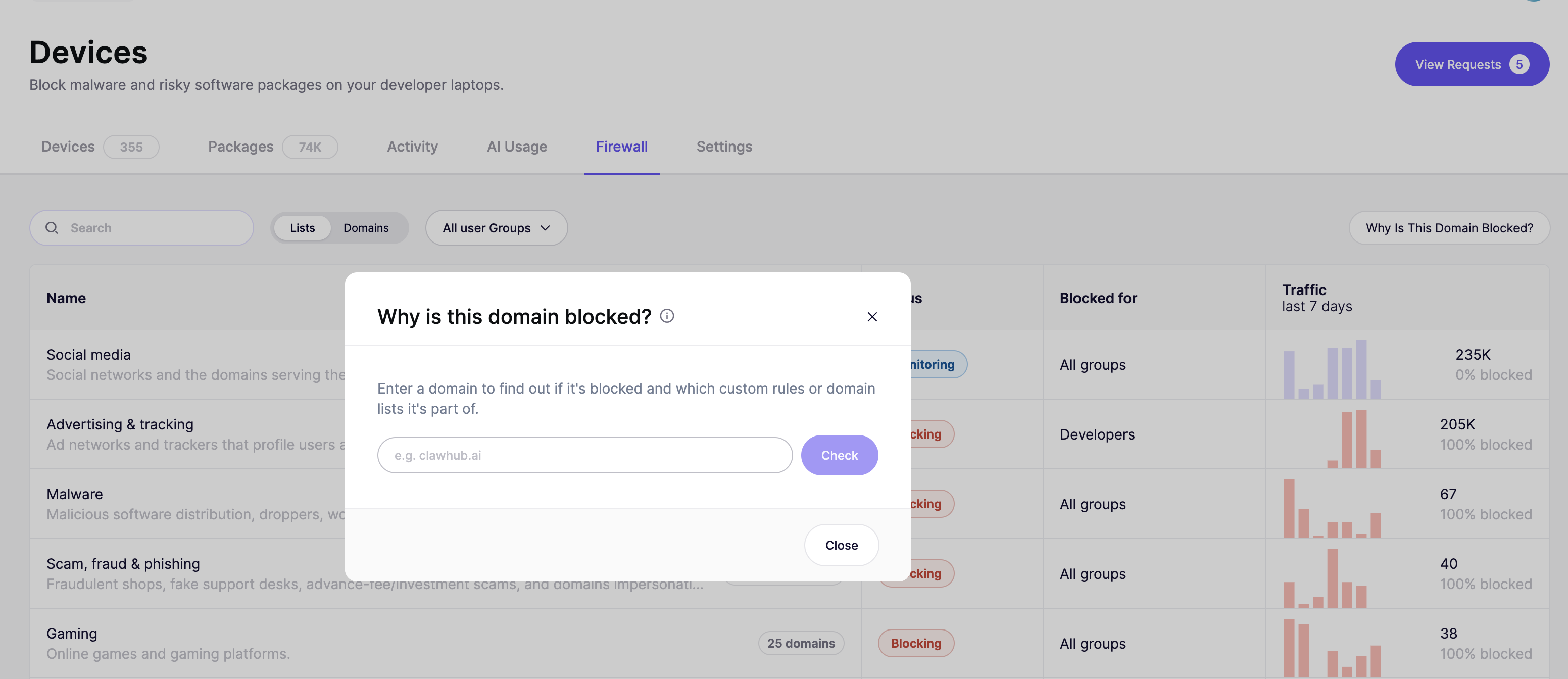
Click **Why Is This Domain Blocked?** in the top right of the Firewall tab, available on every tab. Enter a domain and click **Check**. Aikido tells you whether the domain is blocked, and which exceptions or domain lists it belongs to.
Use this when a developer reports that a site won't load and you need to know which rule is responsible before you change anything.
## Manage lists and exceptions
* Use the **Search** bar to find a list or an exception by name.
* Use the **All user Groups** filter to see only the lists and exceptions that apply to a specific group.
* On the **Exceptions** tab, click the menu (the three dots) on any row to edit or remove an exception.