# AutoFix for Containers: Aikido Images
Updating to the latest version of a base image can be difficult because it may require changes to your application. When updating to a newer base image is not a viable option, you can stay secure by using **Aikido Images**.
Aikido Images is a registry of zero-CVE base images: drop-in replacements that carry patched versions of libraries with reported **CRITICAL** or **HIGH** severity security issues. When you accept an AutoFix suggestion to use an Aikido Image, the image from the Aikido registry replaces the existing base image in your Dockerfile.
{% hint style="info" %}
Aikido Images cover OS-level CVEs under a defined [patch creation SLA](https://help.aikidogov.us/autofix-and-remediation/aikido-libraries-overview/patch-creation-sla). Application-level package vulnerabilities (Python, npm, Java, Go, etc.) are also fixed, but on a best-effort basis with no guaranteed SLA. For guaranteed application-level coverage, see [Aikido Libraries](https://help.aikidogov.us/autofix-and-remediation/aikido-libraries-overview).
{% endhint %}
For example, [CVE-2025-4373](https://security-tracker.debian.org/tracker/CVE-2025-4373) is fixed by Debian in Trixie and Sid but not in Bookworm. The Aikido Images variant of `debian:bookworm` contains a patched version of `glib2.0` that fixes this vulnerability. Using this image avoids breaking changes while maintaining a good security posture.
Aikido Images are continuously rebuilt as new CVEs are reported, so the base images you depend on stay up to date, with AutoFix surfacing updates as appropriate.
## Using Aikido Images with AutoFix
1. In Aikido, navigate to **Containers**. For a container with security issues, select the kebab menu for that entry and click **Preview AutoFix** (if AutoFix is available for that issue).
1. **Note:** You can alternatively navigate to **AutoFix > Containers** and click **View Fix** under the **Status** column for that issue.
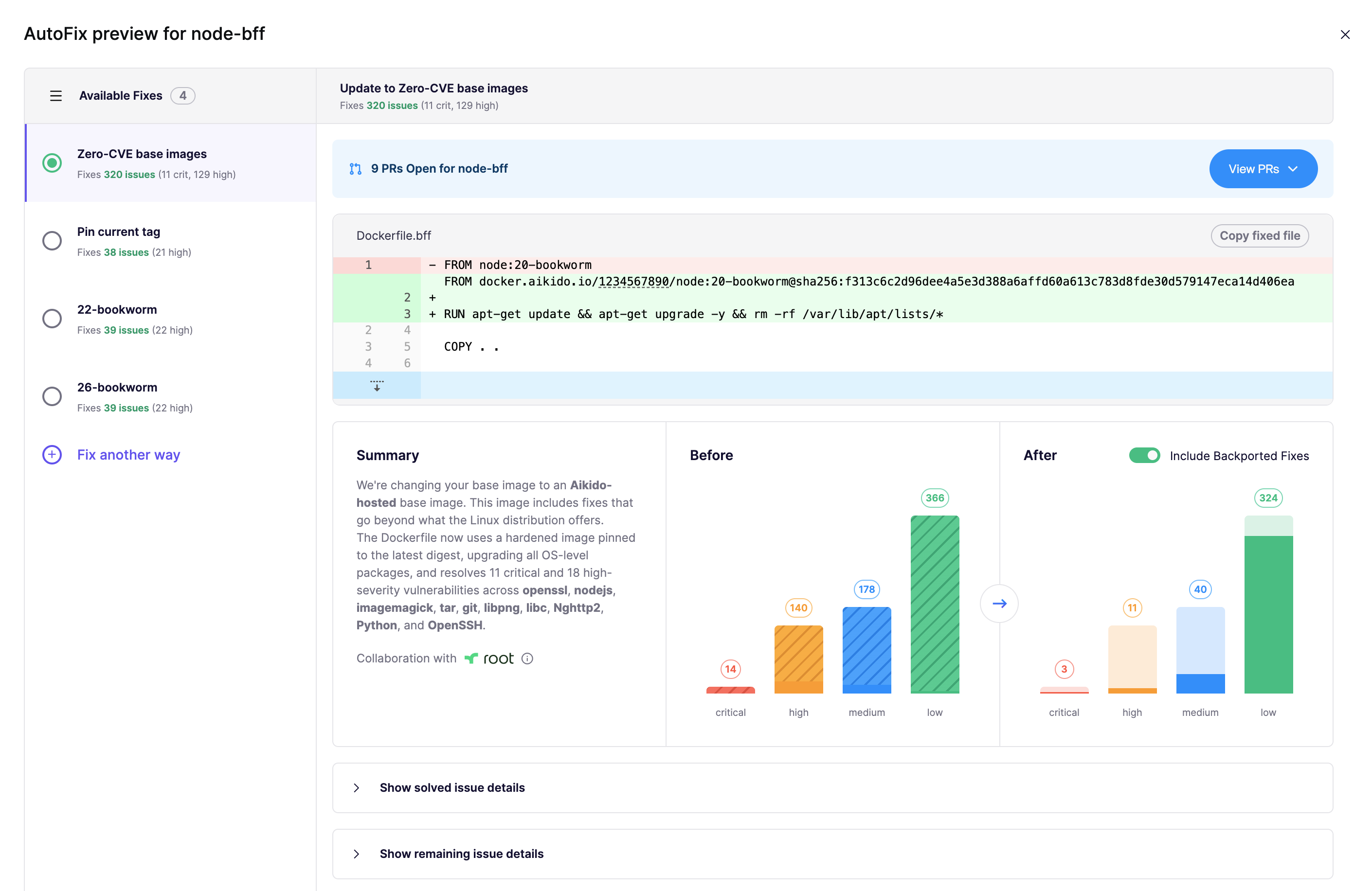
2. AutoFix for containers will automatically propose an Aikido Image when available. The image is hosted on `docker.aikido.io`.
In this example we see a Dockerfile using a `node:20-bookworm` base image. Switching to the Aikido Images variant resolves 322 issues present in that base image.
3. Select **Create PR** to open a pull request in your SCM to apply the fix.
### Using Aikido Images with the Local Scanner
Aikido Images are also available when you scan images with the [Aikido Local Scanner](https://help.aikidogov.us/container-image-scanning/local-image-scanning/setting-up-image-scanning-with-local-scanner). Because the Local Scanner is used when Aikido does not have access to your source code, AutoFix cannot open a pull request against your Dockerfile. Instead, Aikido shows the suggested Aikido Image in the UI and you apply the change yourself by following the [Manually changing the base image](https://help.aikidogov.us/autofix-and-remediation/aikido-images/autofix-for-containers-using-aikido-images#manually-changing-the-base-image) steps below.
## Aikido Images availability
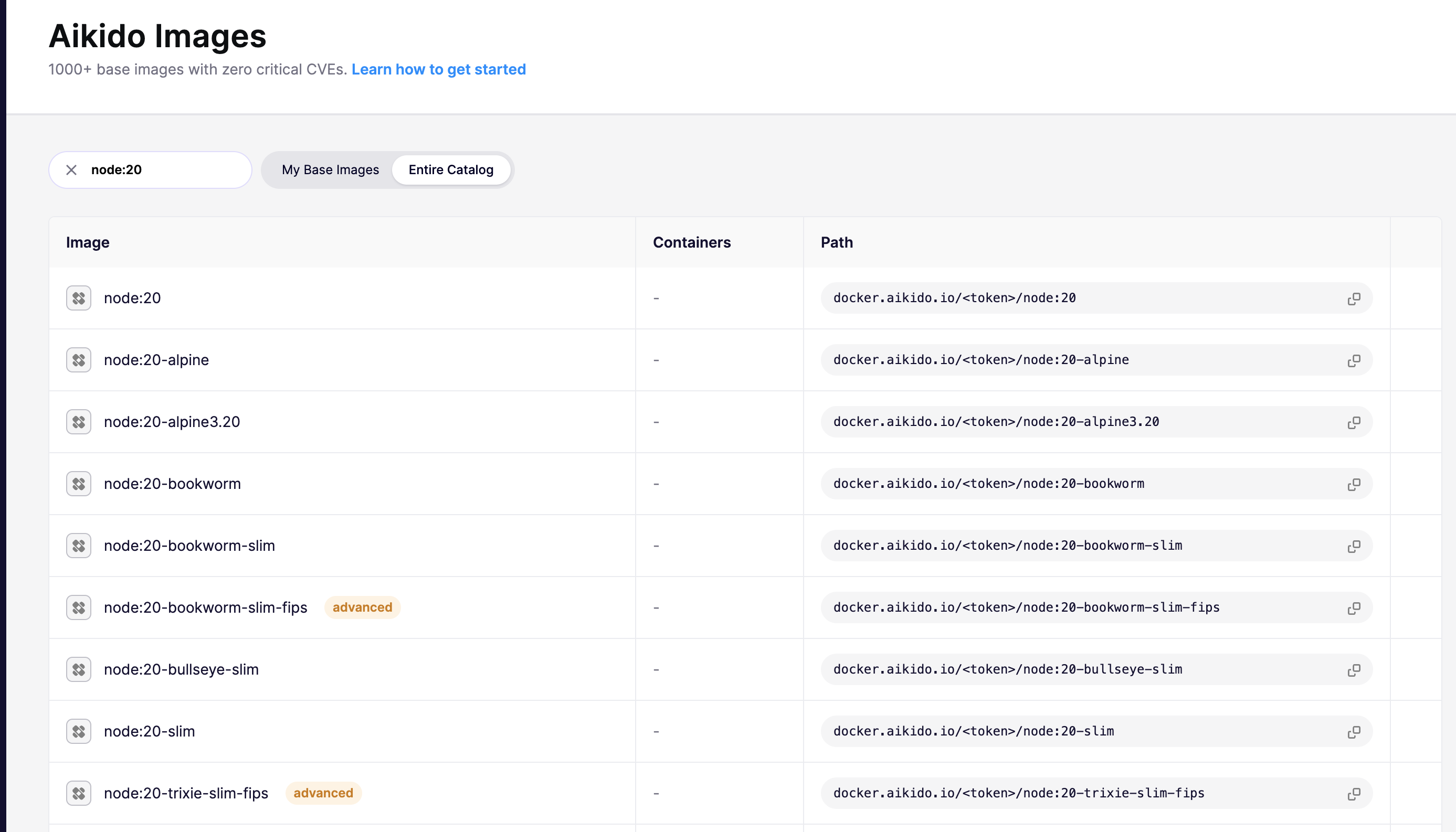
In Aikido, you can view the available base images on [**AutoFix** > **Cloud** > **Containers** > **Aikido Images**](https://app.aikido.dev/issues/aikido-images).
All images are available for both `amd64` and `arm64` architectures.
### Manually changing the base image
Click `Show Path` to see the full path for the base image. It will look like:
```
docker.aikido.io//:
```
The token is a read-only token specific to your Aikido account. As an example, this is how you switch from Debian Bookworm to the matching Aikido Image. In your Dockerfile, change
```
FROM debian:bookworm
```
to
```
FROM docker.aikido.io//debian:bookworm
```
Don't forget to replace `` with the token visible in the Aikido UI.