# Cloud Inventory
Aikido automatically builds an inventory of every asset across your connected cloud environments. This gives you a single, always up to date view of what exists in your cloud, without needing to check each provider separately.
## Why it matters
Cloud environments change constantly, and it's easy to lose track of what's actually running across accounts, regions, and providers. Cloud Inventory gives you one place to see every asset, spot exposed or misconfigured resources, and understand how assets connect to each other, without logging into each provider's console.
## What it is
After you [connect a cloud account](https://help.aikidogov.us/cloud-scanning/connect-your-cloud), Aikido pulls in your resources (like EC2 instances, S3 buckets, IAM roles, Lambda functions, and containers running in the cloud) and keeps this list in sync automatically.
{% hint style="info" %}
Aikido also enriches each asset with security context, like vulnerabilities and end of life issues found on VMs and containers. This means the inventory isn't just a list of resources, it's a list of resources with their risk attached.
{% endhint %}
## Viewing your inventory
{% stepper %}
{% step %}
### Go to Clouds
From the left navigation, under Assets, click **Clouds**.
{% endstep %}
{% step %}
### Open a cloud account
Click into the specific cloud account you want to inspect (for example, an AWS account).
{% endstep %}
{% step %}
### Open the Inventory tab
On the cloud account page, click the **Inventory** tab.
{% endstep %}
{% endstepper %}
## Asset map
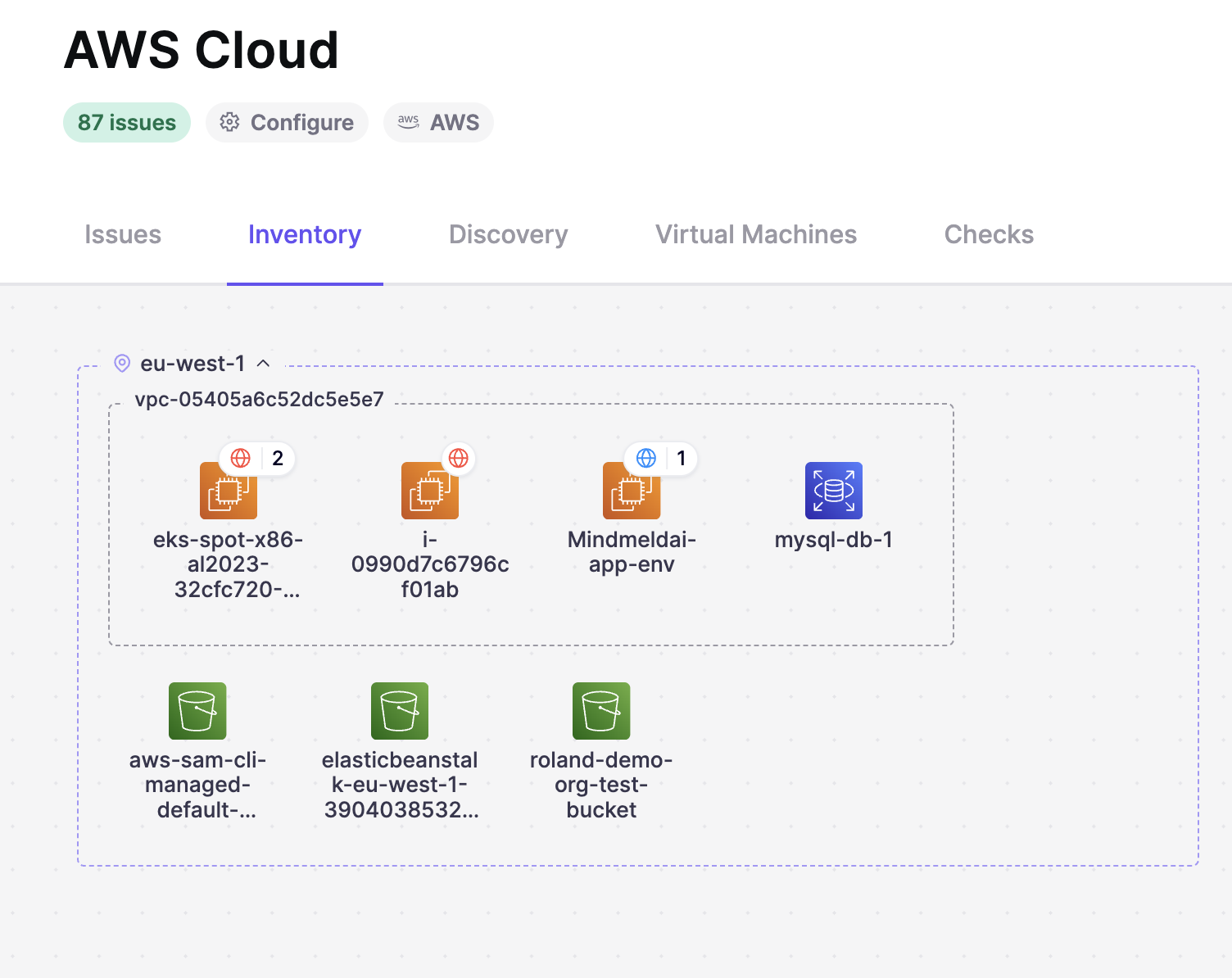
The map gives you a visual layout of your resources, grouped by region and then by VPC, so you can see what you have and where it lives at a glance.
Each asset appears as a tile with an icon for its type (EC2 instance, RDS database, Kubernetes resource, etc.) and its name. A globe badge with a number means that asset has that many exposure findings, like ports or endpoints open to the internet.
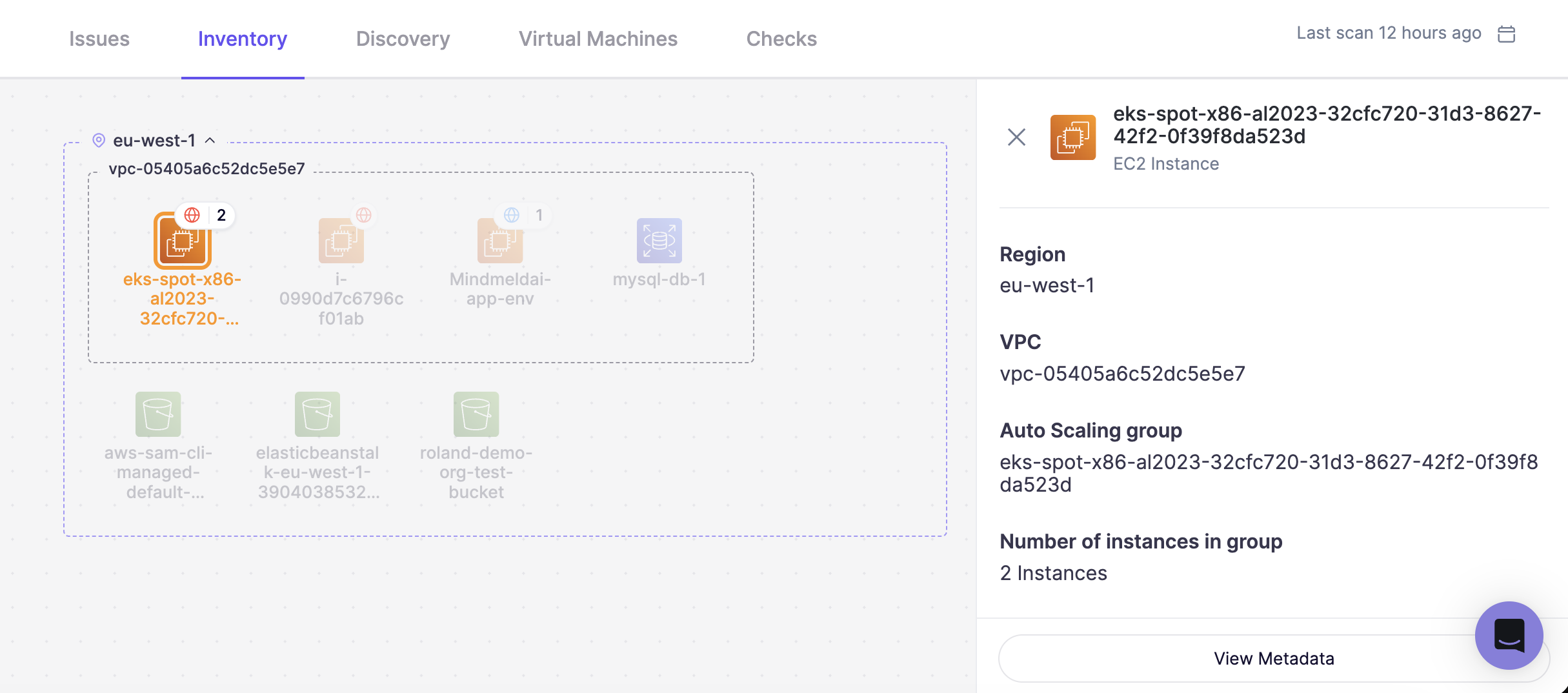
Click a tile to open its details in the panel on the right.
## Node details panel
* **Region and VPC**
* **Auto Scaling group** – name and number of instances in the group (if applicable)
* **Exposure** – investigate the attack graph to see how this asset is reachable (for example, "Reachable via load balancer")
* **Firewall rules** – **Allow Inbound** and **Allow Outbound** rules with protocol, port, and security group
* **Connected resources** – other assets this node connects to and how (for example, a database "via" a security group)
* **View Metadata** – explore the raw resource metadata
Looking to find specific assets instead of browsing? See [Cloud Discovery: Search Asset Inventory](https://help.aikido.dev/cloud-scanning/cloud-discovery-querying-the-asset-graph).