# Get Required Values + Set Up Configuration to Connect GCP Cloud via Public API
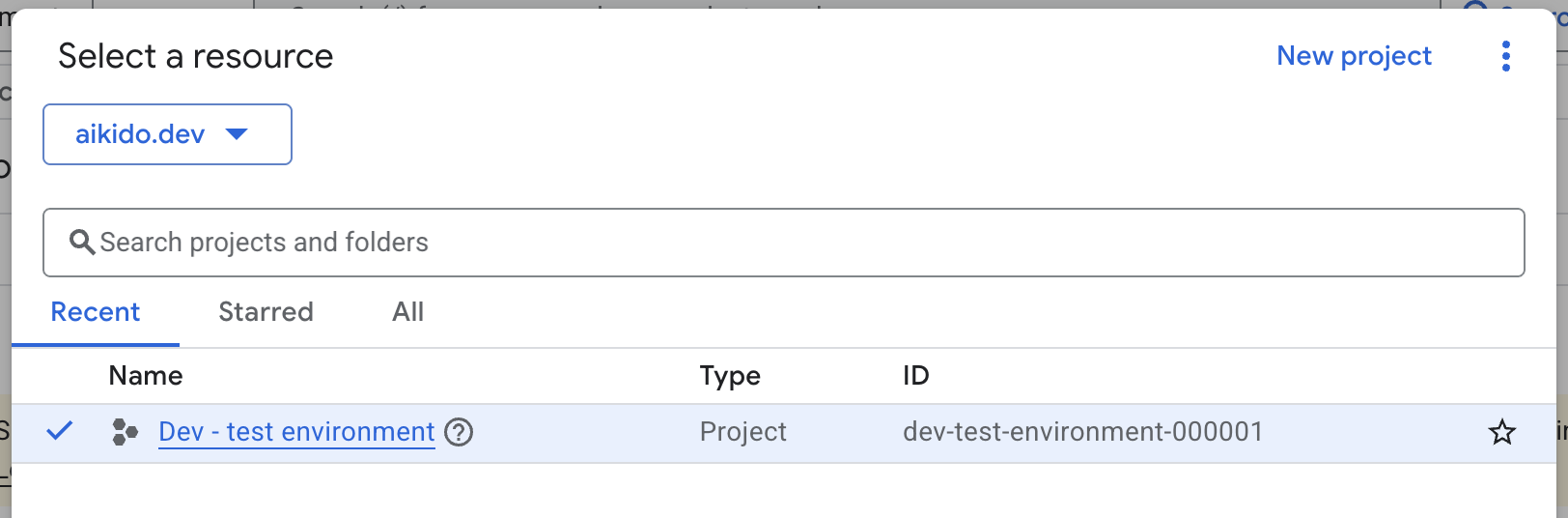
Login to your [Google Cloud](https://console.cloud.google.com/) and click your **project name** in the header to open the resource selection modal.
Select the project you want to add and save your **project id**
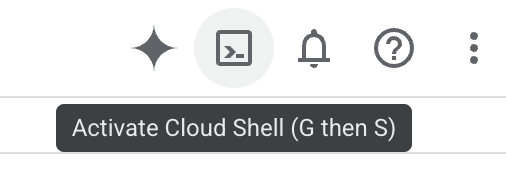
Activate a cloud shell
Paste and execute following command. A success message should be visible.
```
gcloud services enable compute.googleapis.com storage-component.googleapis.com iam.googleapis.com container.googleapis.com logging.googleapis.com monitoring.googleapis.com cloudresourcemanager.googleapis.com cloudkms.googleapis.com bigquery-json.googleapis.com dns.googleapis.com sqladmin.googleapis.com
```
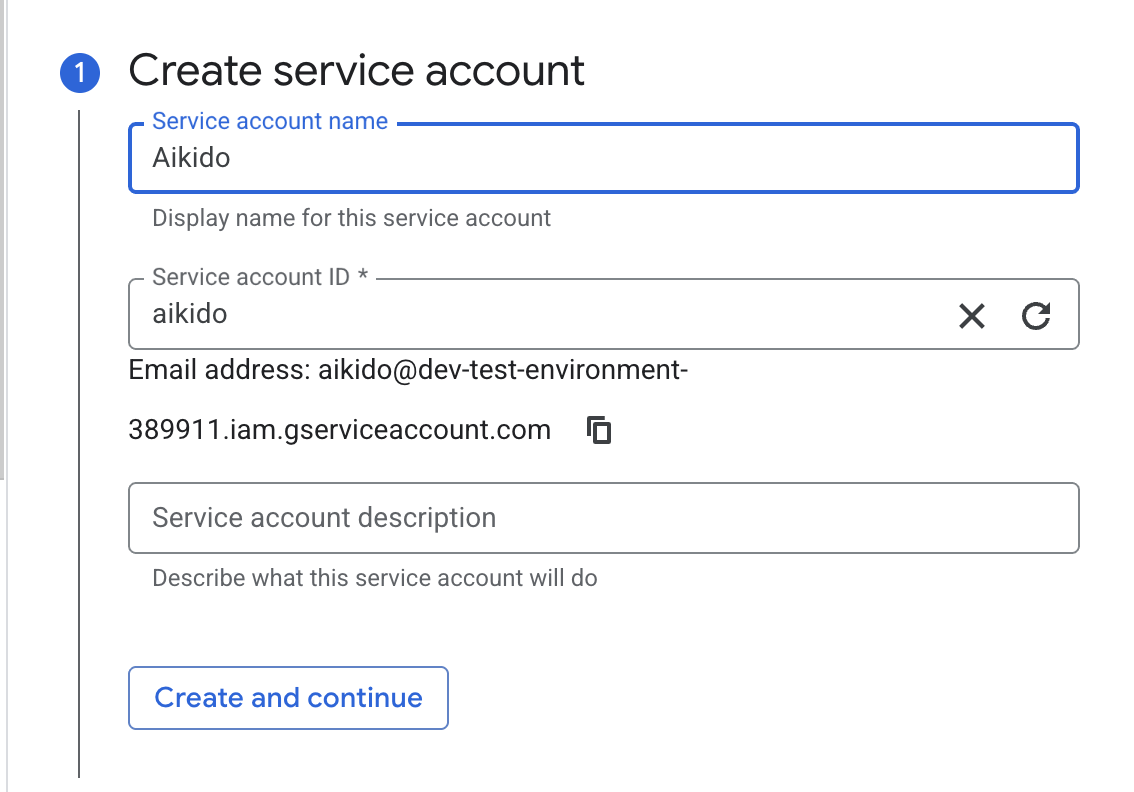
Create a [service account](https://console.cloud.google.com/iam-admin/serviceaccounts/create). You can freely name the account but we recommend having **aikido** in it.
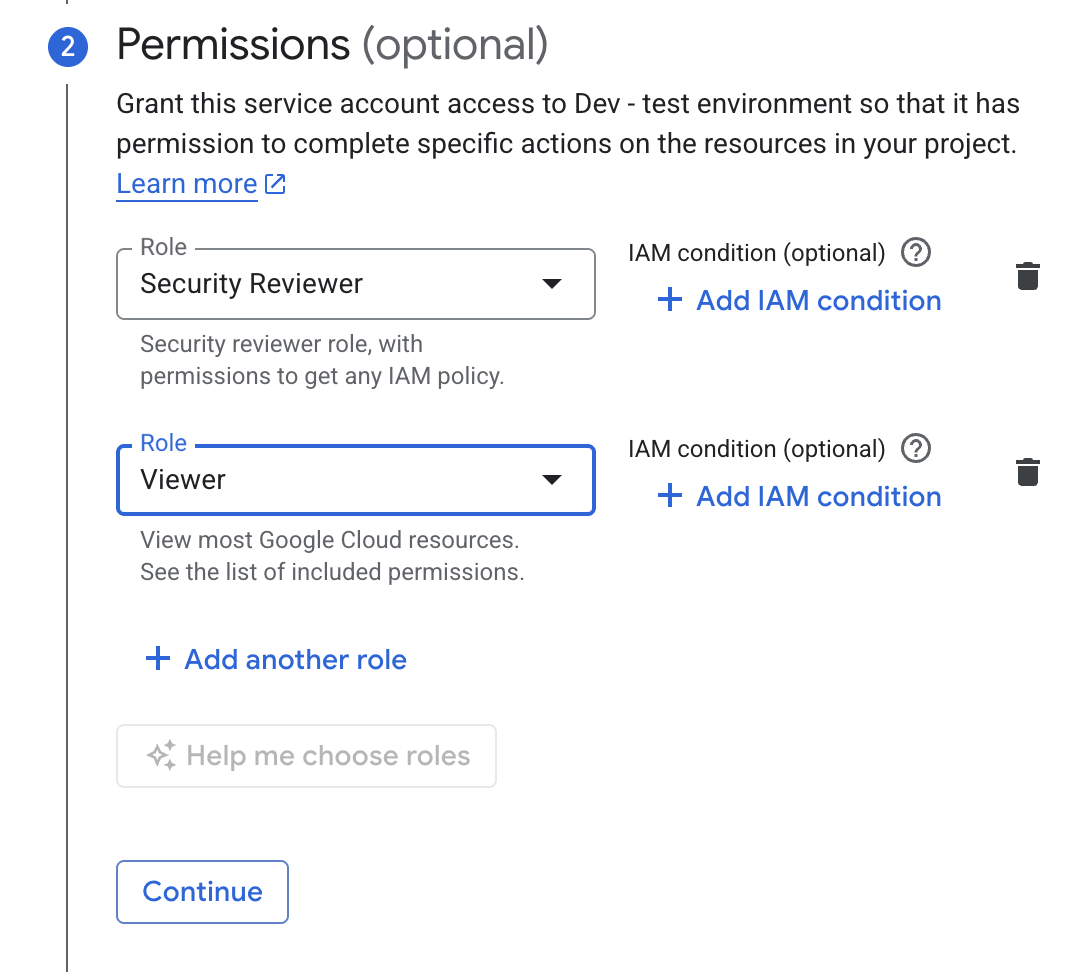
Add both **Security Reviewer** and **Viewer** roles
Click **done**, step 3 of the create service account can be skipped
Navigate to the detail page of the newly created service account
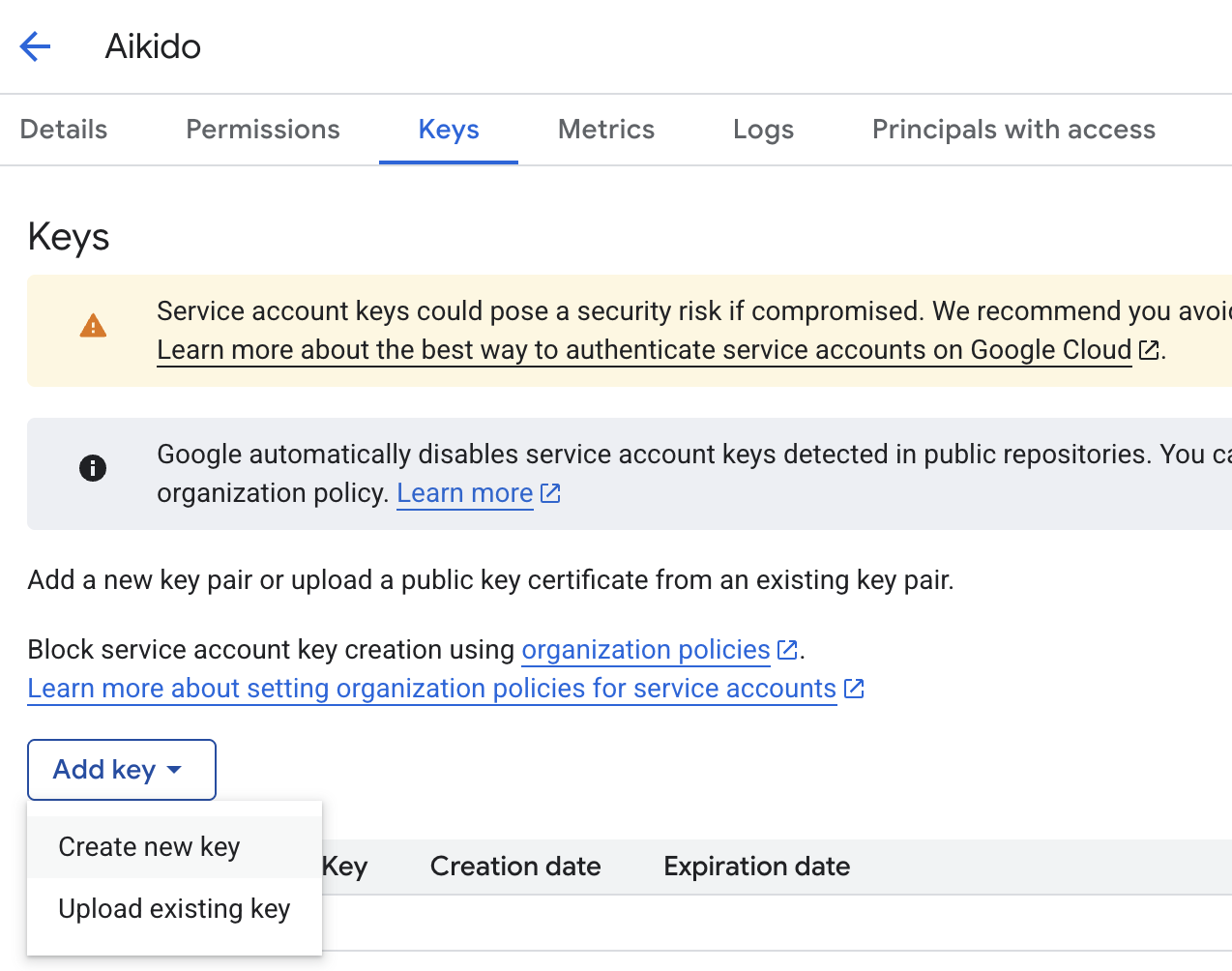
Go to the **Keys** tab and **create a new key**
Select the **JSON** option. A json-file should be downloaded. Save this file.
You can now connect this cloud to Aikido using the public API.