# Connect Bitbucket Cloud
## Connect Bitbucket Account to Aikido
Aikido requests read-only access to your Bitbucket organization to analyze your repositories. After analysis, your code is always wiped from the system.
### 1. Logging in using Bitbucket
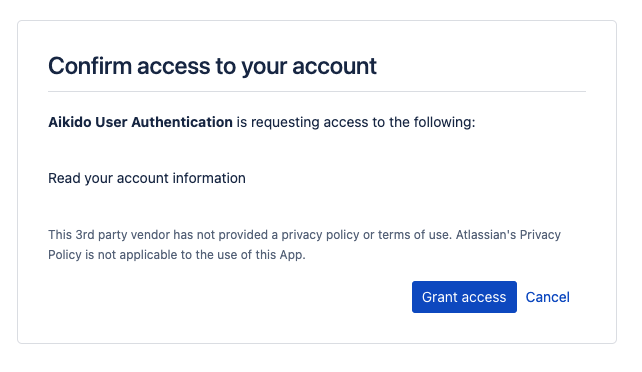
To get started, navigate to [https://app.aikido.dev/](https://app.aikido.dev/) and log in with Bitbucket. This will look like the screenshot below. Here, Aikido only requests access to your identity on Bitbucket and the associated email address.
### 2. Authorizing access to an organization
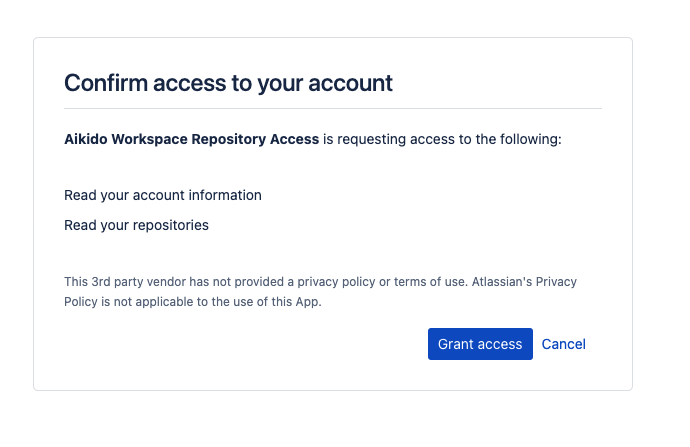
On the next screen, you can choose to connect a real organization or a sample workspace. If you choose a real organization you will be redirected back to Bitbucket. Once there, pick the organization you would like to authorize.
### 3. Select your repos
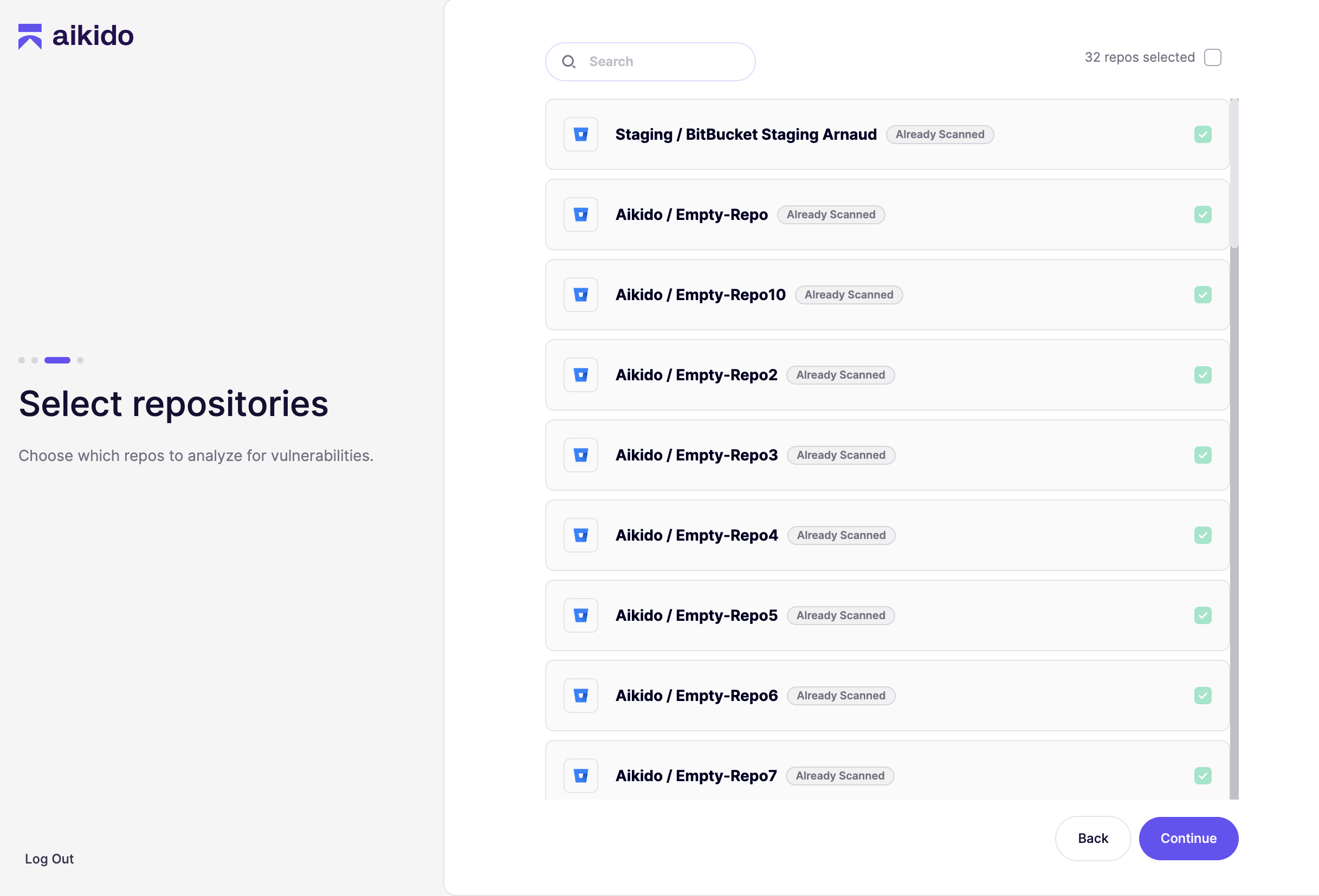
You can optionally grant access to 1 or 2 repositories instead of all repositories as seen below:
### 4. Checking results
After granting access and validating the repositories you want to scan, Aikido will automatically start scanning. After about 1 minute, you should see the first results come in!