# Connect GitLab Account
Aikido requests read-only access to your GitLab group to analyze your projects. After analysis, your code is always wiped from the system.
_**Important before you start**_
* If your GitLab is behind a firewall, we have a [list of Static IPs](https://help.aikido.dev/en/articles/8731261-allowing-ip-addresses-for-code-scanning) you can allowlist.
* The person who sets up the account needs to have access rights both to the GitLab instance **and** GitLab group.
{% hint style="info" %}
Important that the user direct member of the subgroup. Inherited membership is not supported for this action.
{% endhint %}
{% hint style="warning" %}
* Important that the user setting up the workspace is a direct member of each Gitlab (sub)group. Inherited membership alone is not sufficient.
* An Aikido workspace maps by default to a single GitLab group. We recommend to connect Aikido to a top-level GitLab group (i.e. root group) that contains all subgroups. If that's not possible and you need to connect multiple groups to the same Aikido workspace, please follow the specific instructions for [Connecting multiple top-level GitLab groups to a single workspace](https://help.aikido.dev/code-scanning/connect-your-source-code/connect-gitlab-account-to-aikido/connecting-multiple-top-level-gitlab-groups-to-a-single-workspace).
{% endhint %}
{% hint style="success" %}
**Repositories not linked to a group**, but linked to just your user can currently not be scanned. If you do have personal repositories which you'd like to have scanned, we recommend to create a personal group, or transfer them to a group you own.
{% endhint %}
#### Step 1. Logging in using GitLab
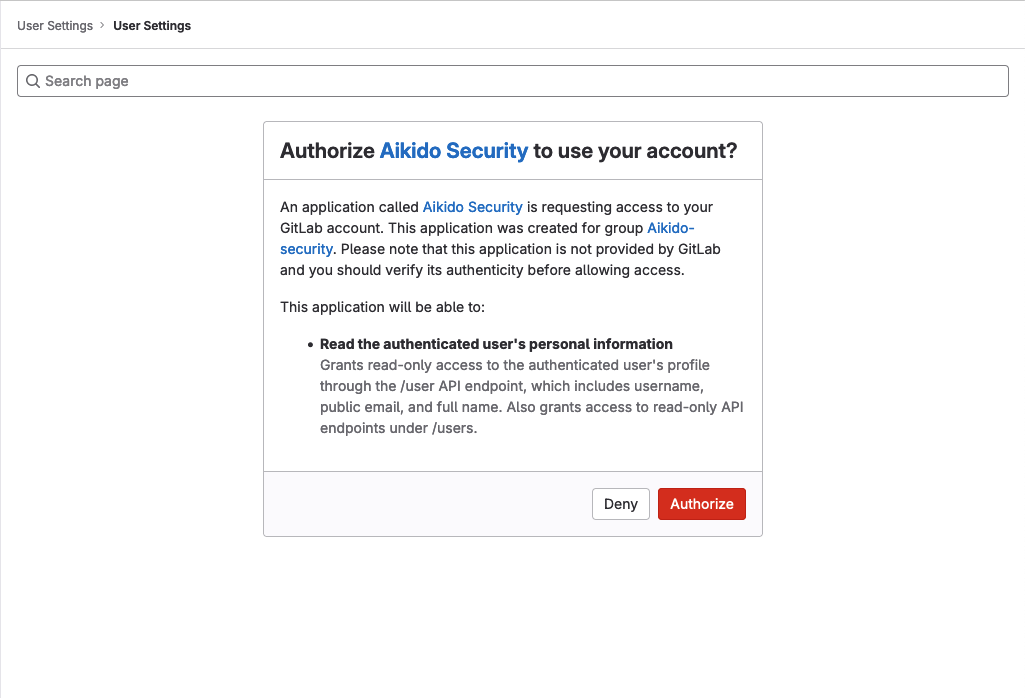
To get started, navigate to [https://app.aikido.dev](https://app.aikido.dev) and log in with GitLab. This will look like the screenshot below. Here, Aikido only requests access to your identity on GitLab and the associated email address.
#### Step 2. Creating a workspace, join an existing workspace or create a demo
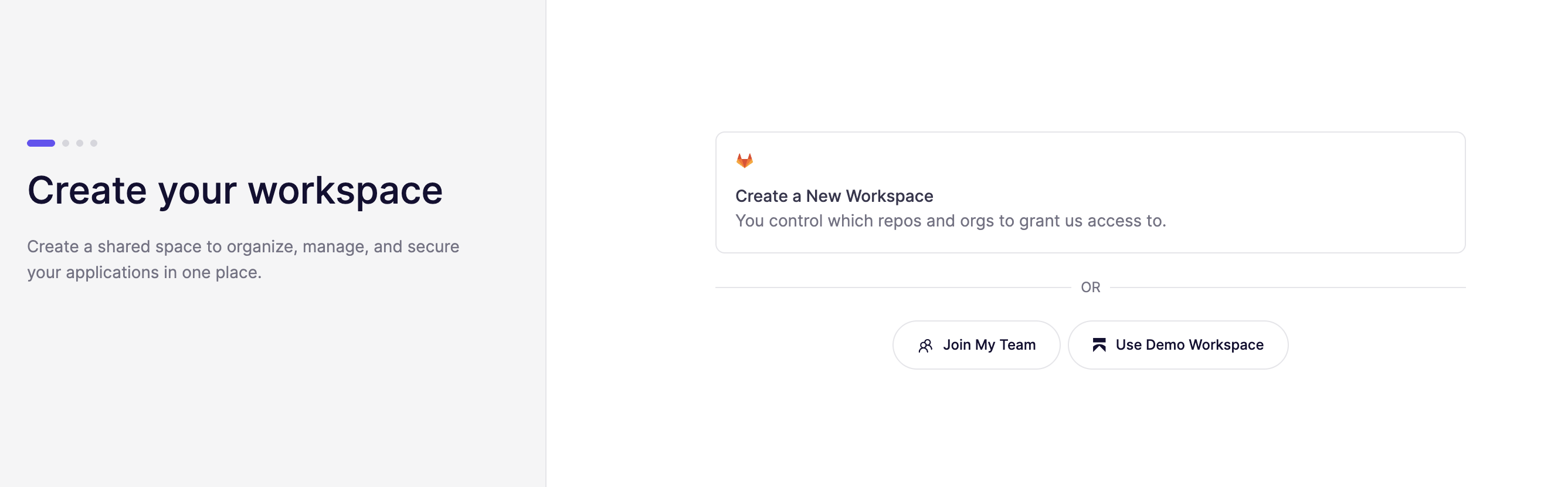
After authorizing Aikido to read your personal GitLab information you get the following screen.
On this page you can do one of 3 things:
* **Create a new workspace:** select this option if you want to connect a GitLab group to Aikido and start scanning your code repositories and clouds.
* **Join your team:** select this option if someone in your organization already connected a GitLab group to Aikido, and you'd like to get access to it
* **Use sample repo:** want to have a sneak peak of what Aikido looks like and what it can do? Create a demo account to get a taste of Aikido. You can always connect your GitLab group at a later moment
#### Step 3. Connect a GitLab group to Aikido
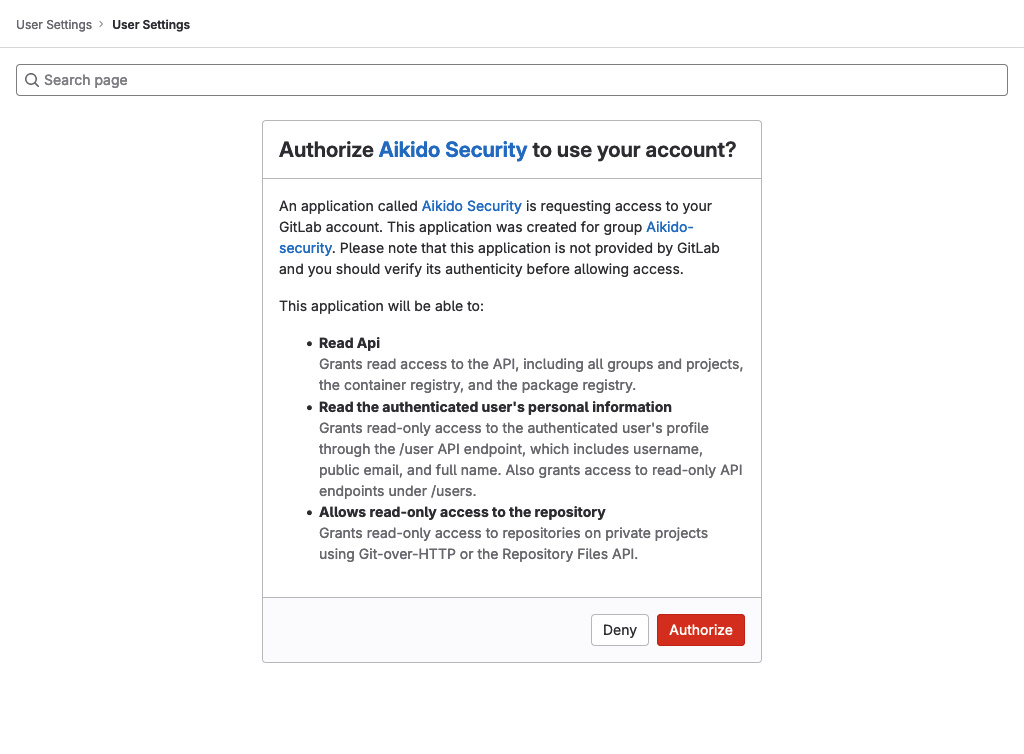
If you would like to create a new workspace, Aikido will need **read-only access** to your projects and groups. We will therefore redirect you back to GitLab so you can authorize Aikido.
**Note.** This does _not_ give access to the actual repos yet. Selecting which ones you want to have scanned is in the step after this one.
#### Step 4. Selecting groups & selecting repos
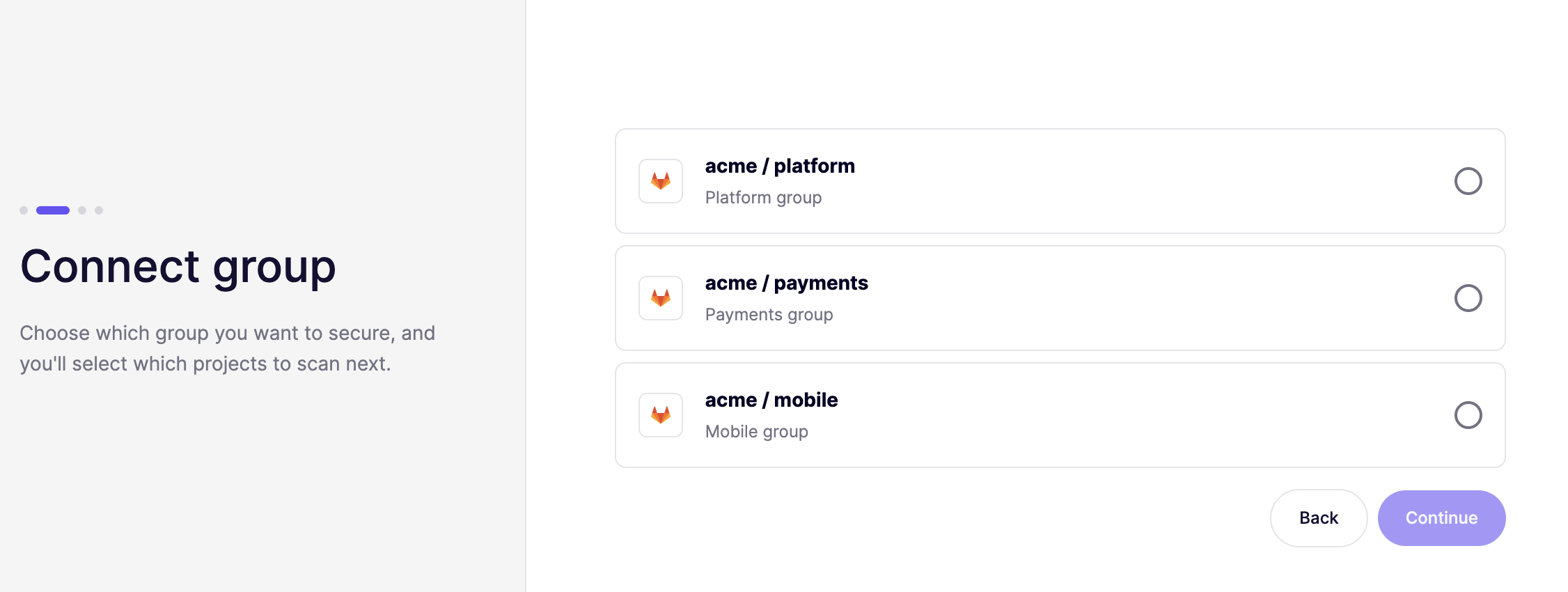
After authorizing Aikido to read your groups and projects, you can select which group you'd like to connect to Aikido.
**Note:** Aikido will include any subgroups of the GitLab group you selected in the workspace
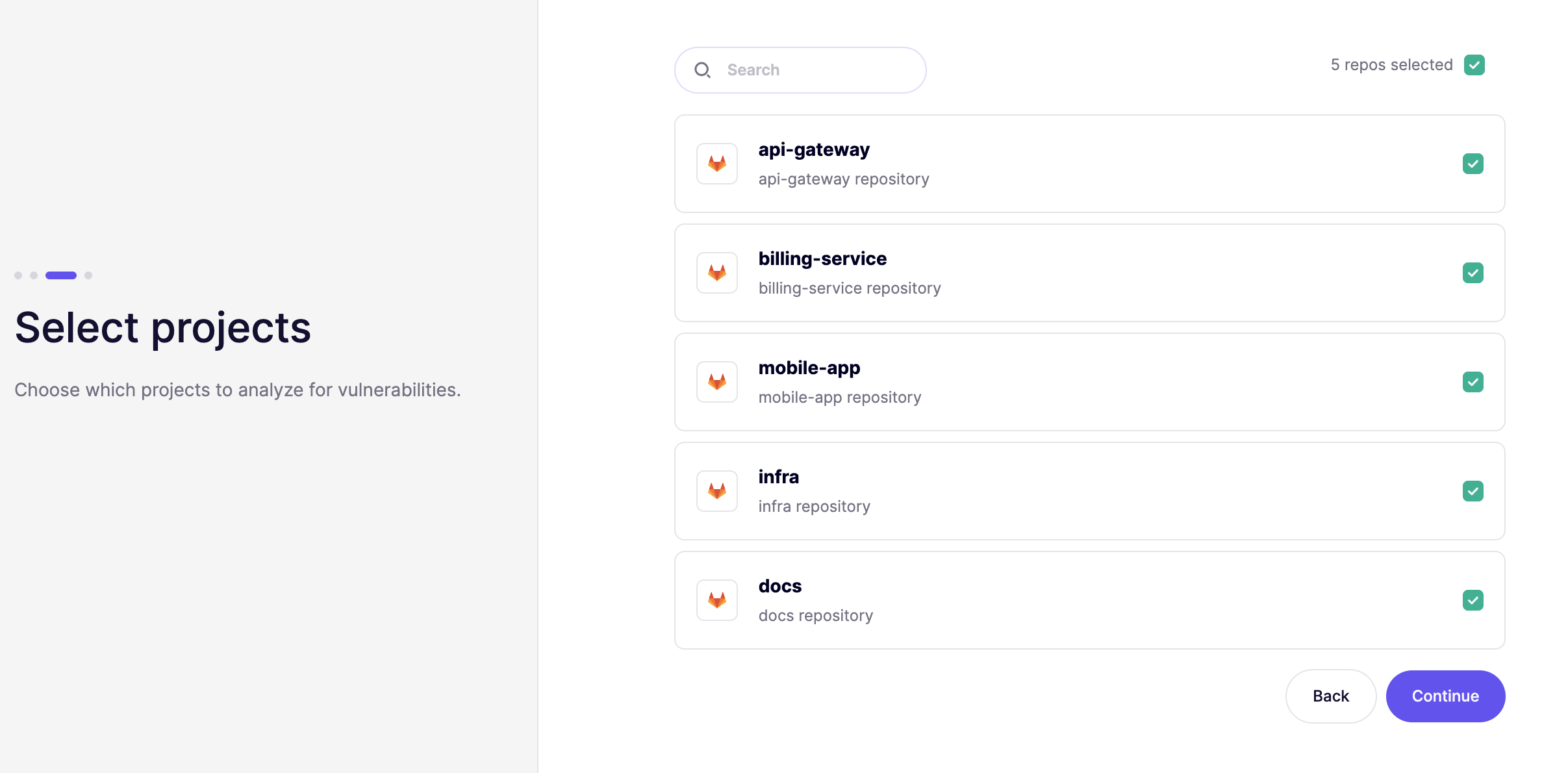
After selecting the groups of choice, you can choose which repositories you want to give access to.
#### 5. Checking results
After granting access and validating the repositories you want to scan, Aikido will automatically start scanning. After about 1 minute, you should see the first results come in!