# Exporting an SBOM
Aikido allows you to export both **SBOMs (Software Bill of Materials)** and **VEX (Vulnerability Exploitability eXchange)** files. These exports give you visibility into your software components (including open-source components) and help you prioritize what actually needs fixing.
**Use Cases:**
* **SBOM Export** (CycloneDX 1.6 , SPDX-2.3 or CSV)
* Share with third-parties during M&A, procurement, or audits (e.g., ISO 27001, SOC2).
* Regulatory compliance with regulations like the Cyber Resilience Act (CRA), Medical Device Regulation (MDR) or Executive Order 14028.
* Feed into third-party risk or procurement tools.
* **VEX Export** (CycloneDX only)
* Clearly flag which vulnerabilities are **exploitable** and which are **not applicable**.
* Attestation of due diligence, a VEX proves to third-parties that you are actively managing kown vulnerabilities.
## Where to find the SBOM
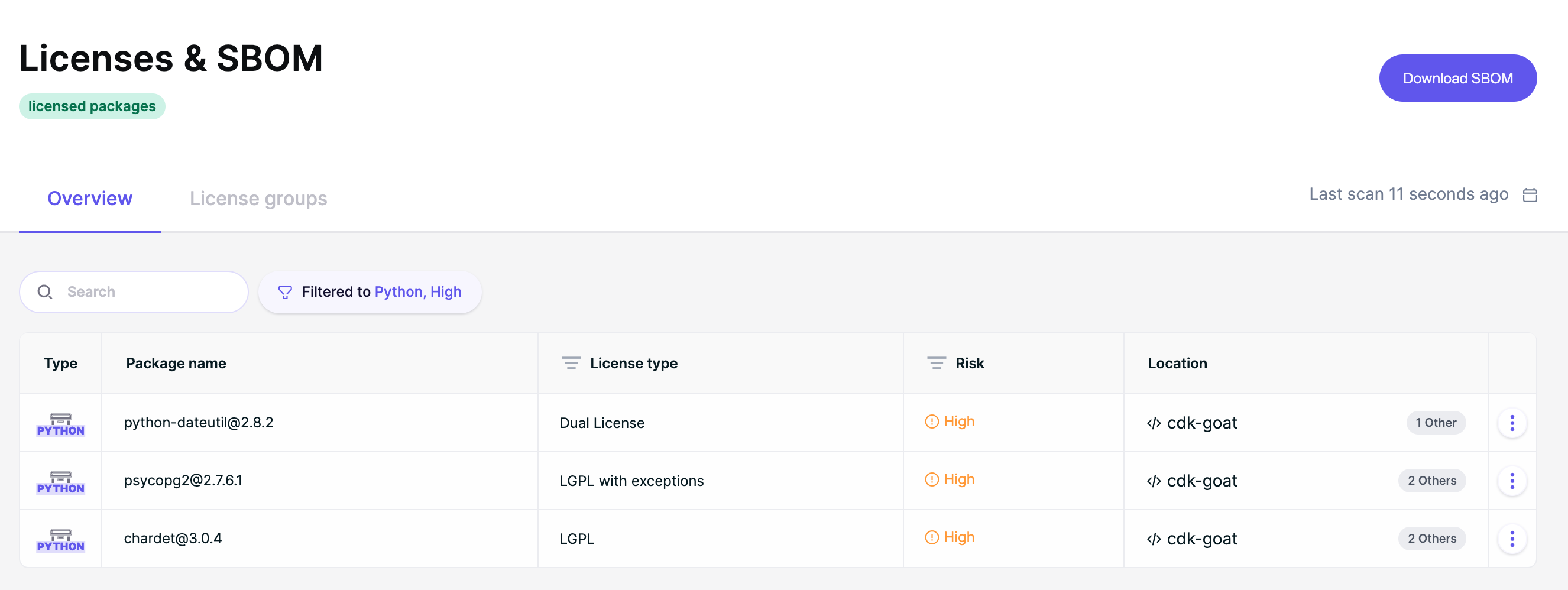
**Step 1.** Go to Reports > [Licenses & SBOM](https://app.aikido.dev/licenses)
**Step 2.** Download SPDX, CycloneDX, or CSV SBOM via the top right action
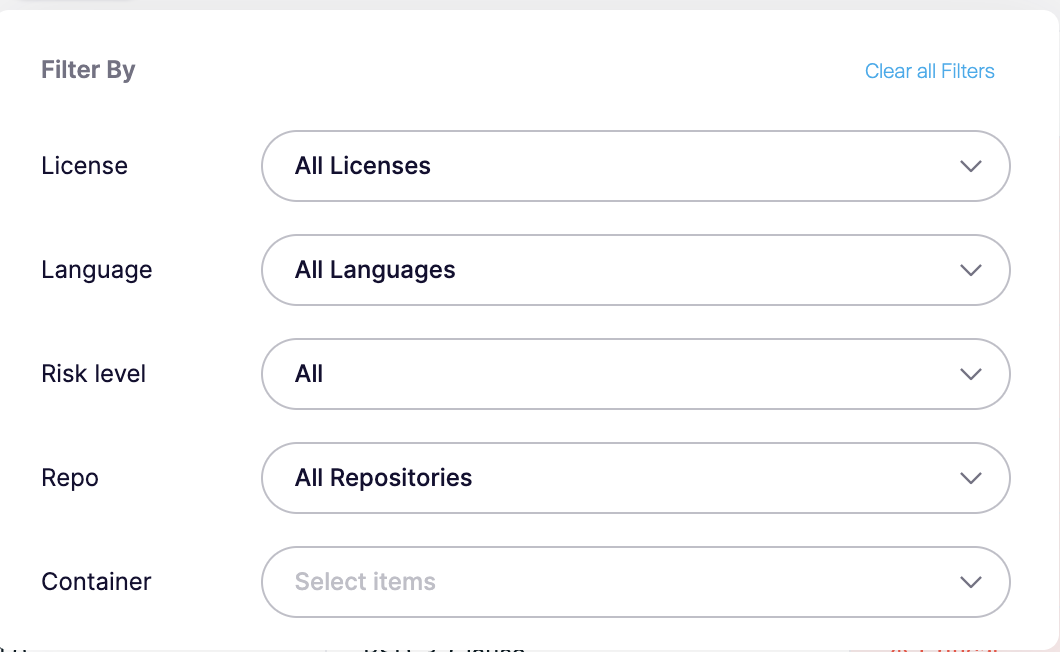
**Optional.** Filter licenses on different parameters and export the SBOM after. The export takes into account the chosen filter values.
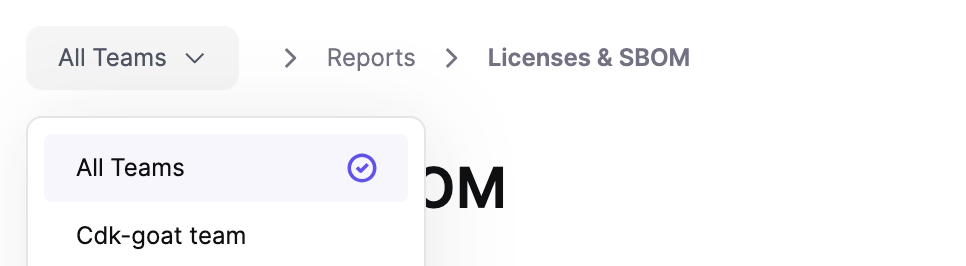
If you want to filter on team, you can do this via changing the Team Filter on the top of the page.
> If you have multi-branch scanning enabled, you can get different SBOMs per branch by selecting the specific branch repo in the dropdown. Contact us via in-app chat for more info.
### Generate and export via API
Generate and download your SBOM via our [Export SBOM API](https://apidocs.aikido.dev/reference/exportcoderepolicenses).
# Monitoring self-generated SBOMs
Embedded systems built using tools like Buildroot or Yocto can generate the SBOM at build time. Since these systems often lack a standard container registry, you can upload these self-generated SBOMs to Aikido via the API to monitor supply-chain security and license compliance.
## Generating your SBOM via Buildroot / Yocto
{% tabs %}
{% tab title="Buildroot" %}
Buildroot generates a CycloneDX SBOM via its built-in [generate-cyclonedx](https://buildroot.org/downloads/manual/manual.html#_generating_cyclonedx_sbom) utility, which consumes the output of `make show-info`.
{% stepper %}
{% step %}
### Generate the SBOM
Run the following command:
```bash
make show-info | utils/generate-cyclonedx > sbom.cdx.json
```
This produces a single CycloneDX JSON file listing every package in your embedded Linux system together with its version, license, and source information.
{% endstep %}
{% endstepper %}
{% endtab %}
{% tab title="Yocto SPDX 2.2 Engine" %}
## Using Yocto's SPDX 2.2 Engine
Yocto provides native SPDX 2.2 SBOM generation through its `create-spdx` class, which is stable since Yocto 3.4 (Honister) and enabled by default.
{% stepper %}
{% step %}
### Configure Yocto's SPDX 2.2 Engine
Add the following to your `conf/local.conf` to instruct Yocto to generate a SPDX 2.2 documents for every recipe:
```
INHERIT += "create-spdx"
```
{% hint style="warning" %}
We recommend disabling the Yocto option [SPDX_INCLUDE_SOURCES](https://docs.yoctoproject.org/dev/ref-manual/variables.html#term-SPDX_INCLUDE_SOURCES) because it unnecessarily increases the size of your SBOMs.
{% endhint %}
{% endstep %}
{% step %}
### Building your image
Run a normal BitBake build:
```bash
bitbake
```
After a successful build the SPDX files are written to:
```
tmp/deploy/spdx//
```
The top-level image document (e.g. `-.spdx.json`) links to per-package SPDX documents in the same directory. We recommend merging the per-package SPDX files into a single SPDX file before uploading them to Aikido.
{% endstep %}
{% step %}
### Merging into a single SBOM
Because Yocto produces multiple `*.spdx.json` files (one for each recipe), you need to manually merge them into one SBOM file. This can be done easily via the [SPDXMergeTool](https://github.com/philips-software/SPDXMerge) or [sbomasm - assemble](https://github.com/interlynk-io/sbomasm/blob/main/docs/assemble.md#merge-algorithms).
{% endstep %}
{% endstepper %}
{% endtab %}
{% endtabs %}
## Upload the SBOM to Aikido
Use the [Upload Container SBOM API](https://apidocs.aikido.dev/reference/uploadcontainersbom) to push the generated file.
See the [API authorization docs](https://apidocs.aikido.dev/reference/authorization) for details on obtaining and using your API key.
```bash
#Prevents word splitting of the JSON file
SBOM=$(cat /path/to/sbom.spdx.json)
# Accepts both CycloneDX and SPDX in JSON formats
curl -X POST "https://app.aikido.dev/api/public/v1/containers/sbom" \
-H "accept: application/json" \
-H "Authorization: Bearer $AIKIDO_API_KEY" \
-H "Content-Type: application/json" \
-d "{\"sbom\": $SBOM, \"container_image_name\": \"$YOUR_CONTAINER_NAME\"}"
```
Aikido will list the uploaded SBOM under **Containers** with the registry *Self-reported SBOM* and **automatically begin scanning** for vulnerabilities and license risks.