# Drata Integration
### API Key
You'll need to create a Drata API Key. You can generate such key in Drata via [Username > Settings > API Keys > Create API Key](https://app.drata.com/account-settings/api-keys/add).
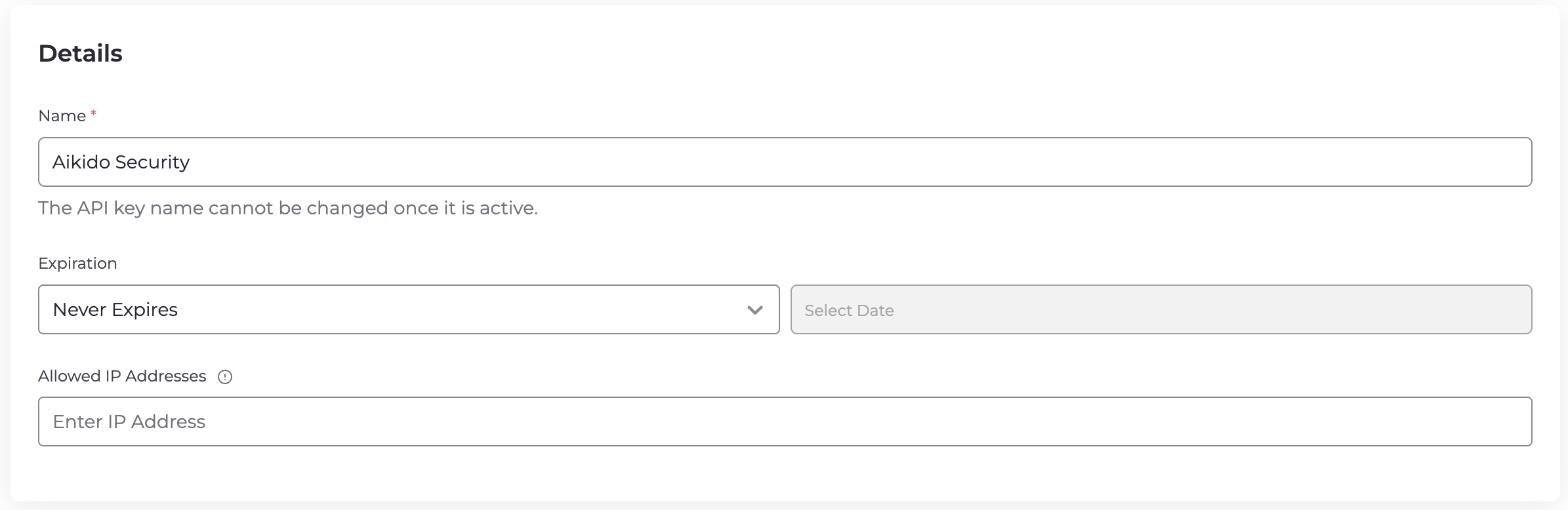
#### Details
Make sure the Expiration is set to 'Never Expires'.
#### Scopes
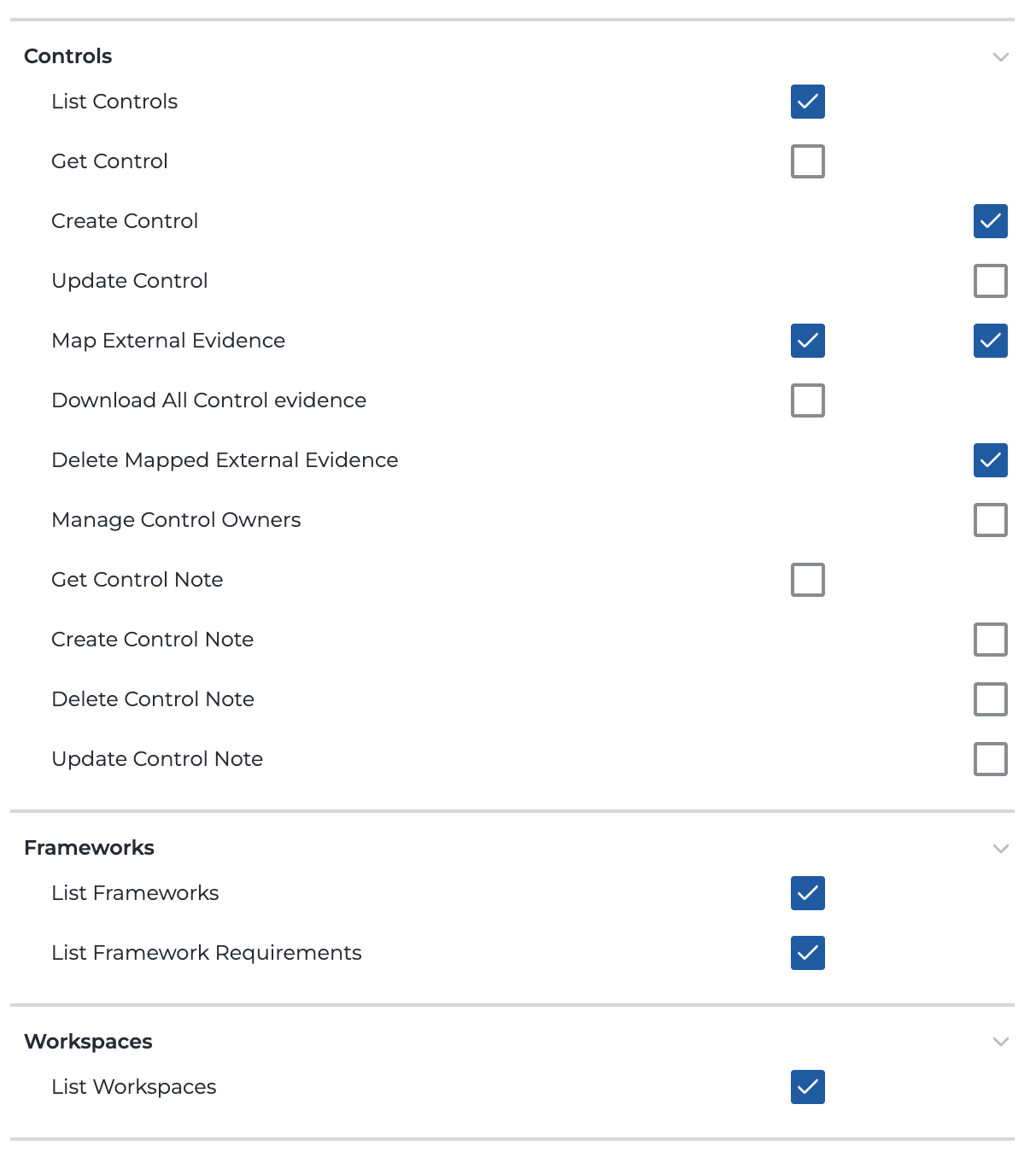
The access for the scopes can be set to 'Custom' with at least following scopes.
**Controls:**
* **List controls:** _Read_
* **Create control:** _Write_
* **Map external evidence:** _Read, Write_
* **Delete mapped external evidence:** _Write_
**Workspaces:**
* **List workspaces:** _Read_
**Frameworks:**
* **List frameworks:** _Read_
* **List framework requirements:** _Read_
#### Save
Next, click 'Save' and copy your generated API Key.
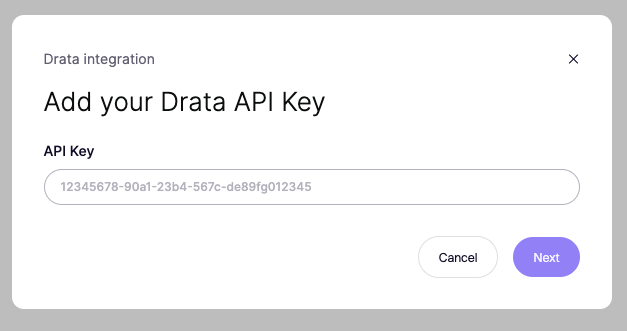
Back in Aikido, paste the API Key and click 'Next'. After that, choose your Drata workspace and click 'Save'.
### Done
Aikido will now daily create a PDF report and sync this as 'external evidence' to Drata. We'll create a control with code 'AIKIDO' and link the relevant SOC2 and ISO27001 requirements. You can search for this control [here](https://app.drata.com/compliance/controls/inscope?q=Aikido).
Under 'Control evidence', the Aikido PDF will be attached every month
####