# Harbor Container Registry
You can now integrate your Harbor Container Registry with Aikido, to scan your images for known vulnerabilities.
Follow the simple steps below to activate this feature:
#### Start in Harbor
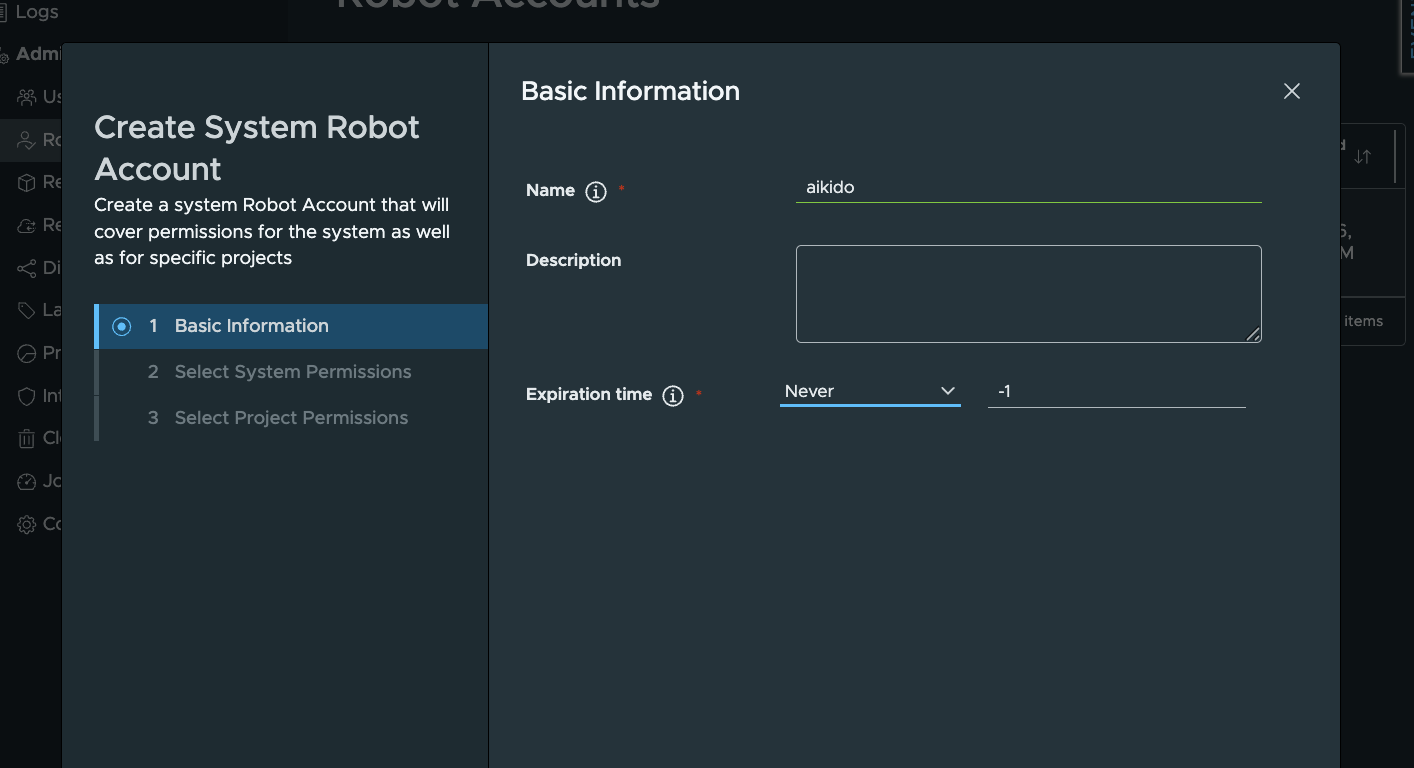
**Step 1:** In Harbor, under Administration, then 'Robot Accounts', create a new Robot Account for Aikido. Give it a name and set `expiration time` to `never.`
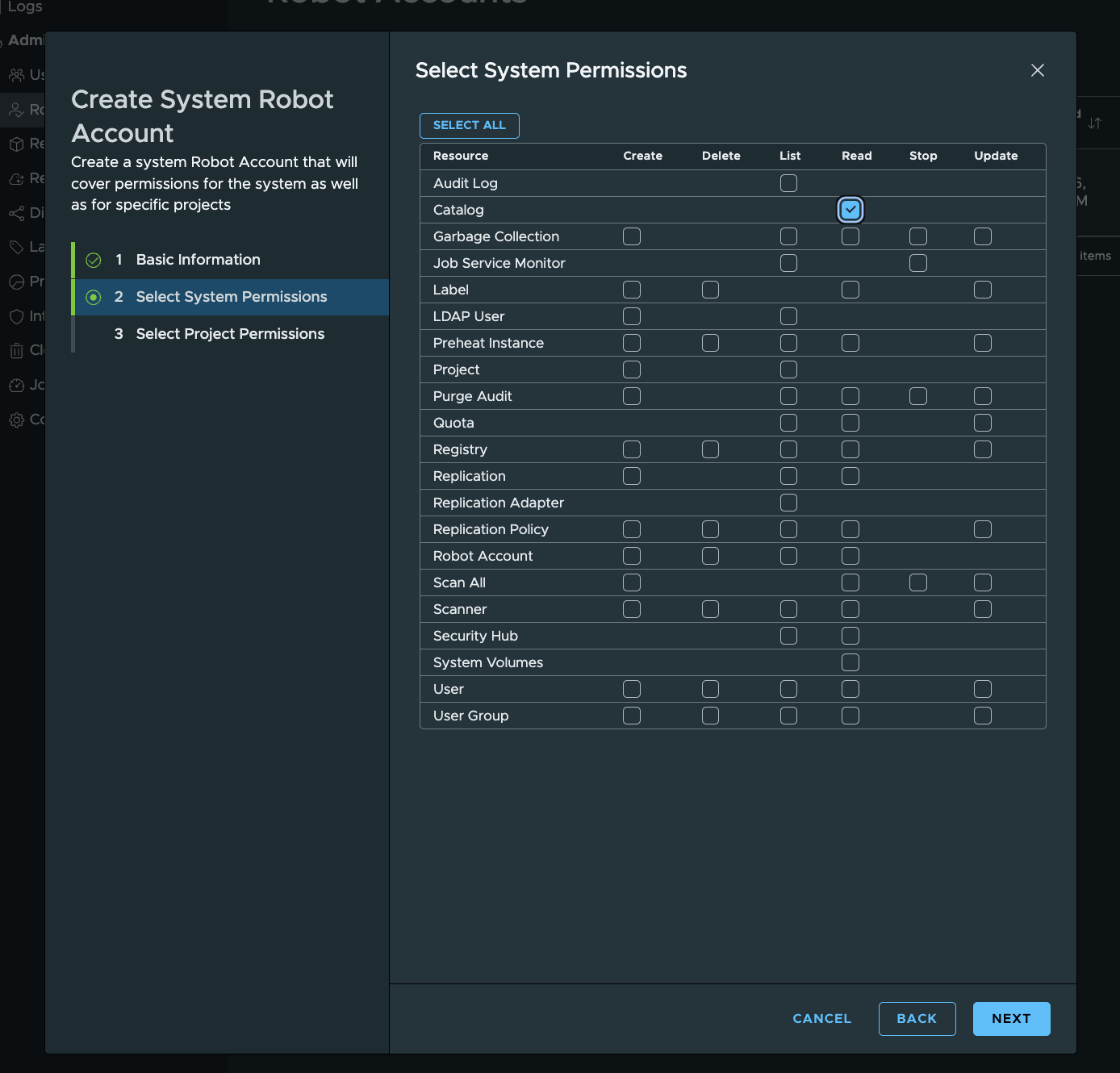
**Step 2:** Select System Permissions. Make sure to set `Catalog` to `Read`
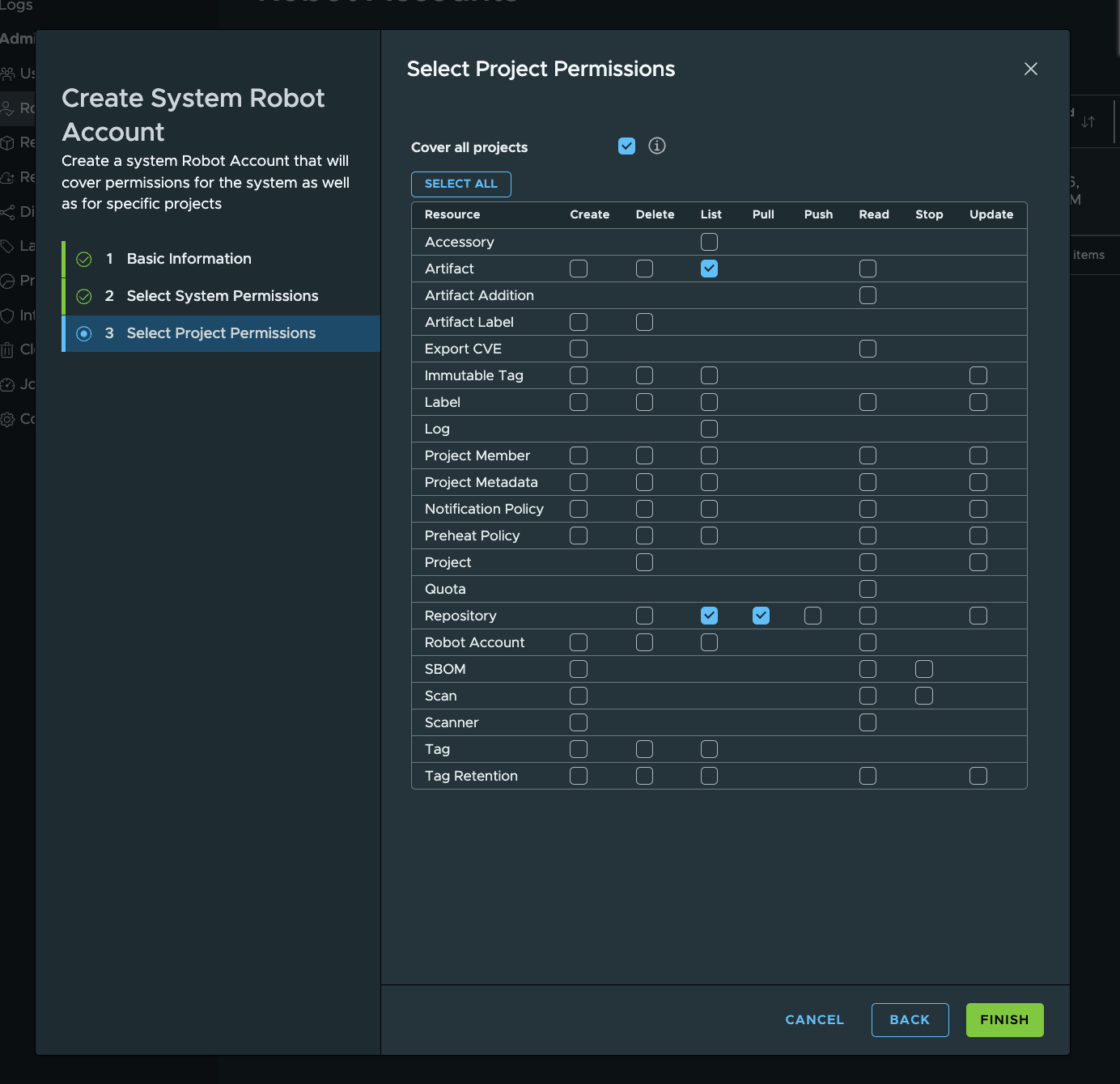
**Step 3.** Select Project Permissions. Set `Artifact` to `List`, and `Repository` to `List,Pull` .
#### **Continue in Aikido**
**Step 1:** Enter the collected data in Aikido (direct link: [https://app.aikido.dev/settings/container-image-registry/add/harbor](https://app.aikido.dev/settings/container-image-registry/add/harbor))
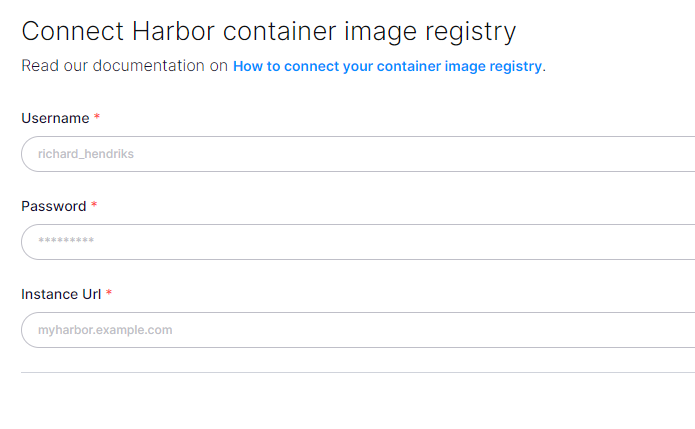
**Step 2:** Aikido will now find all container repositories you can access and list them.
**Step 3:** Repositories can be linked to a code repository in order to perform better deduplication of findings. This step is optional!
**Step 4:** In the action menu next to the registry, click 'scan repos in registry' to get started. Results will appear in the Feed!
***