# Google Workspaces: Login with SAML
{% hint style="info" %}
This feature is only available on a **paying** plan and is not enabled by default. **Pro plans and up** can enable SAML [via this link](https://app.aikido.dev/settings/saml/enable).
{% endhint %}
> If you switch to SAML Login instead of auto-onboarding via your Git provider, team import from GitHub, Bitbucket, or Azure DevOps will no longer work. You will need to manage your teams manually moving forward, either through the Aikido UI or [Access Profiles.](https://help.aikidogov.us/getting-started/automated-user-management/saml-login/saml-user-rights-access-profiles-recommended)
### Setting up SAML in your account
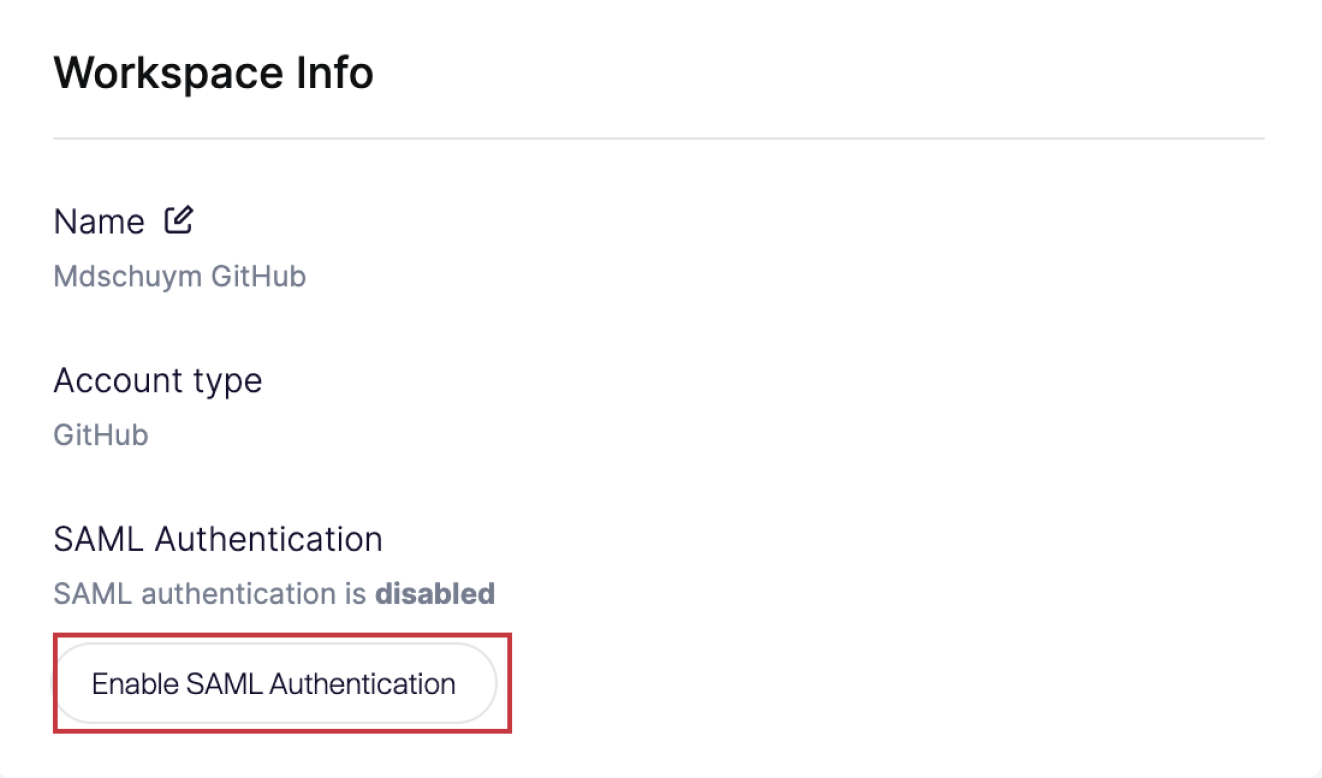
**Step 1.** Go to [**General Settings**](https://app.aikido.dev/settings/account) and click '**Enable SAML Authentication'**
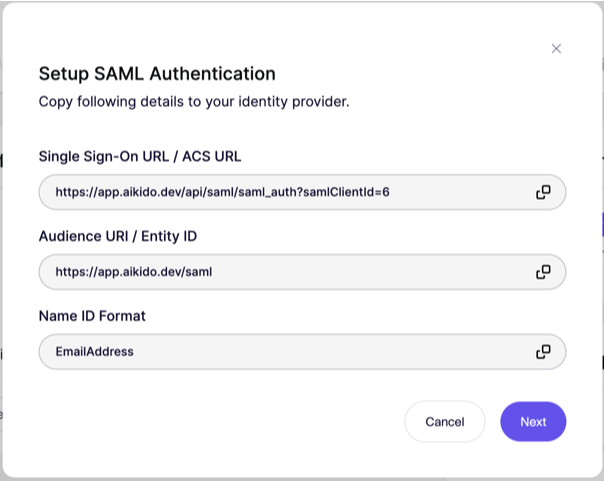
**Step 2.** Copy **all details** to your identity provider. See steps below.
### Continue in Google
**Step 1.** Go to **Apps** > **Web and mobile apps** in the Google Admin Console.
**Step 2.** Click the **Add app** dropdown and select **Add custom SAML app**.
**Step 3.** Choose an **App name** and click **Continue**.
**Step 4.** Ignore the metadata page for now, we'll get this information later on. Click **Continue**.
**Step 5.** Fill the fields **ACS URL**, **Entity ID** and **Name ID format** with the fields visible in Aikido (see above) and click **Continue** and click **Finish**.
**Step 6.** Now you should be on the detail page of your newly created app. Click **Download Metadata**.
### Go back to Aikido
* Fill in the **Entity ID / Issuer**, **Single Sign-On URL** and **X.509 Certificate** as shown in the modal in Google.
* Also fill out the **Company Domain** to make sure people can log in without the need of a Single Sign-On URL.
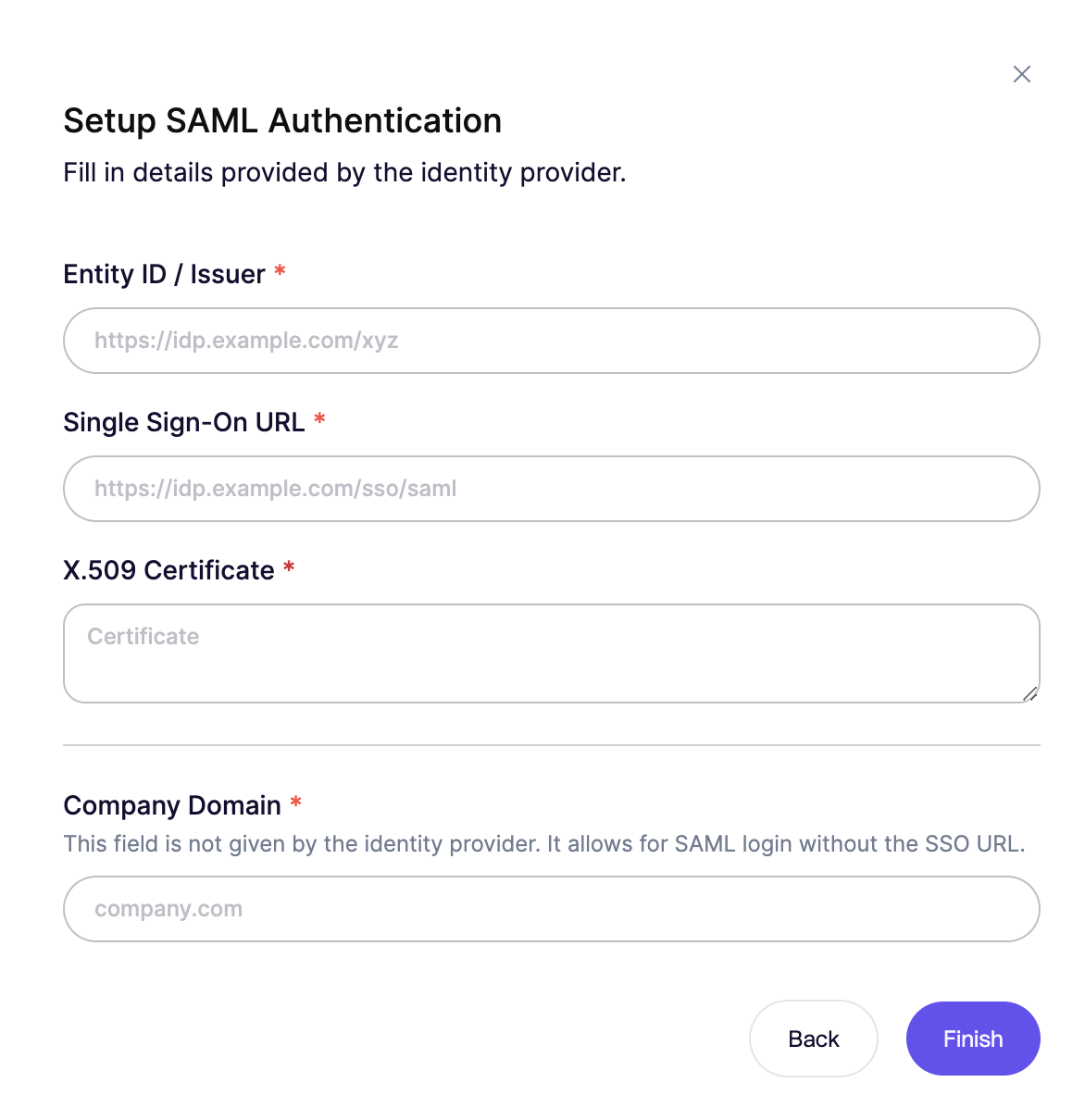
> Success! People having access to your Google SAML app will now be able to auto-onboard to your Aikido workspace.
### 2 options for users to login using your SAML client
**Option 1. Using SSO Link Directly**
Copy the Login Link and share this internally with other users.
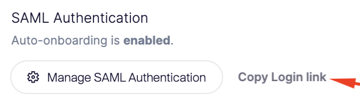
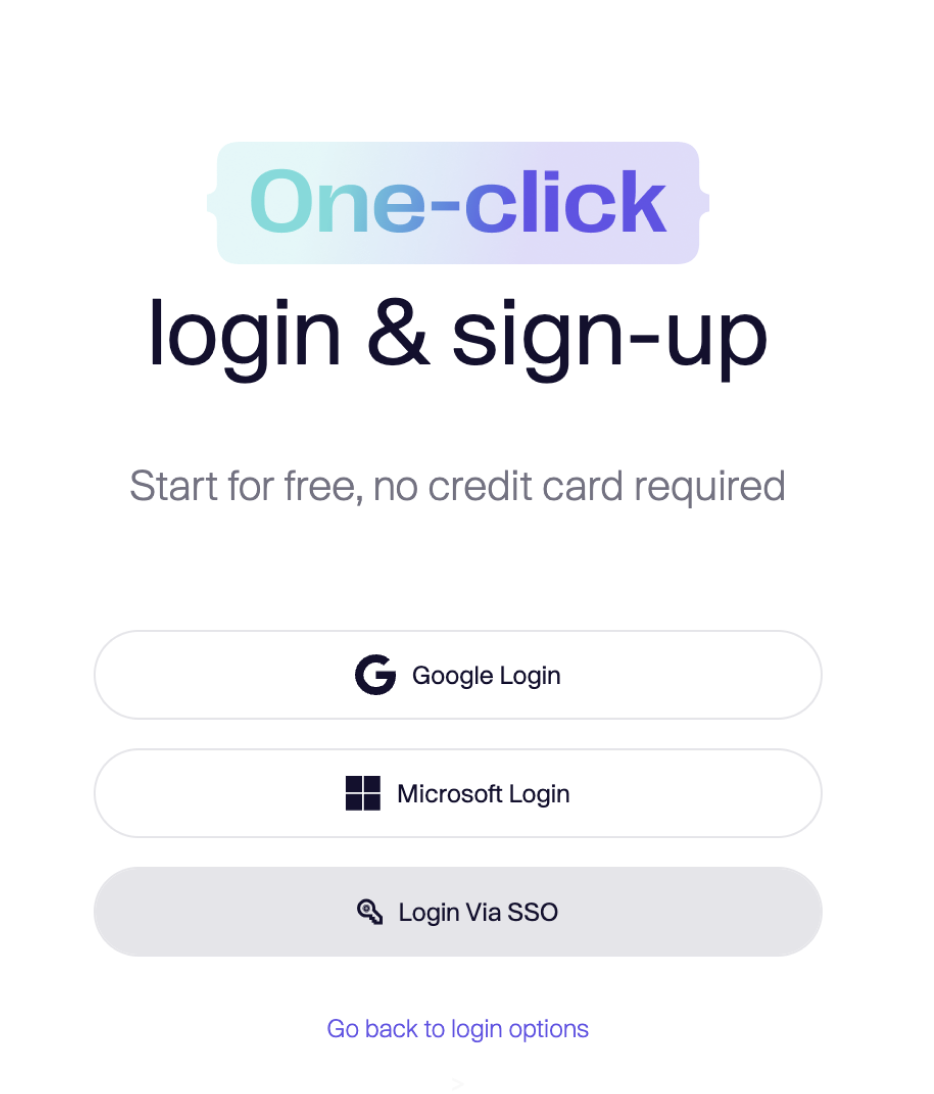
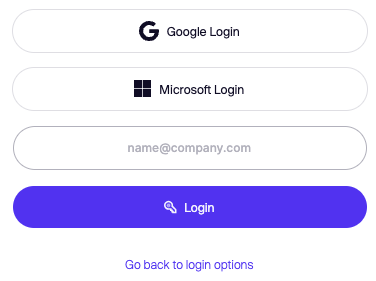
**Option 2.** Going to the Aikido login screen, selecting **Login Via SSO** and filling in the email address **Important**: the email needs to contain the company domain that has been set up.