# Approval Inbox for Ignored and Snoozed Issues
The Request Inbox lets you require sign-off before users without ignore or snooze permissions can dismiss findings. Team members submit a request with a reason, and reviewers approve or reject it in a central inbox before anything is removed from the feed.
## Use cases
* 🛡️ **Governance over risk acceptance**: Keep security leads in control of which findings get ignored.
* 👥 **Empower developers**: Let engineers triage false positives without handing out full ignore rights.
* 📋 **Audit trail**: Every request records who asked, why, and who approved or declined.
## Enabling ignore/snooze requests
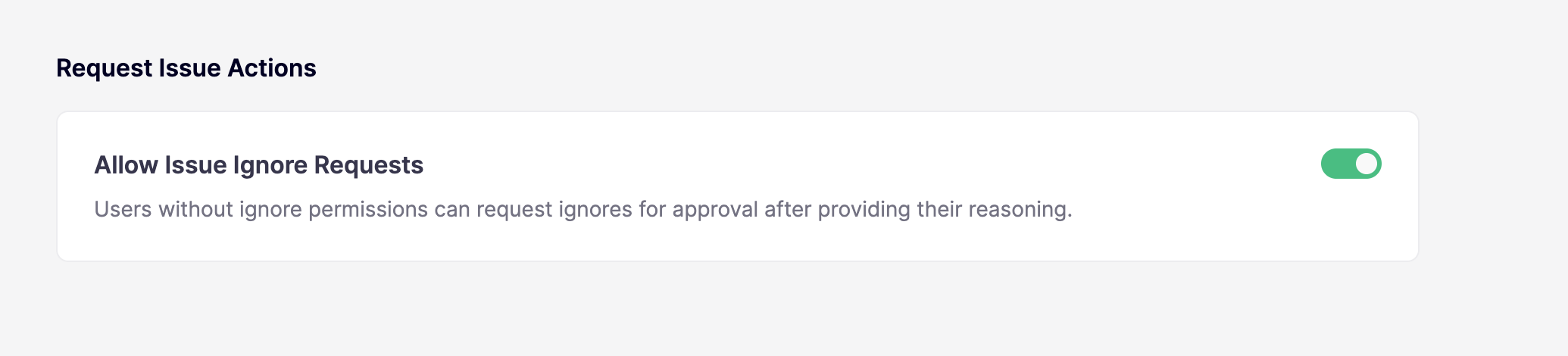
Ignore/snooze requests are **not enabled by default**. Only workspace admins can turn them on from the [Triage settings](https://app.aikido.dev/settings/advanced). The same setting also lets users without snooze permissions submit snooze requests.
## How it works
Whether you can ignore or snooze an issue directly depends on your **ignore** and **snooze** permissions (see [Setting Roles and Permissions](https://help.aikidogov.us/getting-started/automated-user-management/setting-roles-and-permissions)) and whether **Allow Issue Ignore Requests** is enabled for your workspace:
* **With the relevant permission**: You ignore or snooze immediately.
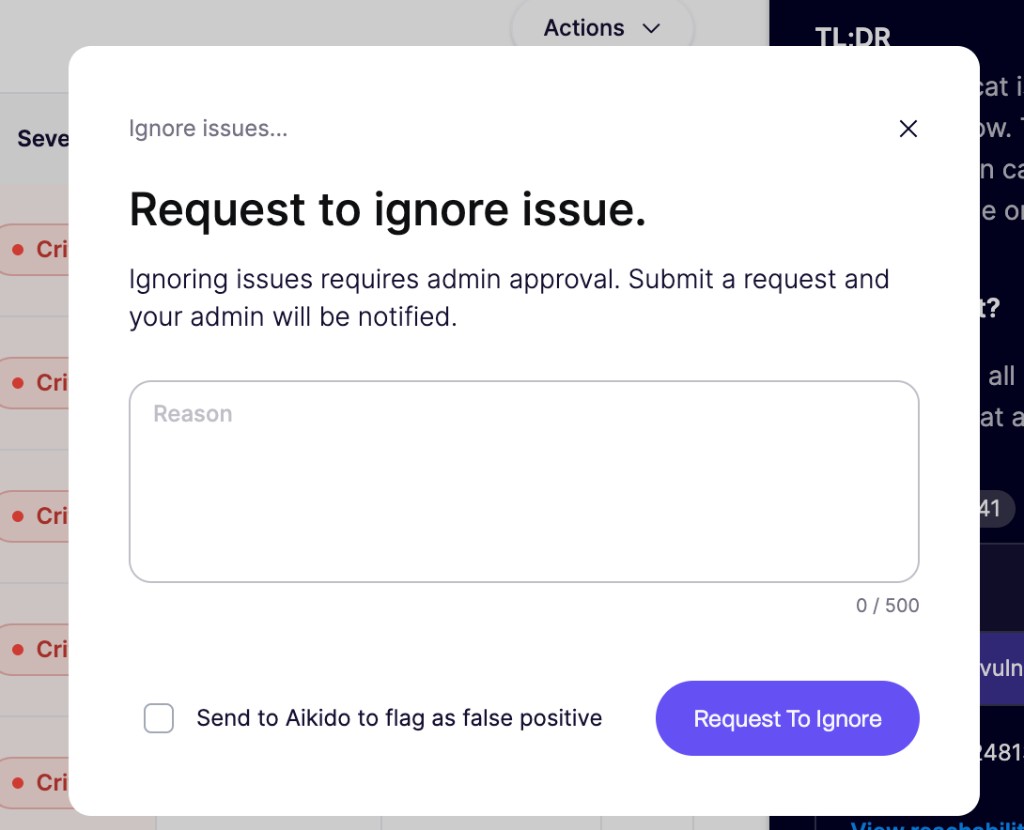
* **Without it, with ignore requests enabled**: You submit a request with a reason. The issue stays in the feed until someone with that permission approves or rejects it.
* **Without it, with ignore requests disabled**: You cannot ignore or snooze findings, or submit requests.
{% hint style="info" %}
Ignore requests apply to **individual subissues only**. You can submit the same kind of request for a single finding from a pull request scan in Aikido. Broader ignore rules (by path, CVE, or rule) still require ignore permissions.
{% endhint %}
Replying `@AikidoSec ignore: [reason]` on an Aikido [PR or MR comment](https://help.aikidogov.us/pr-and-release-gating/aikido-ci-gating-functionality/autofix-suggestions-and-inline-commenting-for-pr-checks) ignores the finding only when you have ignore permission. Without that permission, Aikido replies that the ignore is not allowed, and the finding stays open.
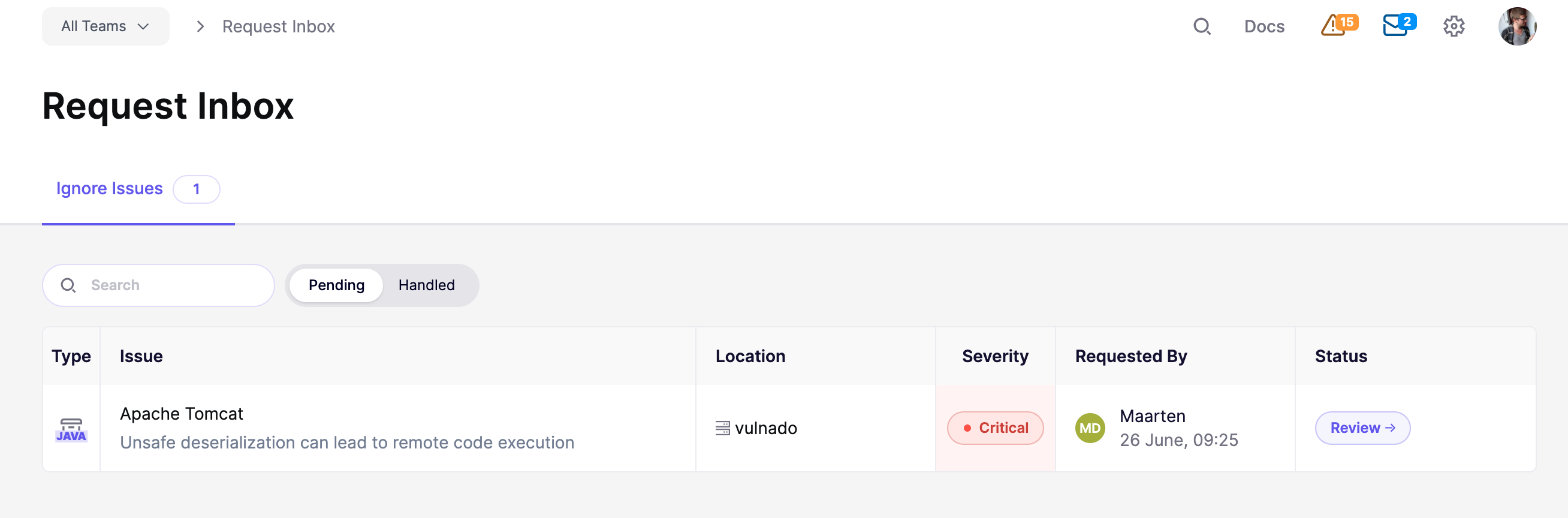
When a user submits a request, users with ignore permissions (except team-only users) are notified and can review it in the [Request Inbox](https://app.aikido.dev/inbox/issues/actions). The inbox lists the issue details, severity, location, requester, and their stated reason. Team-only users cannot review requests, even if they have ignore permissions.
## Review requests
{% stepper %}
{% step %}
### Open the inbox
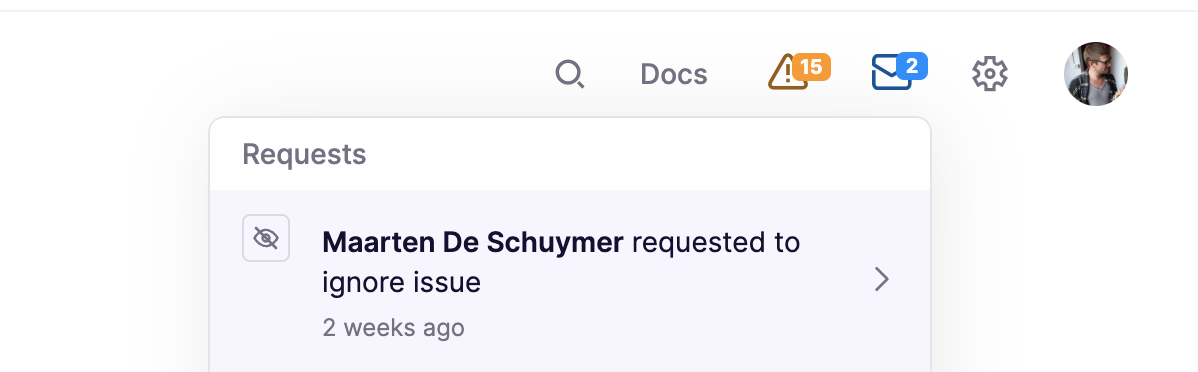
Go to the [Request Inbox](https://app.aikido.dev/inbox/issues/actions), or click a pending notification in the **Requests** indicator in the top navigation. Open the **Ignore Issues** tab if it isn't already selected. The tab shows a badge with the number of pending requests.
{% endstep %}
{% step %}
### Review a request
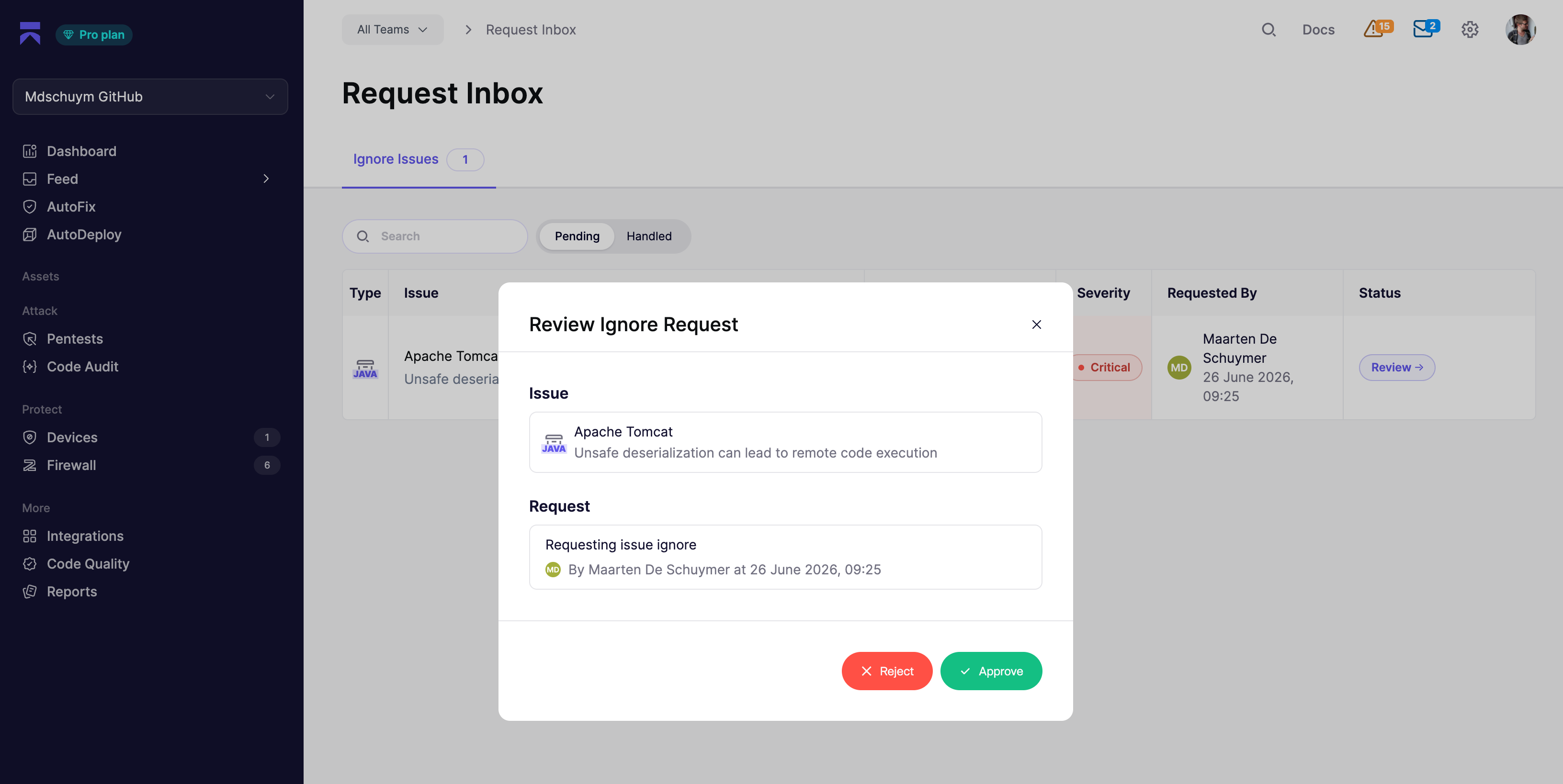
Click a row or the **Review** button on a pending request. The review modal shows the issue, the requester's reason, and the snooze date when the request is for a snooze.
{% endstep %}
{% step %}
### Approve or reject
Click **Approve** to apply the requested ignore or snooze with the requester's stated reason, or **Reject** to decline the request and leave the issue as it is.
{% endstep %}
{% endstepper %}
### Pending and handled
The **Ignore Issues** tab has two views:
* **Pending**: Requests waiting for a decision.
* **Handled**: Requests that have already been approved or rejected, including who reviewed them and when.
Use the search bar to filter by issue title or requester name. If you have a team filter active in Aikido, the inbox only shows requests for issues in that team.
### What happens after a decision
**Approved**: Aikido applies the requested ignore or snooze using the requester's reason. Ignored findings move to the [ignored view](https://app.aikido.dev/issues/ignored) and disappear from the main feed.
**Rejected**: The issue stays open or snoozed in the feed. The requester can submit a new request if needed.
## Notifications
Users with ignore permissions (except team-only users) see new requests in the **Requests** indicator in the top navigation. Each notification shows who submitted it and whether they asked to ignore or snooze. Click the notification, or **Go to Request Inbox**, to open the inbox.
### Slack notifications
You can also receive Slack alerts when a new ignore or snooze request is submitted. Aikido posts a message to your chosen channel with a **Review in Aikido** button that links directly to the Request Inbox.
{% stepper %}
{% step %}
### Connect Slack
If you haven't already, connect Slack from [Slack integration settings](https://app.aikido.dev/settings/integrations/notifications/slack). See [Slack Notifications](https://help.aikidogov.us/getting-started/chat-and-alerts/slack-notifications) for setup steps.
{% endstep %}
{% step %}
### Create a Slack alert
Go to the [Request Inbox](https://app.aikido.dev/inbox/issues/actions), open the **Ignore Issues** tab, and click **Manage Alerts** → **Slack**. Click **Create Alert** and select the channel that should receive request notifications.
{% endstep %}
{% step %}
### Test the alert
After saving, use **Send test alert** on the alert row to confirm messages arrive in the selected channel.
{% endstep %}
{% endstepper %}
 {% hint style="info" %}
Ignore requests apply to **individual subissues only**. You can submit the same kind of request for a single finding from a pull request scan in Aikido. Broader ignore rules (by path, CVE, or rule) still require ignore permissions.
{% endhint %}
Replying `@AikidoSec ignore: [reason]` on an Aikido [PR or MR comment](https://help.aikidogov.us/pr-and-release-gating/aikido-ci-gating-functionality/autofix-suggestions-and-inline-commenting-for-pr-checks) ignores the finding only when you have ignore permission. Without that permission, Aikido replies that the ignore is not allowed, and the finding stays open.
When a user submits a request, users with ignore permissions (except team-only users) are notified and can review it in the [Request Inbox](https://app.aikido.dev/inbox/issues/actions). The inbox lists the issue details, severity, location, requester, and their stated reason. Team-only users cannot review requests, even if they have ignore permissions.
## Review requests
{% stepper %}
{% step %}
### Open the inbox
Go to the [Request Inbox](https://app.aikido.dev/inbox/issues/actions), or click a pending notification in the **Requests** indicator in the top navigation. Open the **Ignore Issues** tab if it isn't already selected. The tab shows a badge with the number of pending requests.