# Enable SLAs in Aikido
## Enable SLAs in Aikido
You can enable SLA settings in Aikido to automatically assign due dates to Aikido issues. This facilitates a structured and timely approach to issue resolution based on their reported time and severity.
#### Detection and SLA Reset Logic
* SLA countdown starts the moment Aikido first detects the issue and are measured in calendar days, not business days
* When the severity of an issue is manually changed, the SLA date resets.
* When an issue is unsnoozed, the SLA date resets.
* When an issue is unignored, the SLA date resets.
#### How to enable SLAs in Aikido
1. Navigate to the Settings -> [SLA settings](https://app.aikido.dev/settings/sla)
2. Ensure the 'Enable SLAs' option is turned on to implement SLA rules.\

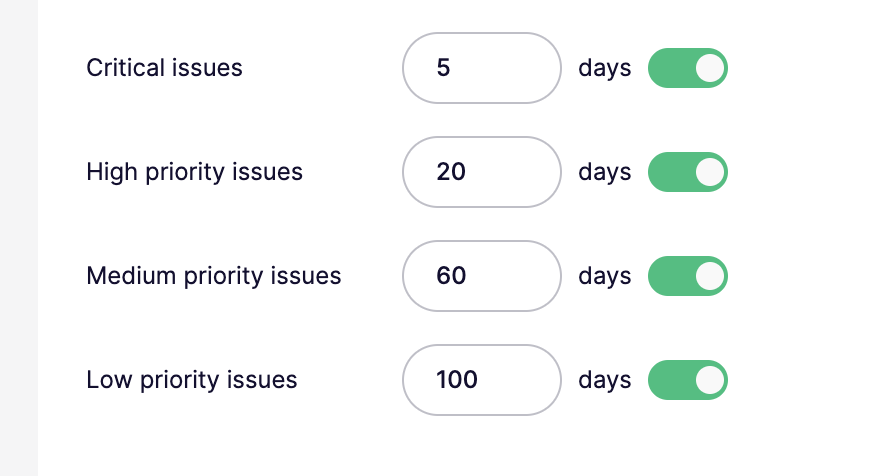
3. Input the **number of days** for resolution in the fields for Critical, High, Medium, and Low priority issues to establish SLA time frames.\
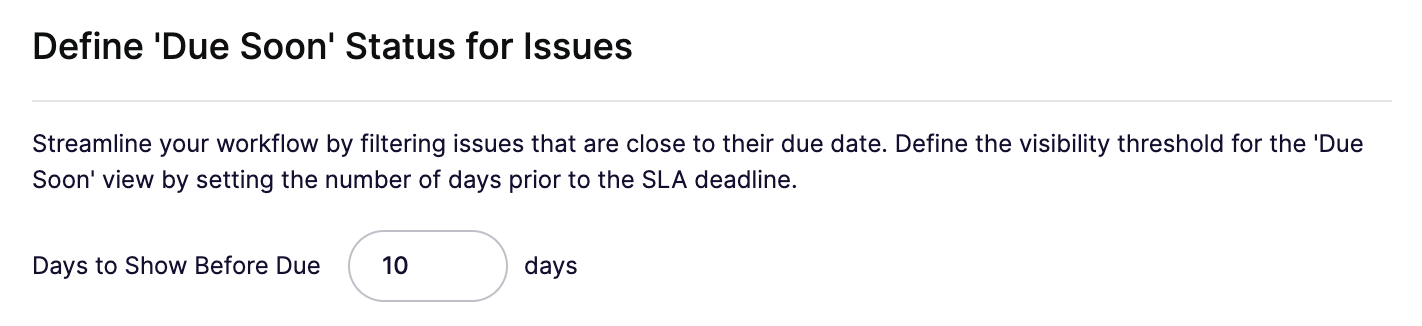
4. Set up the '**Due Soon' notification threshold** by specifying the number of days before the SLA deadline, which will highlight impending due dates on the [SLA Due Soon](https://app.aikido.dev/queue?filter=due_soon) view.\
5. Click **'Save'** to apply these configurations.
#### SLA Information in Aikido UI
After setting up your SLA parameters, here's how you can monitor your SLA due dates.
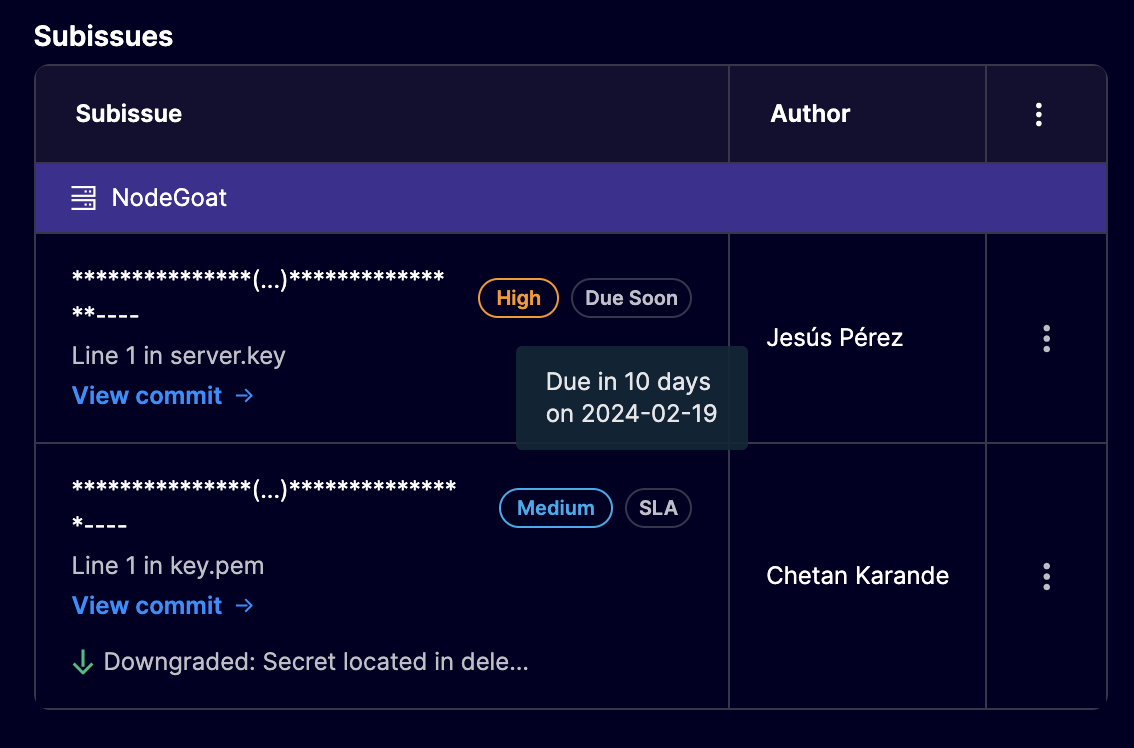
* **Sidebar Information**: Next to each subissue in the sidebar, you will see the SLA information, providing a quick reference to gauge urgency. Hover over the label in order to view the date.\
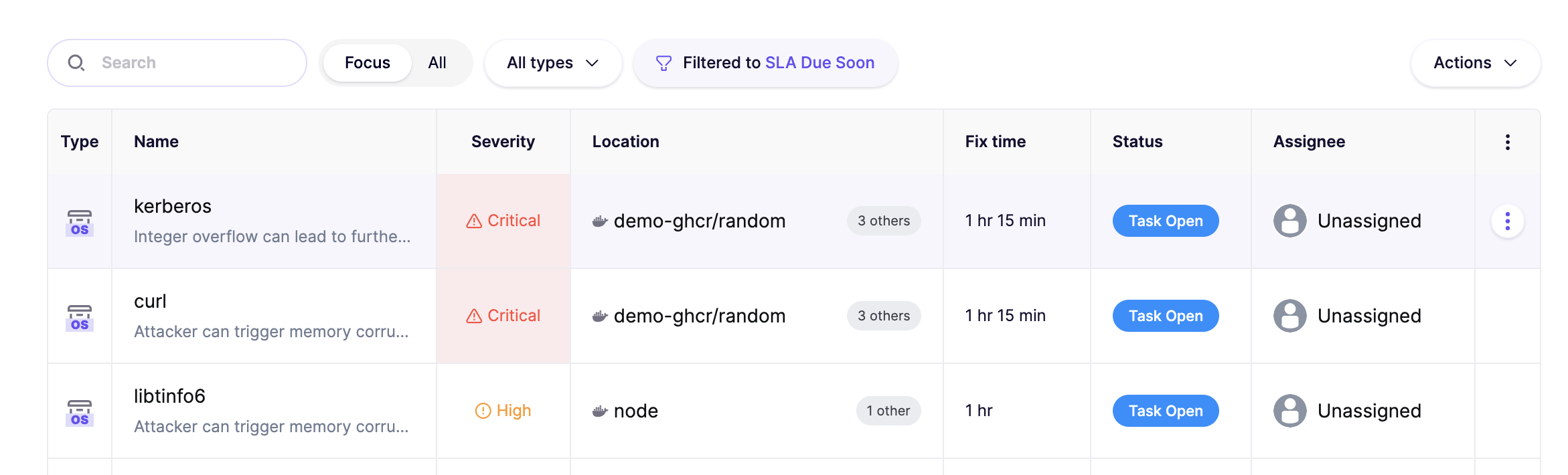
* **SLA Due Soon Filter**: The [**SLA Due Soon**](https://app.aikido.dev/queue?filter=due_soon) view view displays issues that are close to breaching the SLA, based on the threshold set. **Enable this filtered view** by clicking the Filter Icon on your Feed and select SLA Due Soon.\
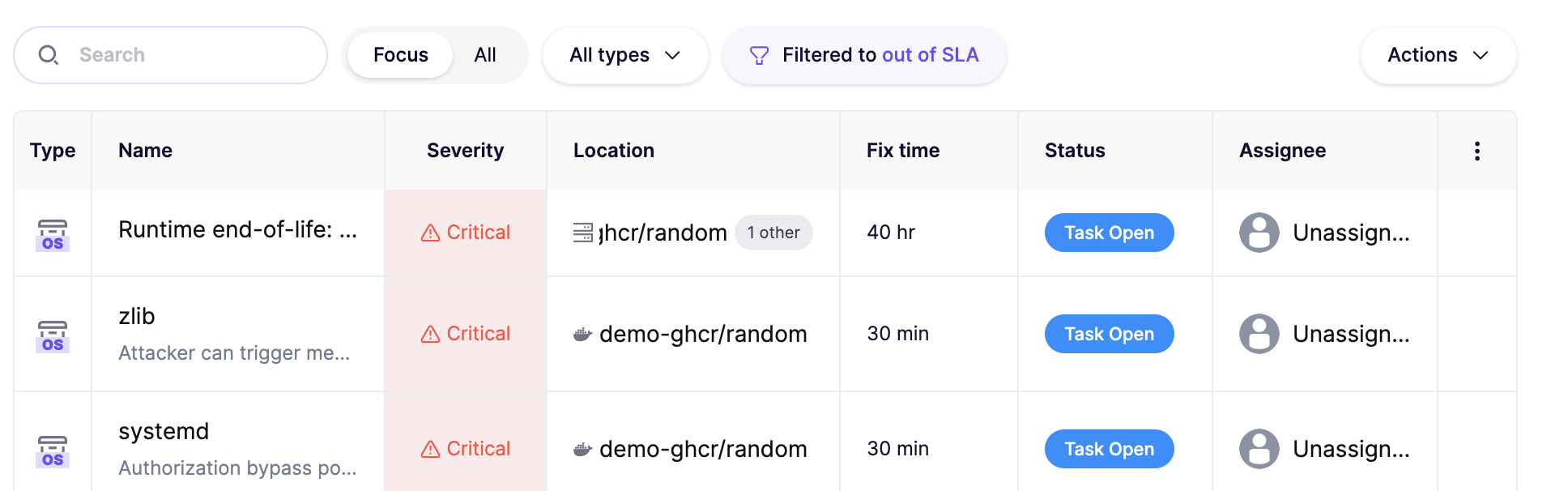
* **Out of SLA View**: The [**Out of SLA**](https://app.aikido.dev/queue?filter=out_of_sla) view lists all issues and subissues that have exceeded their SLA limits. **Enable this filtered view** by clicking the Filter Icon on your Feed and select Out of SLA.\
***