# Add labels to resources
Labels are custom metadata you add to repositories and container images in Aikido. Use them to group resources on different metadata properties.
Examples include `payments`, `production`, `frontend`, `lambda` , `critical`, `PII` etc.
{% hint style="info" %}
Labels are not the same as a container's **Scanned tag**. The scanned tag controls which image version Aikido scans. Labels only help you organize resources and filter issues.
{% endhint %}
### Manage labels on a repository
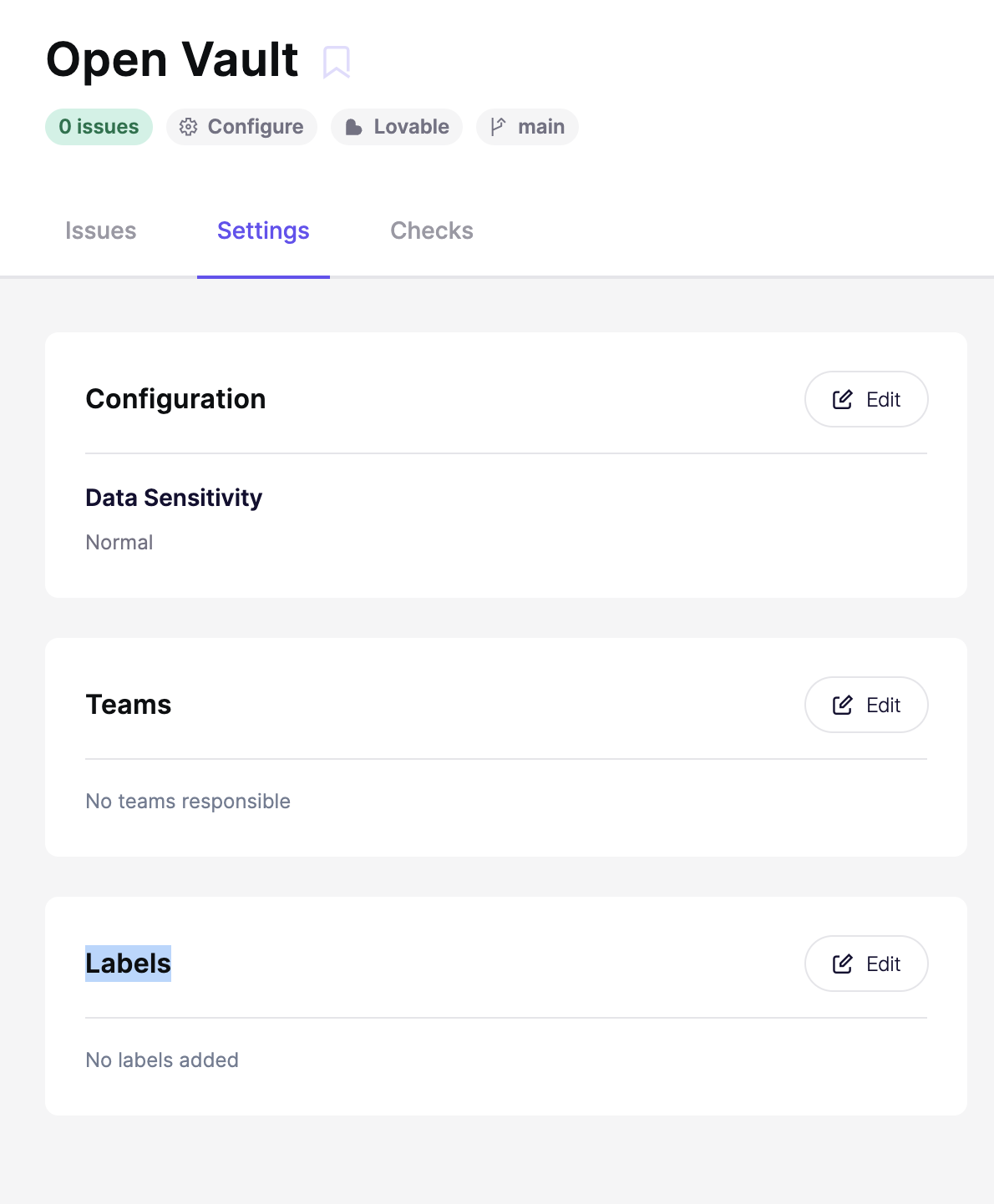
1. Open **Repositories** and select a repository.
2. Open the **Settings** tab.
3. In the **Labels** card, click **Edit**.
Each repository can have multiple labels. Labels are free-form text.
You need permission to manage repositories. Team-restricted users can only edit labels on repositories they can access.
#### Import repository labels from GitHub
For GitHub repositories, Aikido can import GitHub topics as labels. These synced labels are read-only in Aikido. They stay in sync with GitHub topics automatically. You can still add manual labels next to them. **Contact us to enable this functionality.**
### Manage labels on a container
1. Open **Containers** and select a container image.
2. Open the **Settings** tab.
You need permission to manage containers. Team-restricted users can only edit labels on containers they can access.
#### Automatic labels from workloads
If your Kubernetes or cloud workload integration is connected, Aikido can promote workload labels onto the container.
Today this supports `owner` and `team`. Aikido formats them as `owner:` and `team:`.
These labels are managed by the integration. You can't edit or delete them manually. Manual labels stay separate and remain editable.
### Filter the issue feed by labels
1. Open the main **Issues** feed.
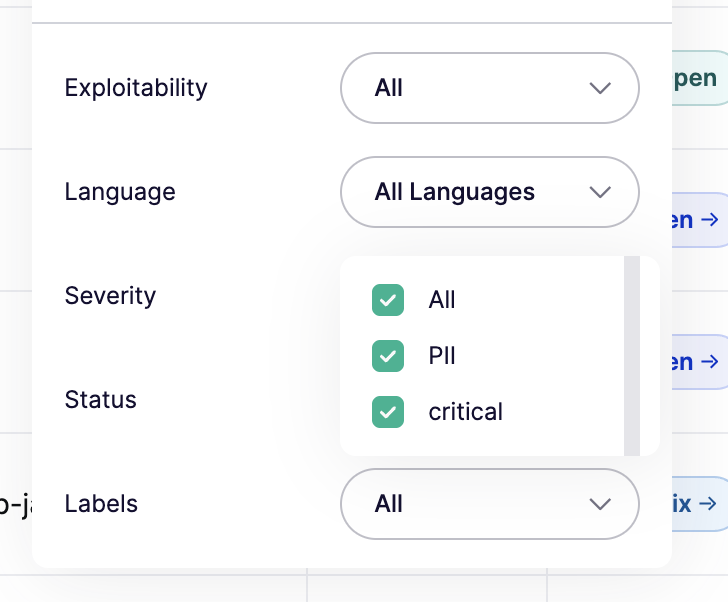
2. Open **Quick filter**.
3. Select the labels you want to keep.
The **Labels** filter only appears after at least one label exists in your workspace. In some versions, this filter appears as **Repo Labels**.