# Account Setup with Multiple Gits
If you have repositories with multiple Git Providers (such as GitHub and GitLab) and you want to quickly access them, this is possible by setting up multiple workspaces that are connected to those specific Gits.
## Step-by-Step Guide
**Step 1:** Add a new workspace by clicking your profile icon in the top right corner.
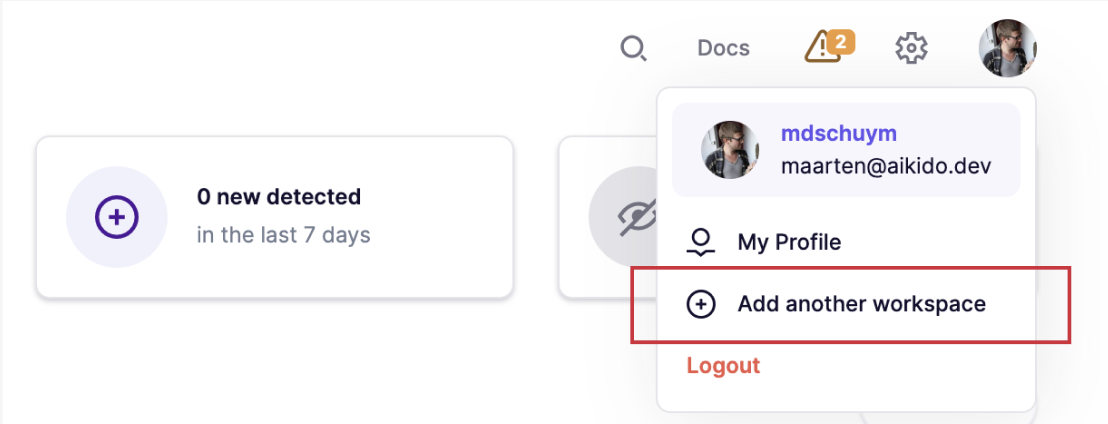
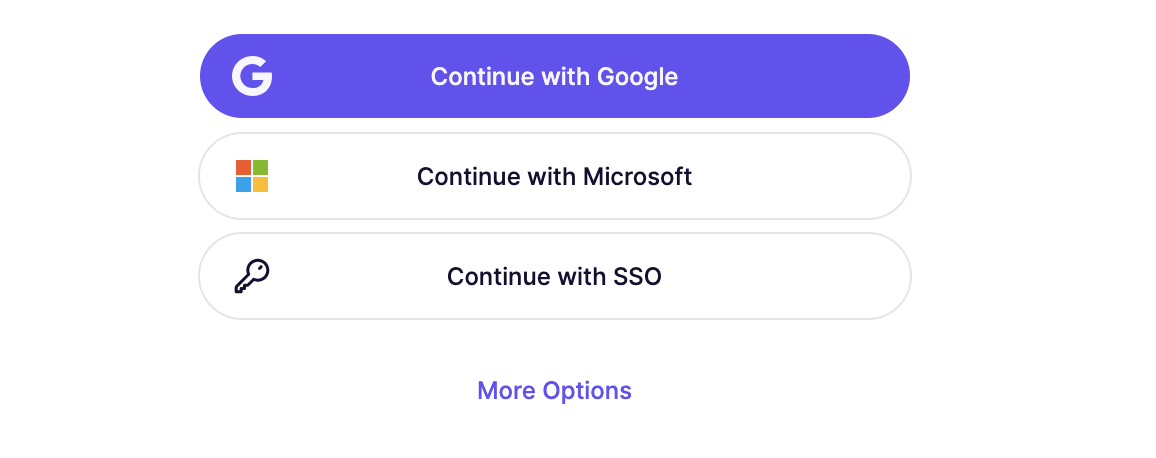
**Step 2:** Click "Logout" bottom left if you need to connect to a different Git provider. If it is the same Git provider, continue by selecting "Add a New Workspace."
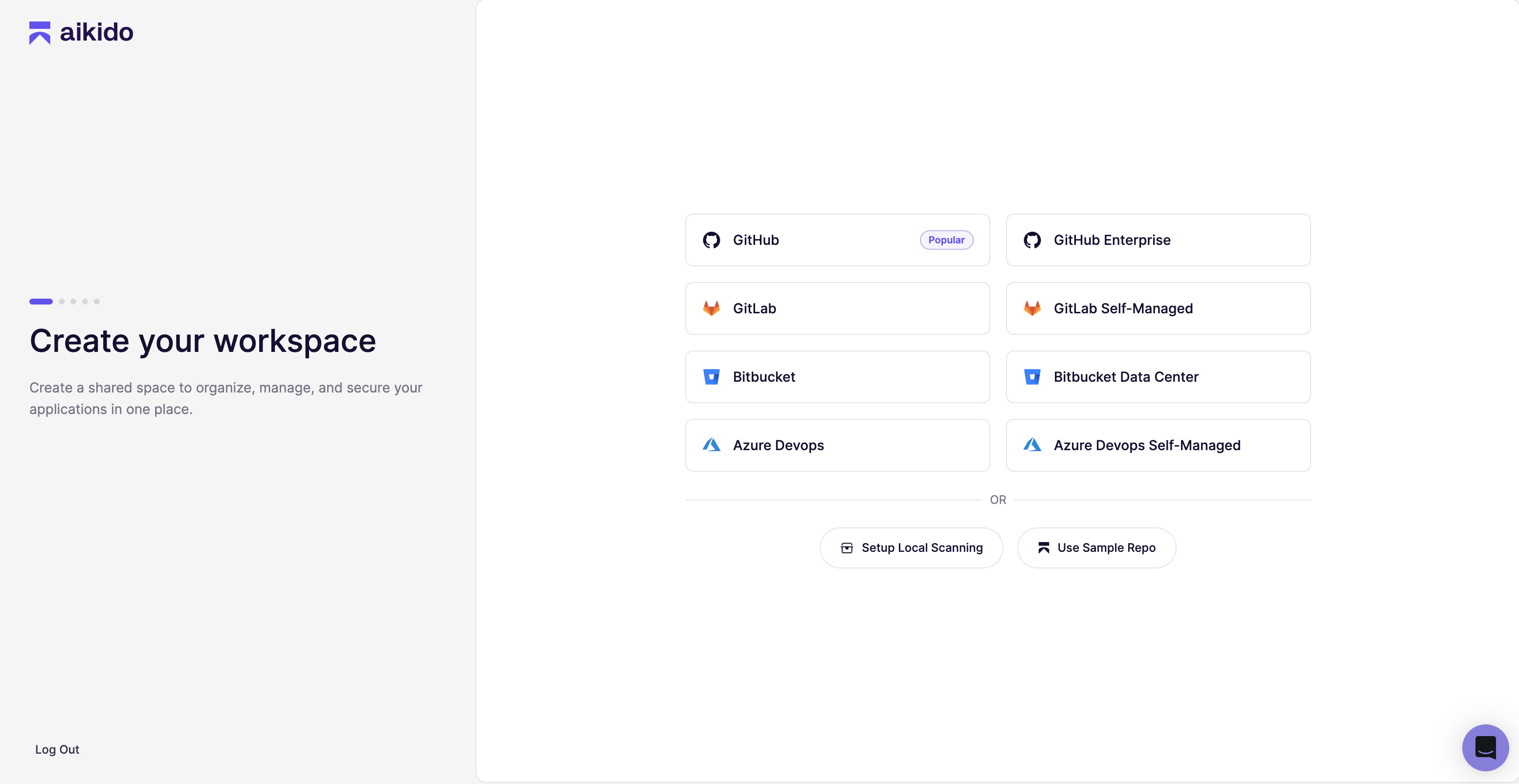
> This screen can look slightly different when you are connected via Azure, GitLab Self Managed or Local Scanner.
**Step 3:** Choose the preferred Git Provider on the login screen.
**Step 4:** After setting up the new account, merge both accounts. [Click here for more information](https://help.aikidogov.us/getting-started/setting-up-your-account/link-and-merge-multiple-login-types-github-gitlab-etc) on how to set this up.
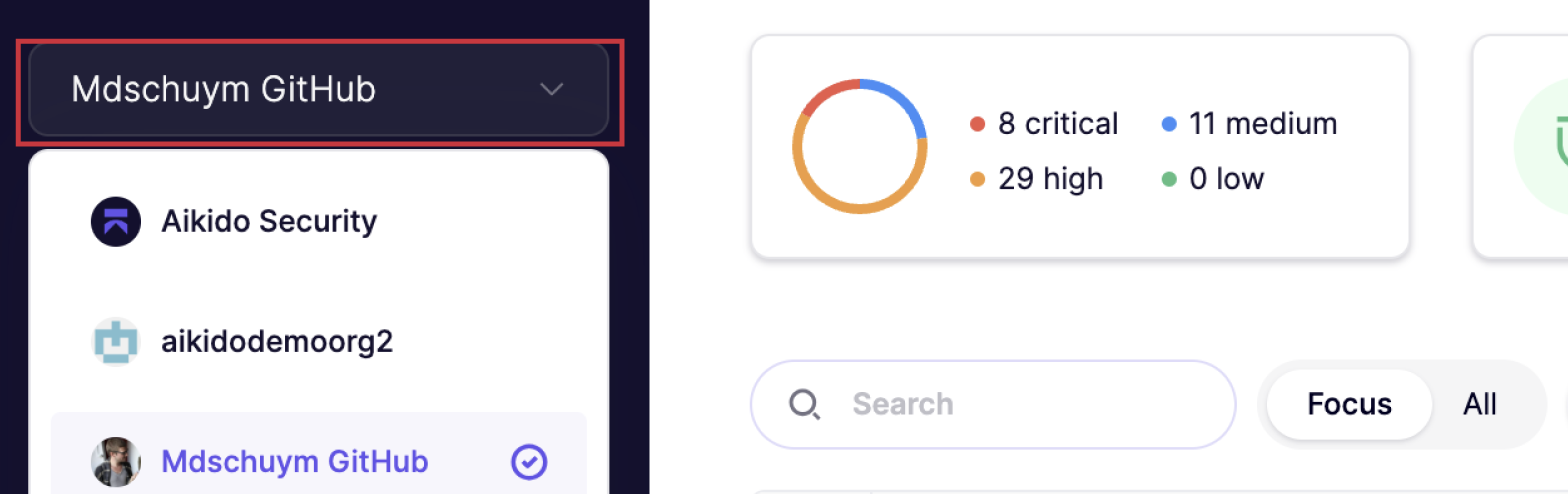
**Step 5:** Switch between different Git accounts using the workspace switcher located in the top left corner.