# GitLab Issues Self-Managed
Aikido can connect to GitLab Self-Managed (On-prem) so that you can create issues for security findings found through Aikido. For each of the findings in the 'Feed' of Aikido, a GitLab issue can be created, and linked.
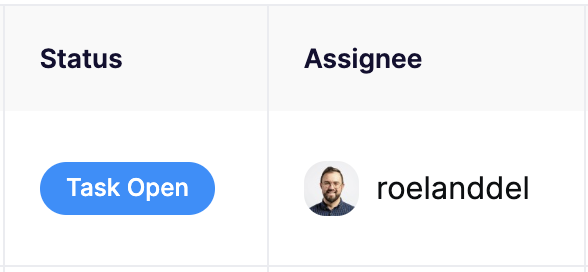
You will be able to follow along in the Feed, to whom the ticket is assigned.
### 1. Set up integration
**Step 1.** Go to [https://app.aikido.dev/settings/integrations](https://app.aikido.dev/settings/integrations) and scroll down to the 'Task trackers' section.
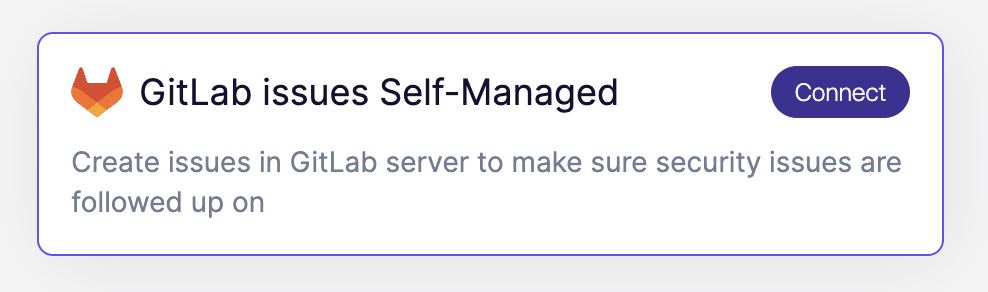
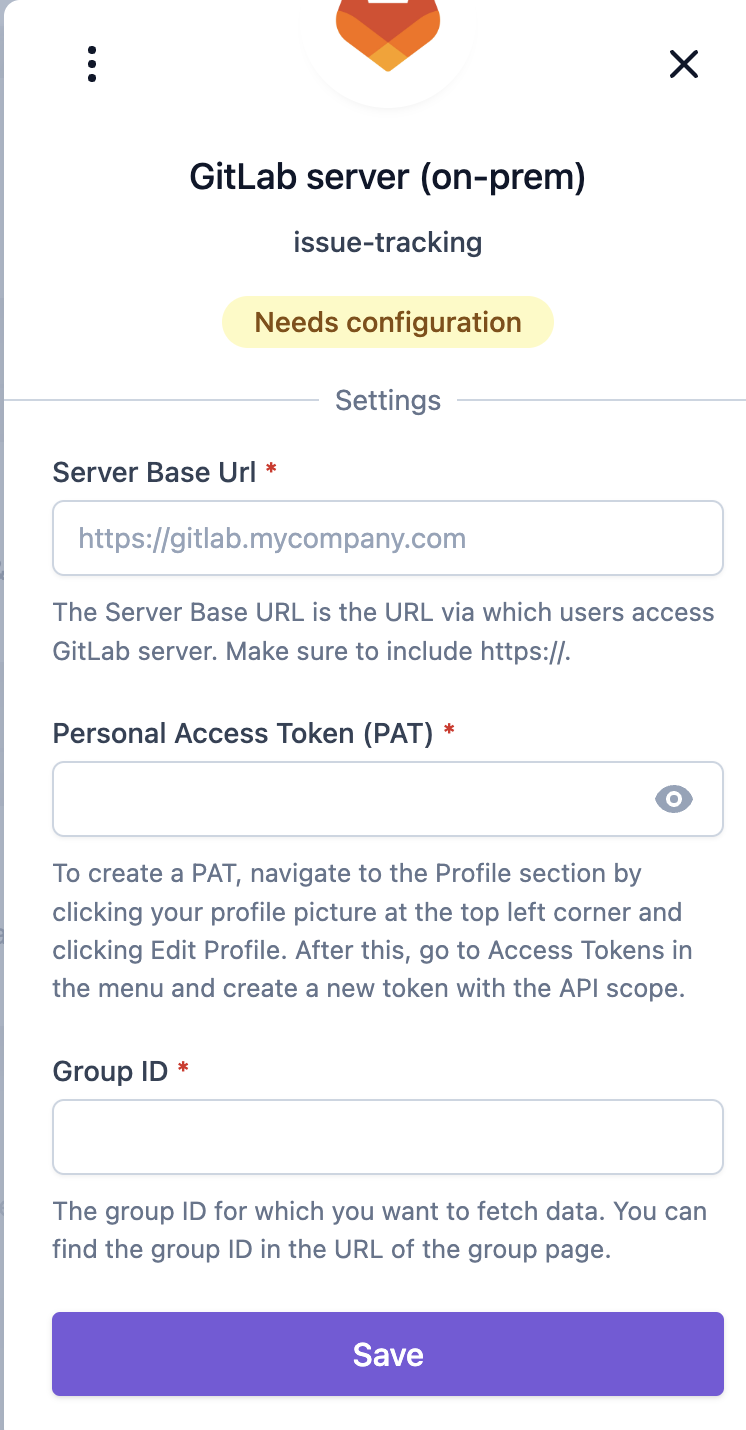
**Step 2.** Click on 'Connect' and fill in the serve base URL, the PAT and Group ID
**Step 3.** Click 'Save' and you're connected. Close the modal and you will redirected to the settings page.
### 2. Create a GitLab issue for a finding, inside Aikido
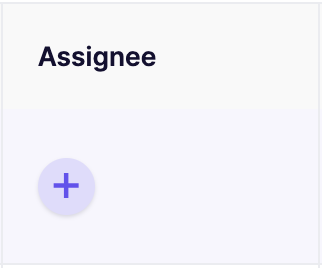
Go to the [Feed](https://app.aikido.dev/queue), and go to the security finding of choice. In the column 'Assignee', you will find the ability to assign a GitLab Issue to someone.
When you click on it, a popup will open.
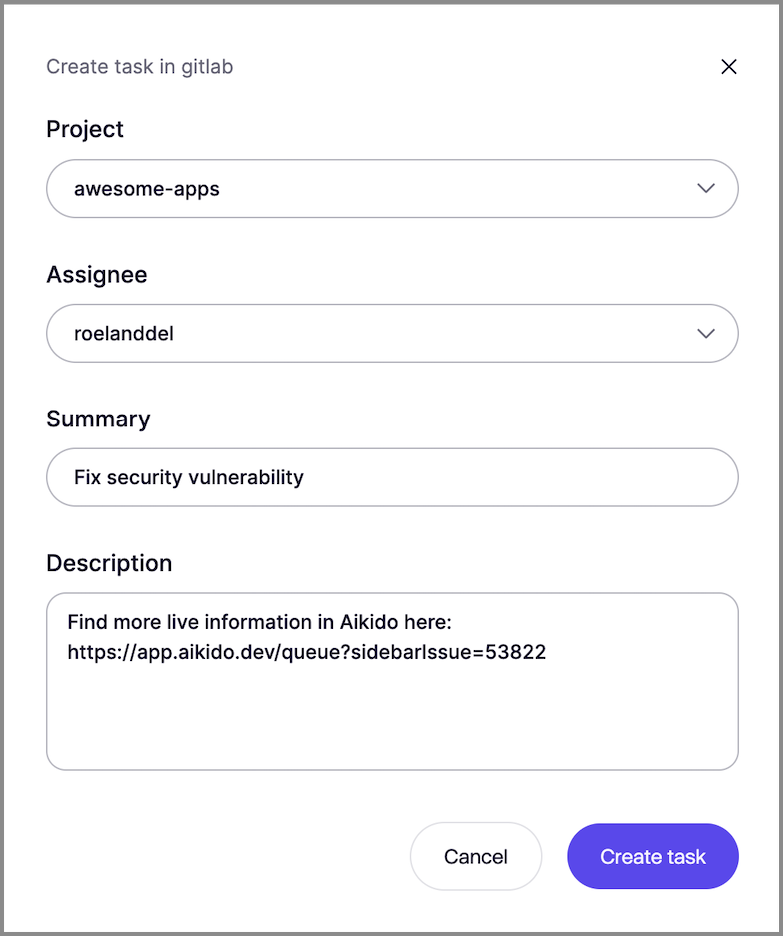
When creating the Issue Task, this will be made clear in the UI of Aikido
You're done!
***