# Handling Email Verification & Magic Links
Aikido provides a hosted email inbox to allow the AI Pentest agent to navigate authentication flows that require email interaction.
**Use this feature if your application requires:**
* **Magic Links:** Passwordless login via email links.
* **Email MFA:** Two-factor authentication where a code is sent to the inbox.
* **Account Verification:** New users must verify their email before logging in.
{% hint style="info" %}
If your app uses authenticator apps, use [TOTP setup](https://help.aikidogov.us/pentests/configure-a-pentest/setting-up-authenticated-testing/handling-two-factor-authentication-totp).
If your app uses SMS codes, use [SMS Verification](https://help.aikidogov.us/pentests/configure-a-pentest/setting-up-authenticated-testing/handling-sms-verification).
{% endhint %}
### How it works
You generate a unique `@auto-pentest.com` email address within Aikido. This address acts as a bridge:
1. **You** use it to create and verify a valid user account in your application.
2. **The Agent** monitors this inbox during scans to retrieve login codes or click magic links in real-time.
### Setup Guide
{% stepper %}
{% step %}
**Let Aikido create the Email Address**
In the **Authentication Set** modal:
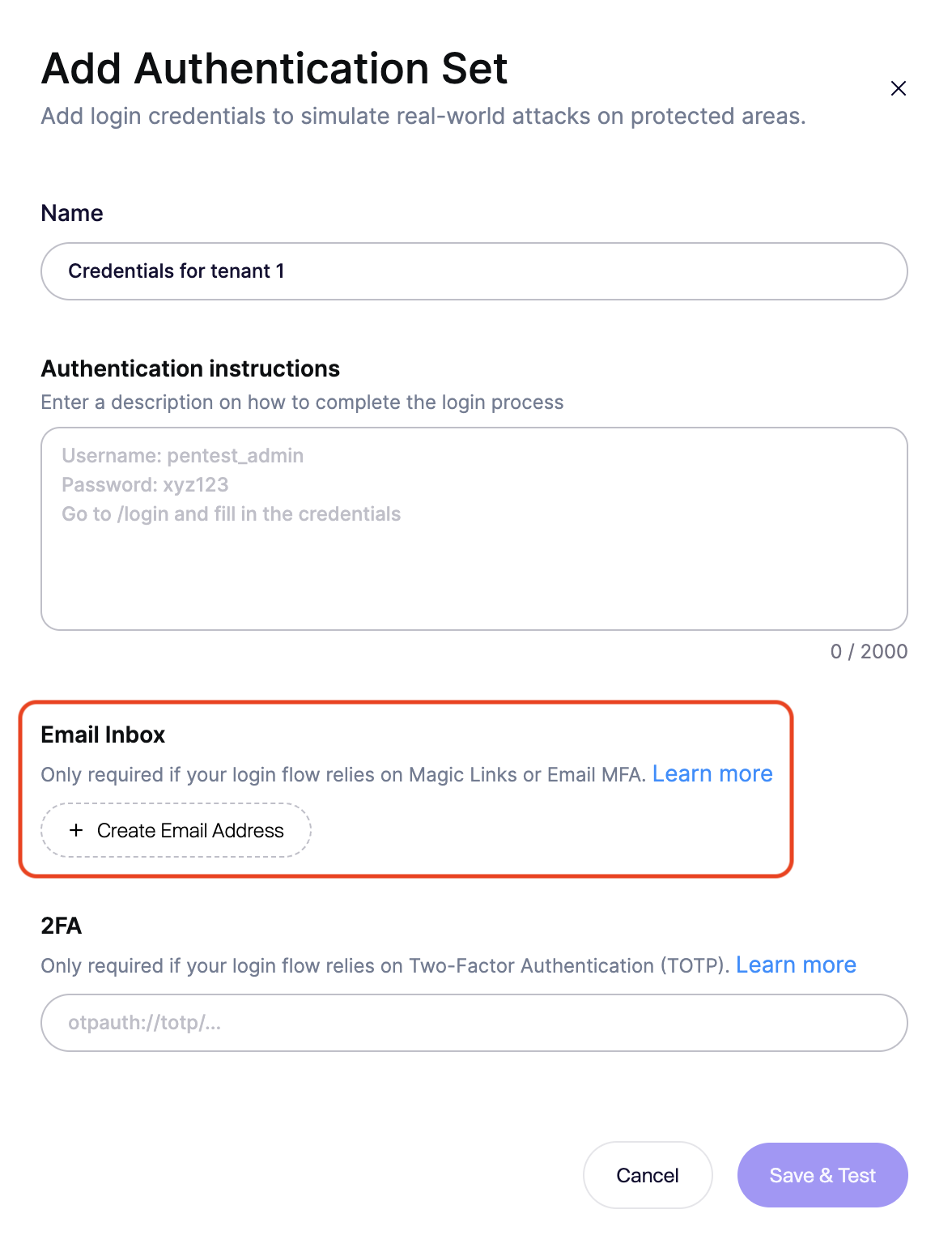
1. Scroll to the **Email Inbox** section.
2. Click `+ Generate Email Address`.
3. Copy the address (e.g., `random-name@auto-pentest.com`).
{% endstep %}
{% step %}
**Create the Test User in your application**
Go to your application and sign up a new user using the address you just created.
{% endstep %}
{% step %}
**Verify the Account (if required)**
If your app sends a "Confirm your email" link upon signup:
1. Return to the Aikido modal.
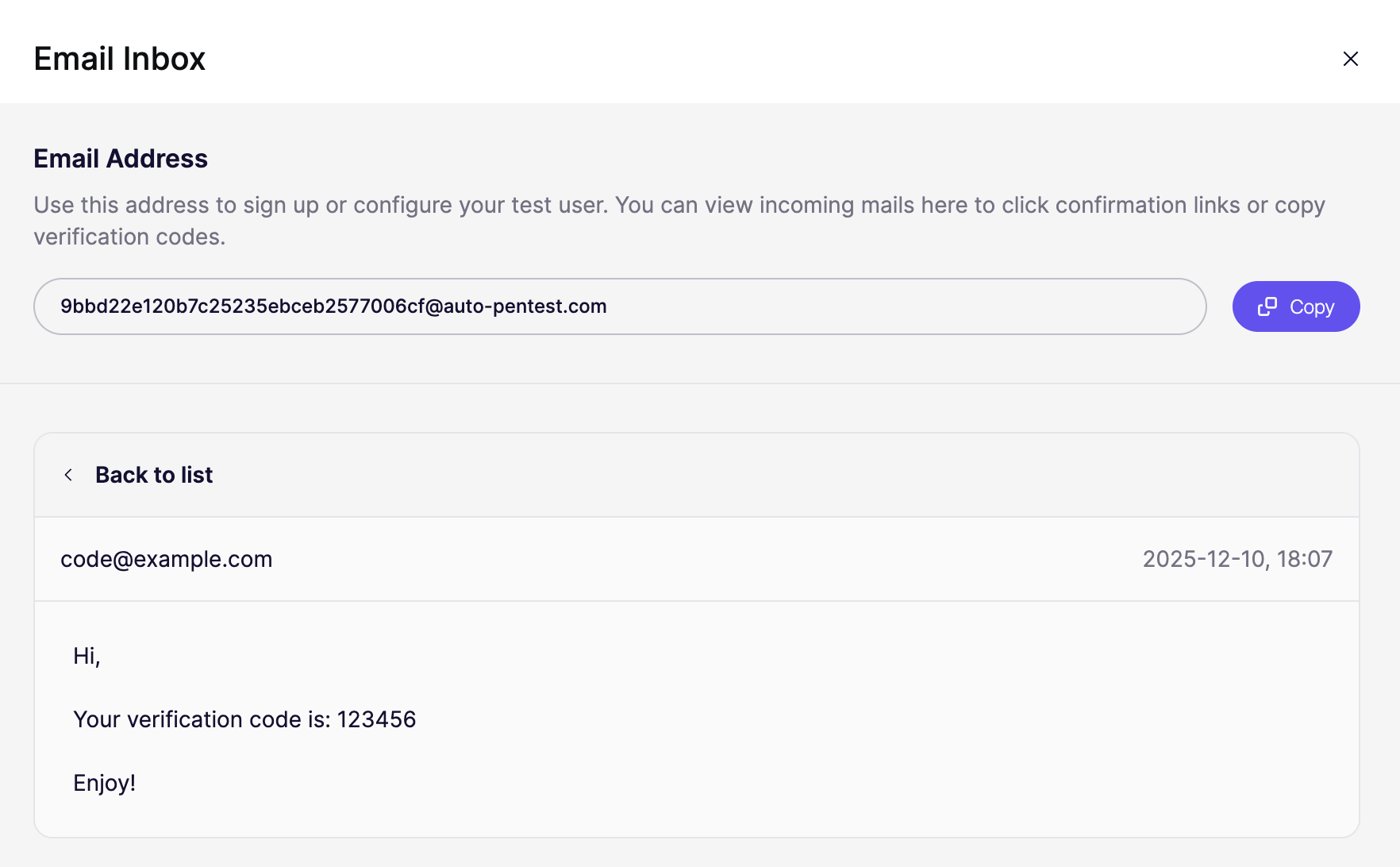
2. Click the **Open Inbox** icon (or click the email address itself).
3. You will see the confirmation email from your app.
4. Open it and click the confirmation link/button to activate the user.
{% endstep %}
{% step %}
**Update Login Logic in Aikido**
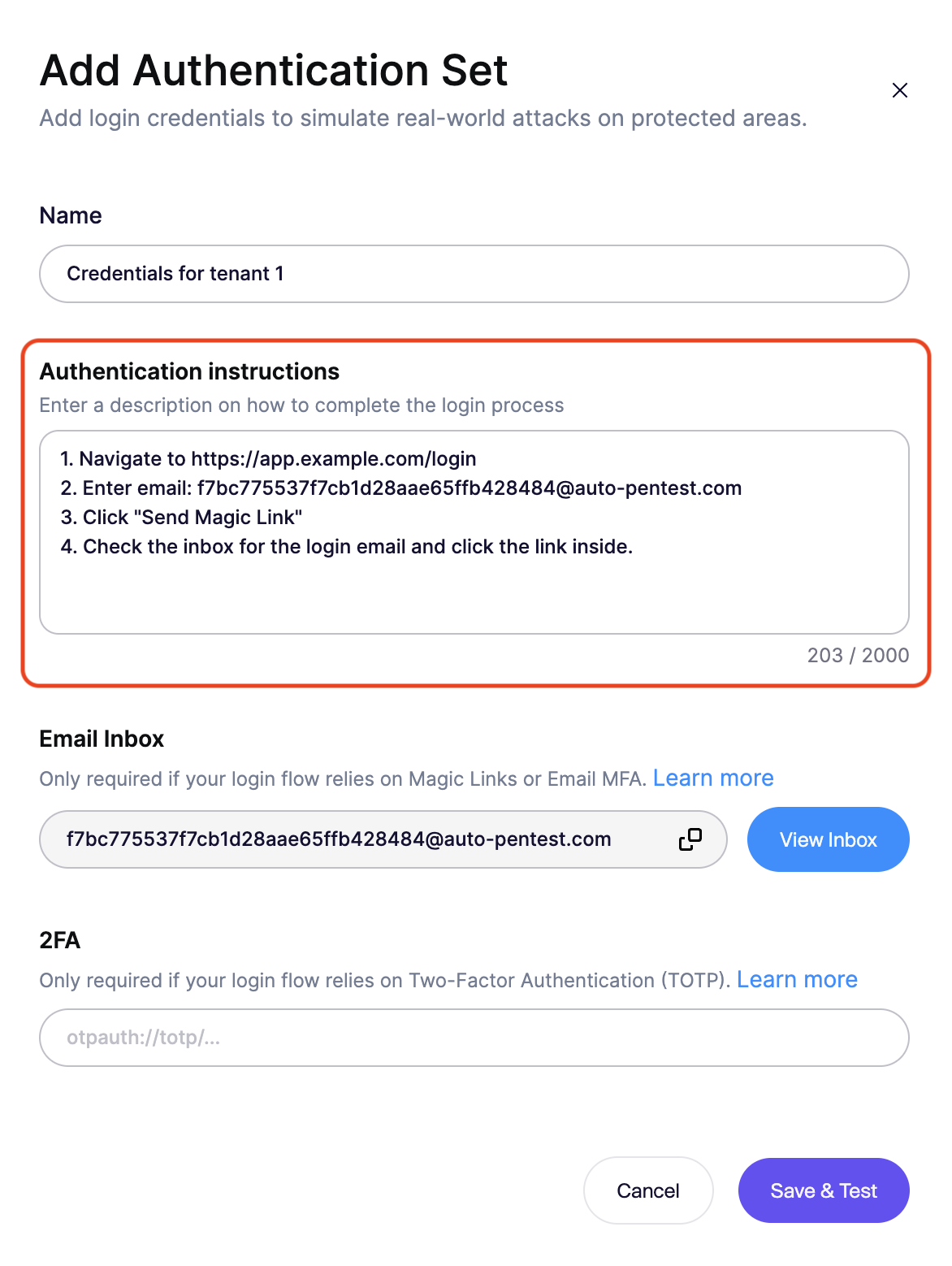
You must explicitly tell the agent to check this inbox in the **Login Logic** text area.
**Example Instruction for Magic Links:**
```
1. Navigate to https://app.example.com/login
2. Enter email: [insert the created email here]
3. Click "Send Magic Link"
4. Check the inbox for the login email and click the link inside.
```
**Example Instruction for Email MFA:**
```
1. Navigate to https://app.example.com/login
2. Enter username and password.
3. When prompted for the code, check the inbox.
4. Extract the 6-digit code from the latest email.
5. Enter the code into the verification field and submit.
```
{% endstep %}
{% step %}
**Test the Configuration**
Finally, verify that the agent can interpret your instructions:
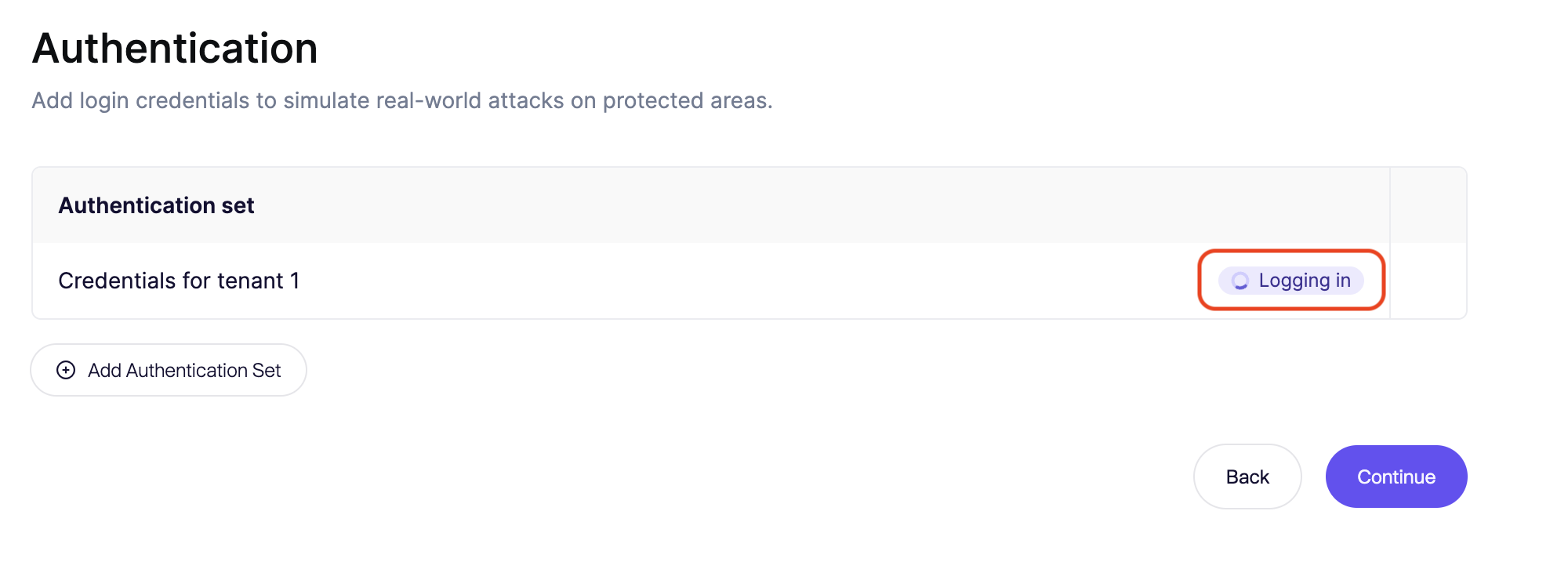
1. Click **Save & Test**.
2. The agent will launch a browser session and attempt to log in using the credentials and inbox instructions.
3. If successful, you will see a confirmation that the agent authenticated and reached the post-login state.
{% endstep %}
{% endstepper %}