# Microsoft Auth
{% stepper %}
{% step %}
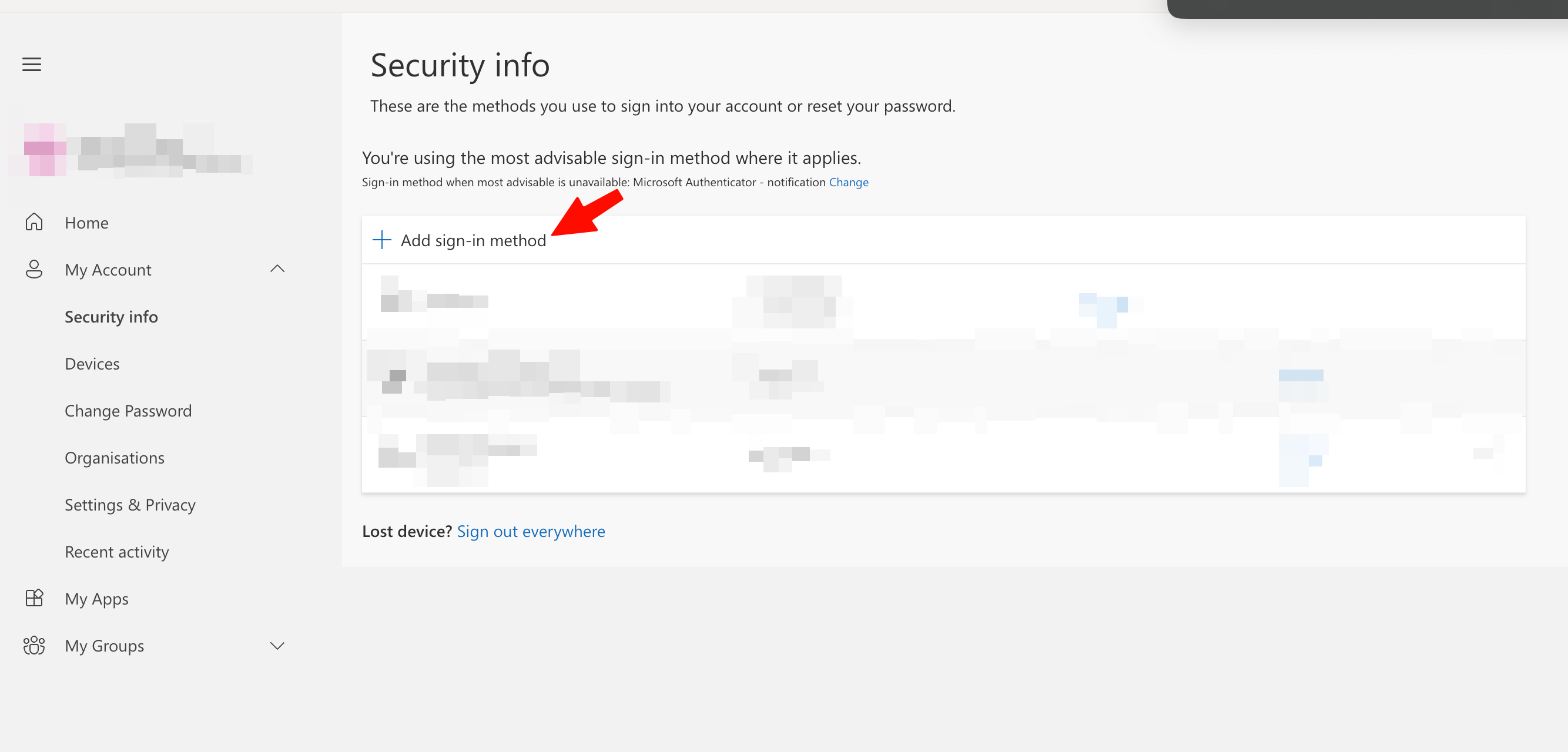
**Navigate to security settings**
Go to the settings page of your account: [https://mysignins.microsoft.com/security-info](https://mysignins.microsoft.com/security-info) and start the setup of Two-step verification
{% endstep %}
{% step %}
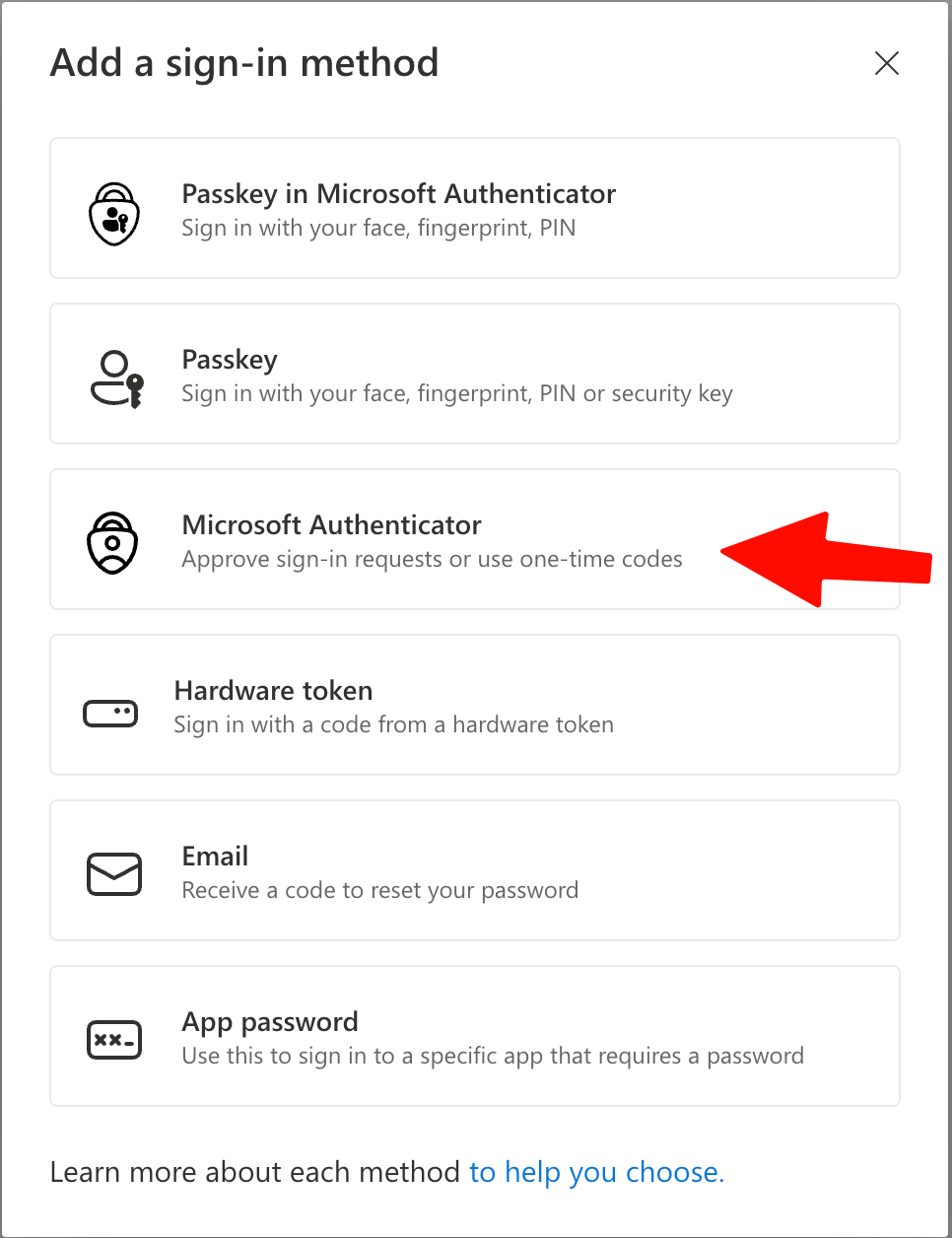
**Set up Two-step verification**
Choose to set it up with a different Authenticator app.
{% endstep %}
{% step %}
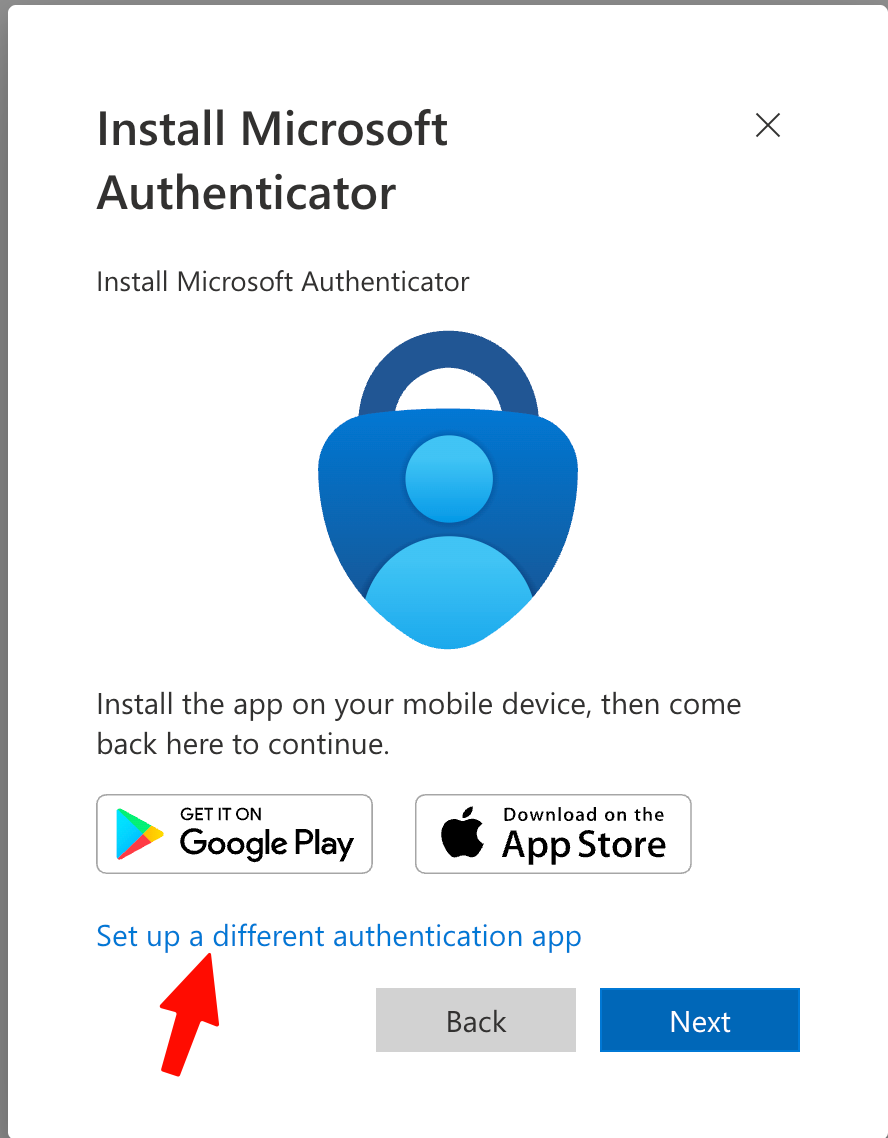
**Select a different authentication app**
Click "Set up a different authentication app".
{% endstep %}
{% step %}
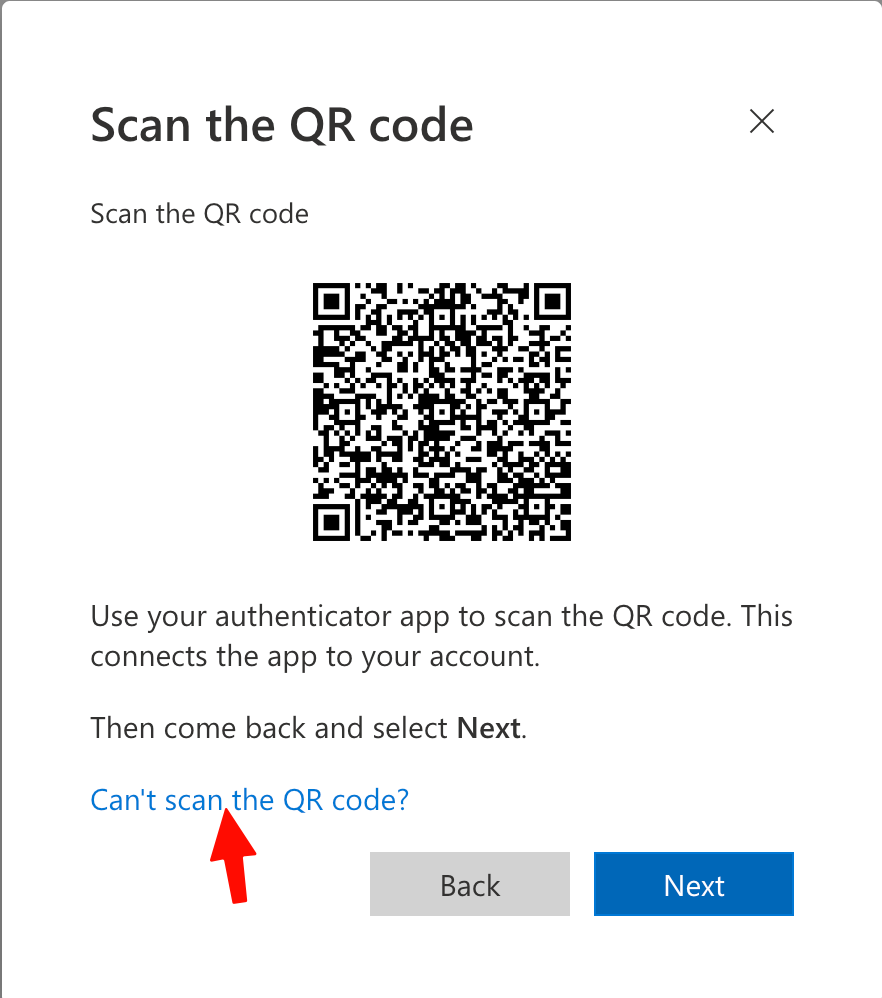
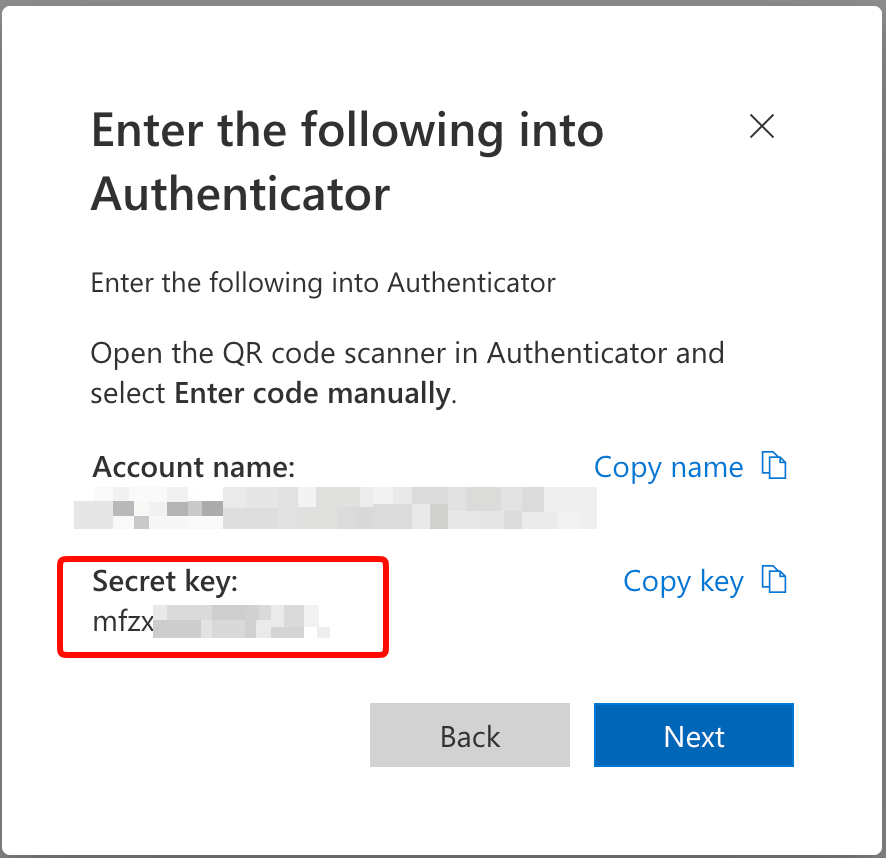
**Get secret instead of code**
When seeing the QR code, select the option "I can't scan the bar code"
{% endstep %}
{% step %}
**Copy the key**
{% endstep %}
{% step %}
**Store key in password manager**
Now add the key for the password manager in a password manager of choice. We recommend using a password manager that easily allows for the extraction of the key like 1Password or Bitwarden.
{% endstep %}
{% step %}
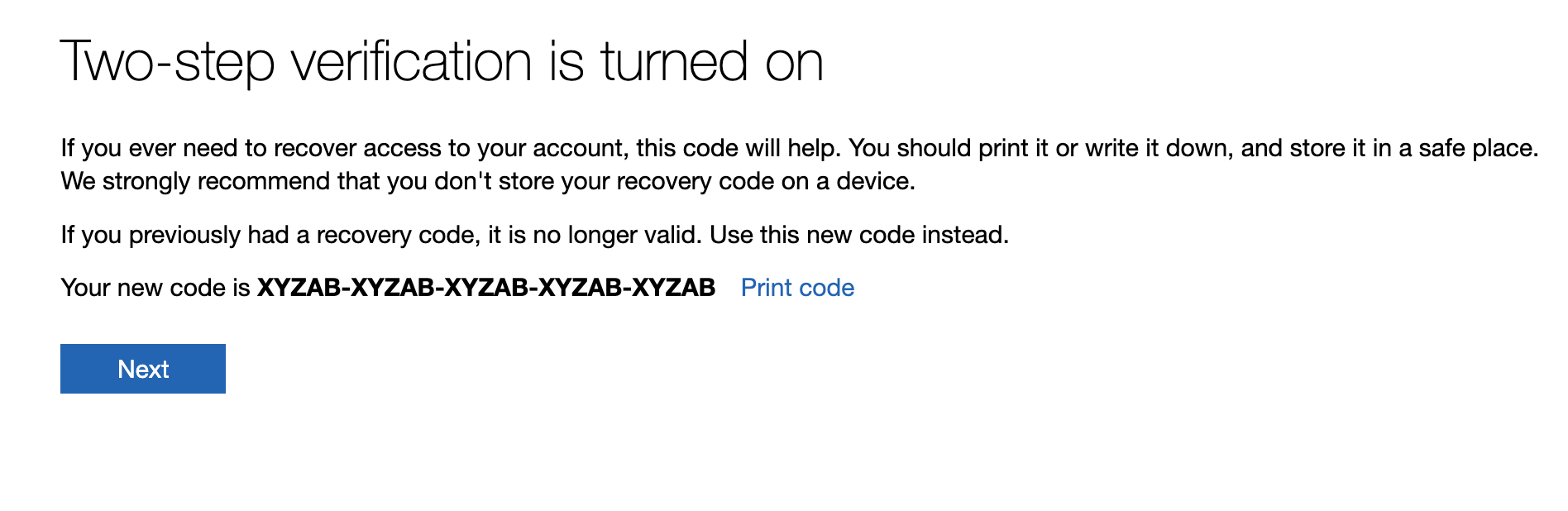
**Fulfill the flow and enable 2-Step Verification**
{% endstep %}
{% step %}
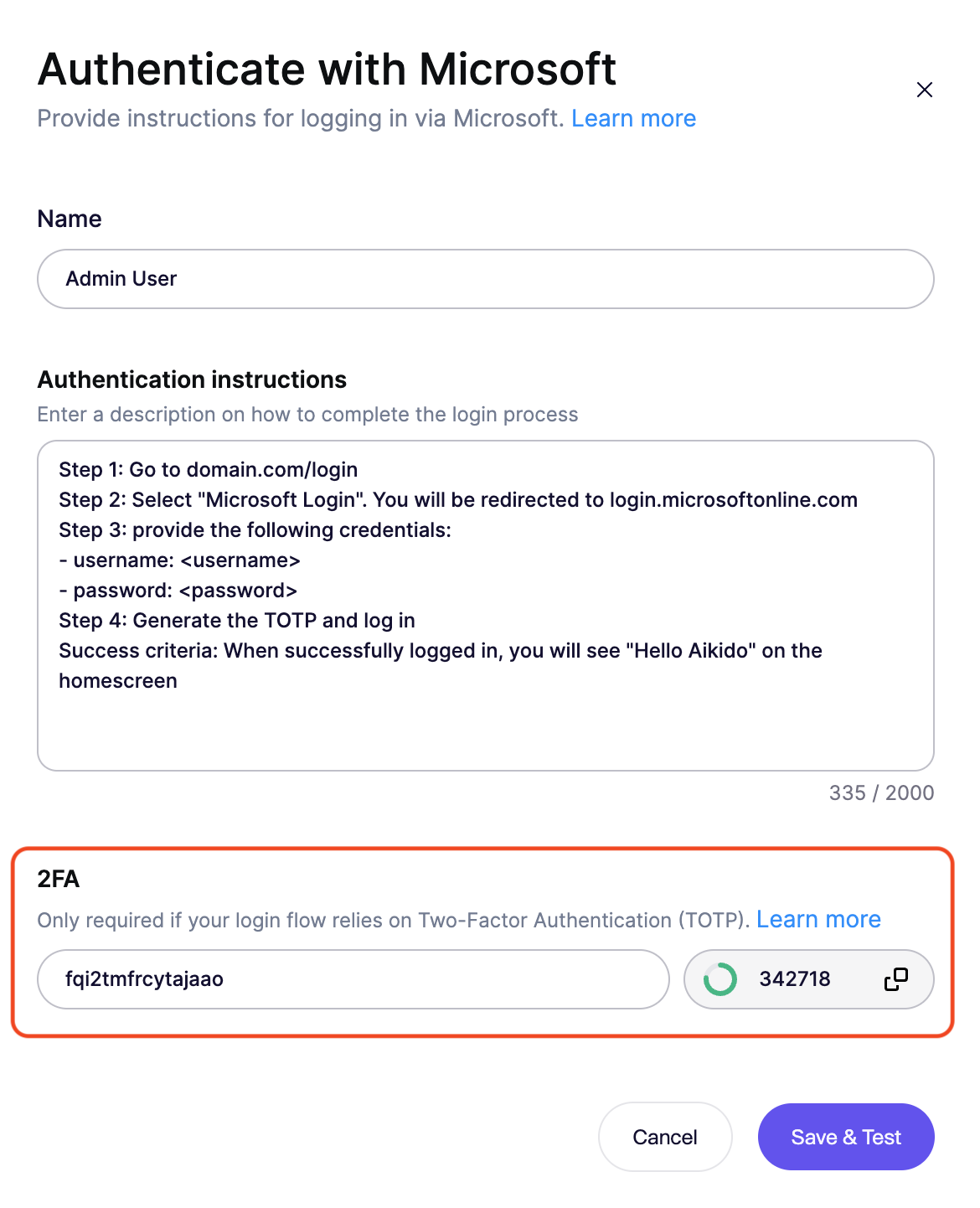
**Set up authentication in Aikido Pentest**
Write your instructions in a similar format as below
```
Step 1: Go to domain.com/login
Step 2: Select "Microsoft Login". You will be redirected to login.microsoftonline.com
Step 3: provide the following credentials:
- username:
- password:
Step 4: Generate the TOTP and log in
Success criteria: When successfully logged in, you will see "Hello Aikido" on the homescreen
```
{% endstep %}
{% step %}
**Add the TOTP URL**
Add the key in the correct base32 format. When adding the key from Microsoft, make sure to remove the spaces
{% endstep %}
{% endstepper %}