# Retesting Findings
After you fix a finding, use a retest to verify the fix in your pentest environment. Aikido retests one finding at a time, validates that the remediation properly fixes the issue, and checks for related risks introduced by the change. Aikido automatically closes the finding when the retest confirms that it is fixed.
{% hint style="warning" %}
Deploy your fix to the environment used for the assessment before you start a retest.
{% endhint %}
## Before you start
You can retest a finding if you have [access to the assessment](https://help.aikidogov.us/pentests/aikido-pentest#who-can-access-pentests).
* **Default users** can retest pentest issues in the workspace.
* **Team-only users** can retest only if they already have access to every repository attached to the assessment.
* Any pending credits for the assessment must be settled.
* You can retest findings from assessments started within the last six months.
## Retest a finding
{% stepper %}
{% step %}
### Open the finding
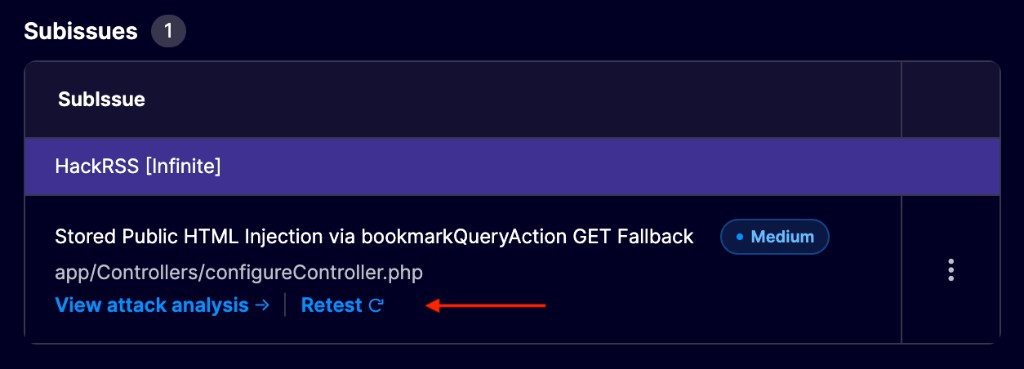
Open the finding and select **Retest** from its **Subissues** section.
Select Retest from the subissues overview.
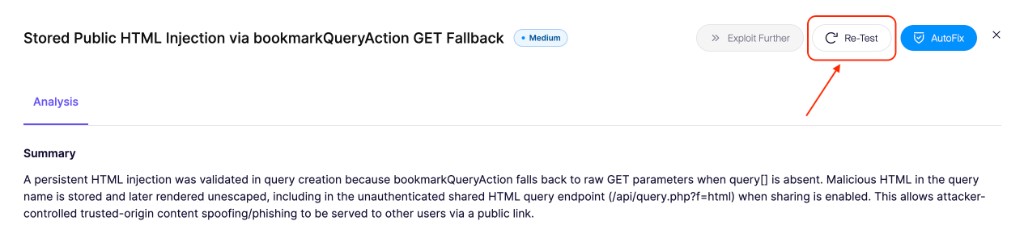
You can also select **View attack analysis** for a subissue, then click **Re-test** in the Attack Analysis view.
Use Re-test in Attack Analysis to retest this finding.
{% endstep %}
{% step %}
### Confirm the retest
In the **Run Retest** dialog, click **Run Retest**.
If the retest falls outside your configured testing hours, choose **Run Now** to start immediately or **Schedule** to wait for the next permitted testing window.
{% endstep %}
{% step %}
### Monitor the result
While a retest runs, the assessment shows **Retest Running**. For findings with Attack Analysis, open the live retest to follow its progress.
When the retest finishes, Aikido marks the finding as **Solved** if it can't reproduce the issue. Otherwise, the finding remains open with a **Not fixed** result and updated remediation guidance.
{% endstep %}
{% endstepper %}
## Retest mobile findings
For a finding in the mobile app, upload a new build that includes your fix before you start the retest.
For an Android app, build a new APK that includes your fix and upload it before retesting the finding:
1. Open the assessment overview.
2. Under **Configuration Details**, find **Android App**.
3. Select the edit icon and upload the new APK.
4. Start the finding retest as described above.
{% hint style="info" %}
Future retests use the newly uploaded APK. You can replace the APK only when the assessment isn't running.
{% endhint %}
The replacement APK must meet the [Android pentest requirements](https://help.aikidogov.us/pentests/configure-a-pentest/android-pentesting#prerequisites), including the 500 MB limit and no certificate pinning, root detection, or emulator detection.
Retesting for iOS findings is coming soon.
## What's next?
Review the retest result in the finding. Once all relevant findings are resolved, download a [Post-Remediation Report](https://help.aikidogov.us/pentests/coverage-and-findings/pentest-reports#report-types) to share your current security posture with stakeholders.