
Jetbrains Proxy Setup
Use this guide when your network requires a proxy for outbound traffic to Aikido in JetBrains IDEs.
Configuration
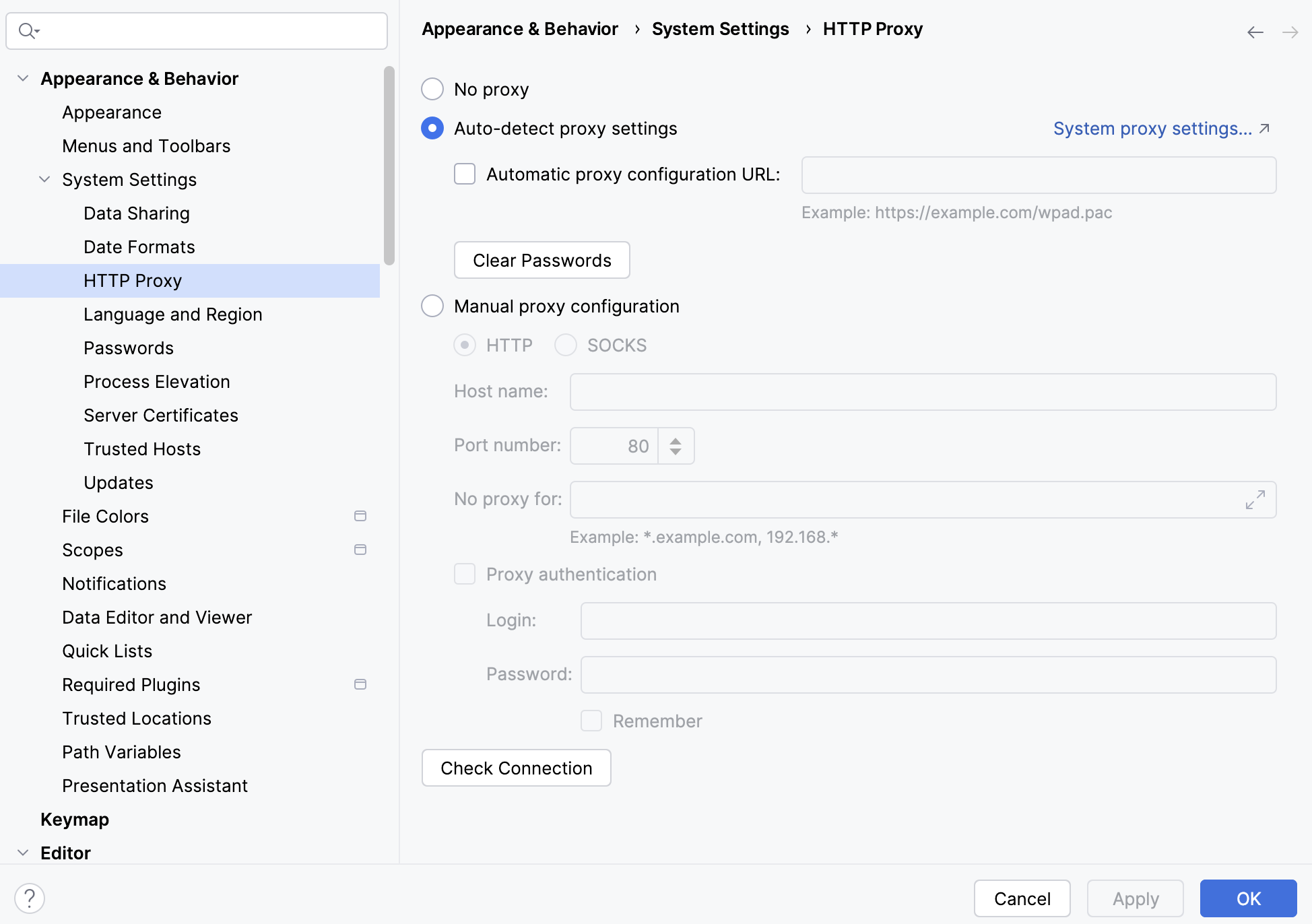
- Open
Settings(File -> Settingson Windows/Linux, IDE menu ->Settingson macOS). - Go to
Appearance & Behavior -> System Settings -> HTTP Proxy. - Choose
Manual proxy configuration. - If using manual mode, fill in proxy
HostandPort. - If required, enable
Proxy authenticationand add username/password. - Click
Check connectionwithhttps://app.aikido.dev. - Save and restart/reload the IDE.
- Open/save a file to trigger an Aikido scan.
If Your Company Uses TLS Inspection
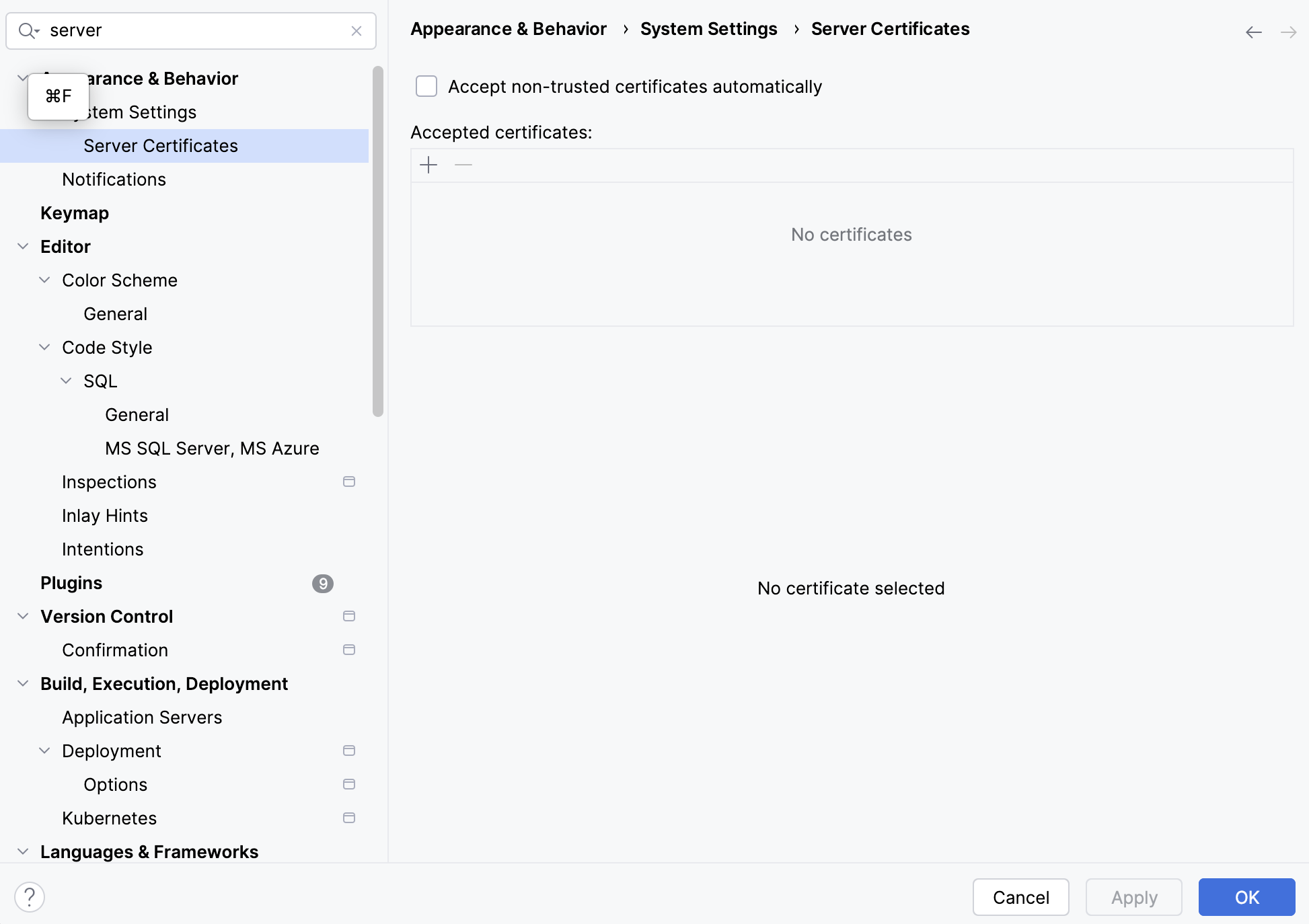
If your proxy re-signs certificates, import your corporate CA in JetBrains:
- Open settings and search for
Server Certificates. - Import your corporate CA certificate (
.pem/.crt). - Apply and restart the IDE.
How to Verify Connection
- IDE proxy
Check connectionsucceeds. - Aikido scans run after open/save without connection errors.
- SCA/dependency analysis completes.
- No proxy auth or TLS trust errors in IDE logs.
Common Fixes
407 Proxy Authentication Required- Re-check proxy credentials in
HTTP Proxy. - Confirm auth method (basic vs integrated/SSO) with IT.
- Re-check proxy credentials in
- TLS errors (
self-signed,PKIX,unable to verify)- Import/update corporate CA in
Server Certificates. - Restart IDE.
- Import/update corporate CA in
- Proxy not used
- Ensure
No proxyis not selected. - If using auto-detect, confirm your PAC/WPAD setup is reachable on your network/VPN.
- If auto-detect fails, switch to manual settings from IT (host/port).
- Re-check host/port and retry
Check connection. - If centrally managed, verify JVM proxy properties are applied to this IDE instance.
- Ensure