
Oracle Container Registry
Use this guide to connect your Oracle container registry to Aikido for image scanning.
Aikido only needs read (pull) access, and needs to be able to view an index of all the repositories. We never push, modify, or delete images.
Prerequisites
-
The registry url for your Oracle Container Registry (what you use during docker login)
-
A user with pull permissions for the repositories you want scanned.
Scope it to the minimum set of repos or namespaces, make sure we can get a list of the repositories.
-
(Optional) If your registry is behind a firewall, allowlist Aikido’s egress IPs.
Set-up
Step 1: Create credentials for Aikido
- Create a new user with the correct permissions: needs to have pull permissions & needs to be able to view all repositories.
- Generate an auth token for this new user.
Step 2: Verify with docker login
Before connecting to Aikido, confirm the credentials work locally.
docker logout example.ocir.io 2>/dev/null || true
docker login example.ocir.io
# Username: <your-username-or-service-account>
# Password: <your-access-token-or password>
Then try pulling a known image to confirm permissions:
docker pull registry.example.ocir.io/namespace/image:tagIf this fails, adjust the token scope or repository permissions in your registry.
Step 3: Add the registry in Aikido
We don't have an explicit entry for Oracle Container Registries, but the OCI option works with a lot of container registries, including Oracle Container Registry.
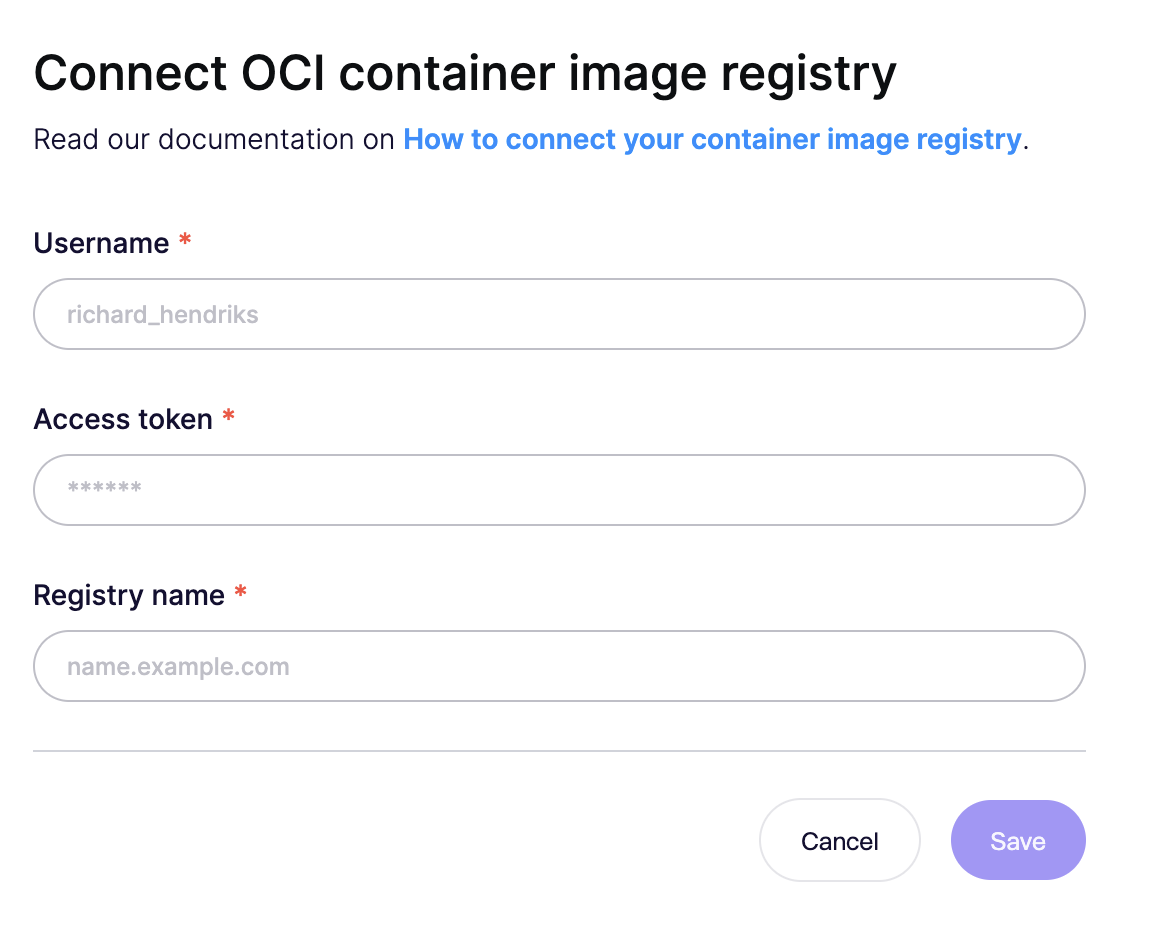
In Container image registry connection, enter:
| Field in Aikido | What to enter | Example |
|---|---|---|
| Username | The username or service/robot account you created | robot_aikido |
| Access token | The token/password used with docker login | •••••••• |
| Registry name | Your registry hostname (no protocol) | registry.example.ocir.io |
Click Save.