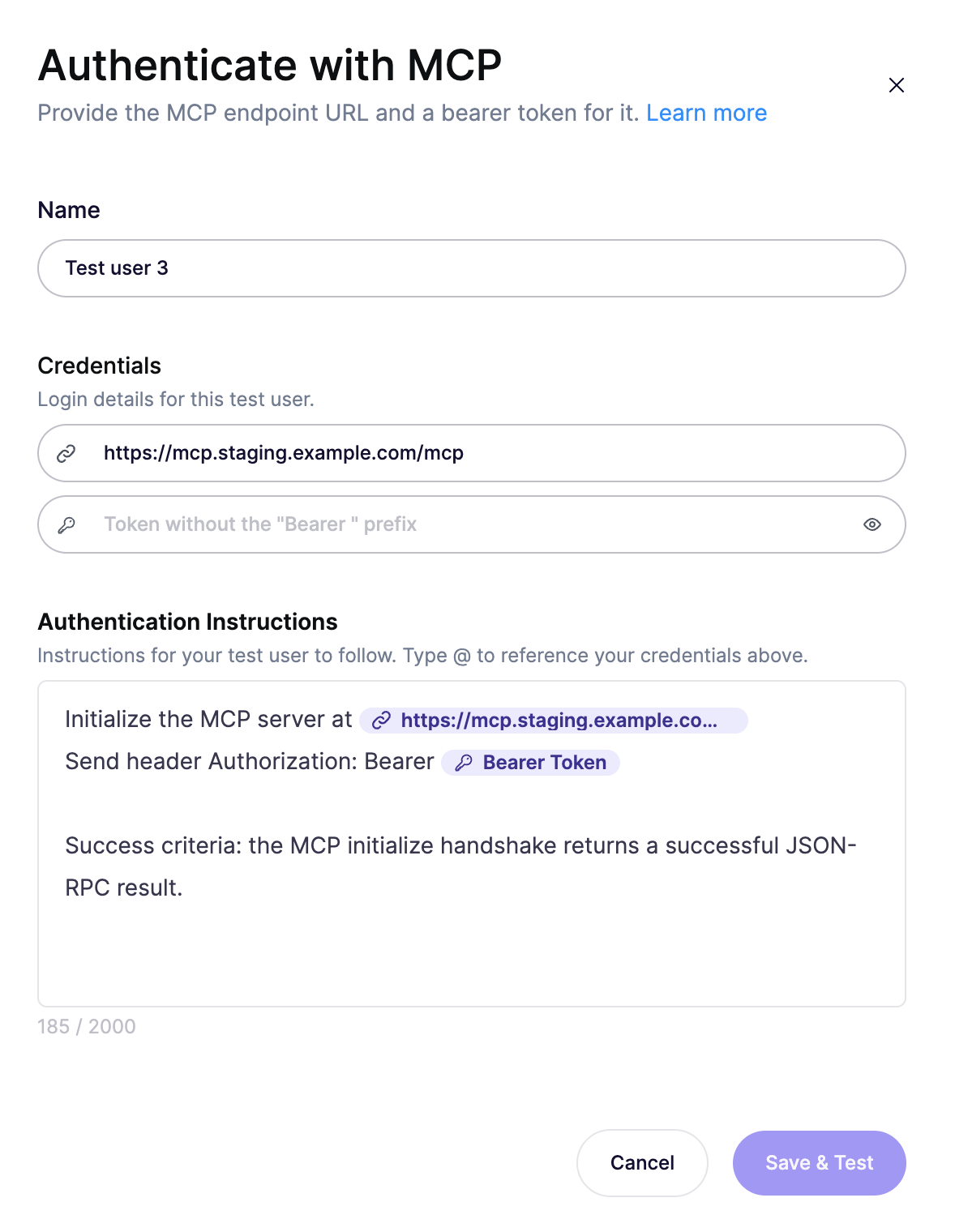
Authenticate with MCP
Authenticate an Aikido Pentest to a remote MCP server with an endpoint URL and a bearer token.
Aikido Pentest signs in to a remote Model Context Protocol (MCP) server with a bearer token. On the Test Users step, add an MCP test user and provide the endpoint and the token.
Prerequisites
- The MCP endpoint URL, including the
/mcppath clients connect to. - A bearer token that stays valid for the whole assessment.
Set up MCP authentication
Select Web Application
Go to Pentests, open your Project, and click Create Assessment. On Select Pentest Target, select Web Application.
Add an MCP test user
In the assessment wizard, on the Test Users step, click Add Test User → MCP.
Enter the endpoint URL
In URL, enter the MCP endpoint. Aikido prefills this from the scope URL. End the URL with
/mcp.Example:
https://mcp.staging.example.com/mcpA URL that stops at the host still authenticates. The agent spends extra time discovering the endpoint, so include
/mcp.Enter the bearer token
In Bearer Token, paste the token value. Aikido sends it as
Authorization: Bearer <token>.Issue a token that stays valid for the full pentest. 24 hours is a good lifetime, and it is usually the default.
This method sends
Authorization: Bearer. For a different header, use API Key on the Test Users step.Save and test
Keep the default Authentication instructions unless the server needs extra steps. Click Save & Test. Aikido initializes the MCP server and checks that the handshake returns a successful result.