Google Auth
Use a Google account on your company domain for testing.
Do not use a newly created free Gmail account. Google will likely block it or flag the login as bot behavior.
To let the agent log in with Google Auth, follow these steps:
Navigate to security settings
Go to the settings page of your account: https://myaccount.google.com/u/1/security
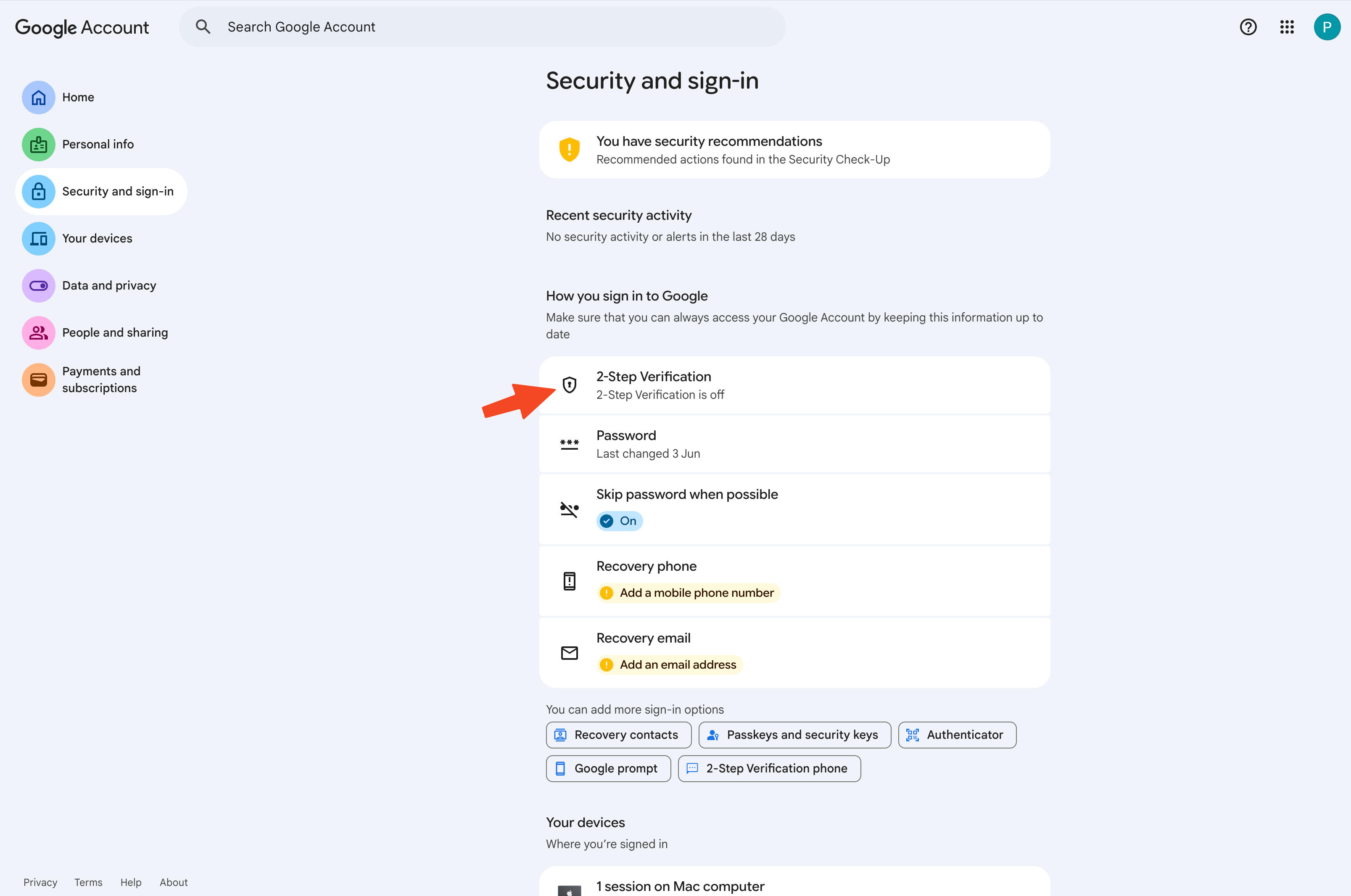
Start the authenticator app setup flow.
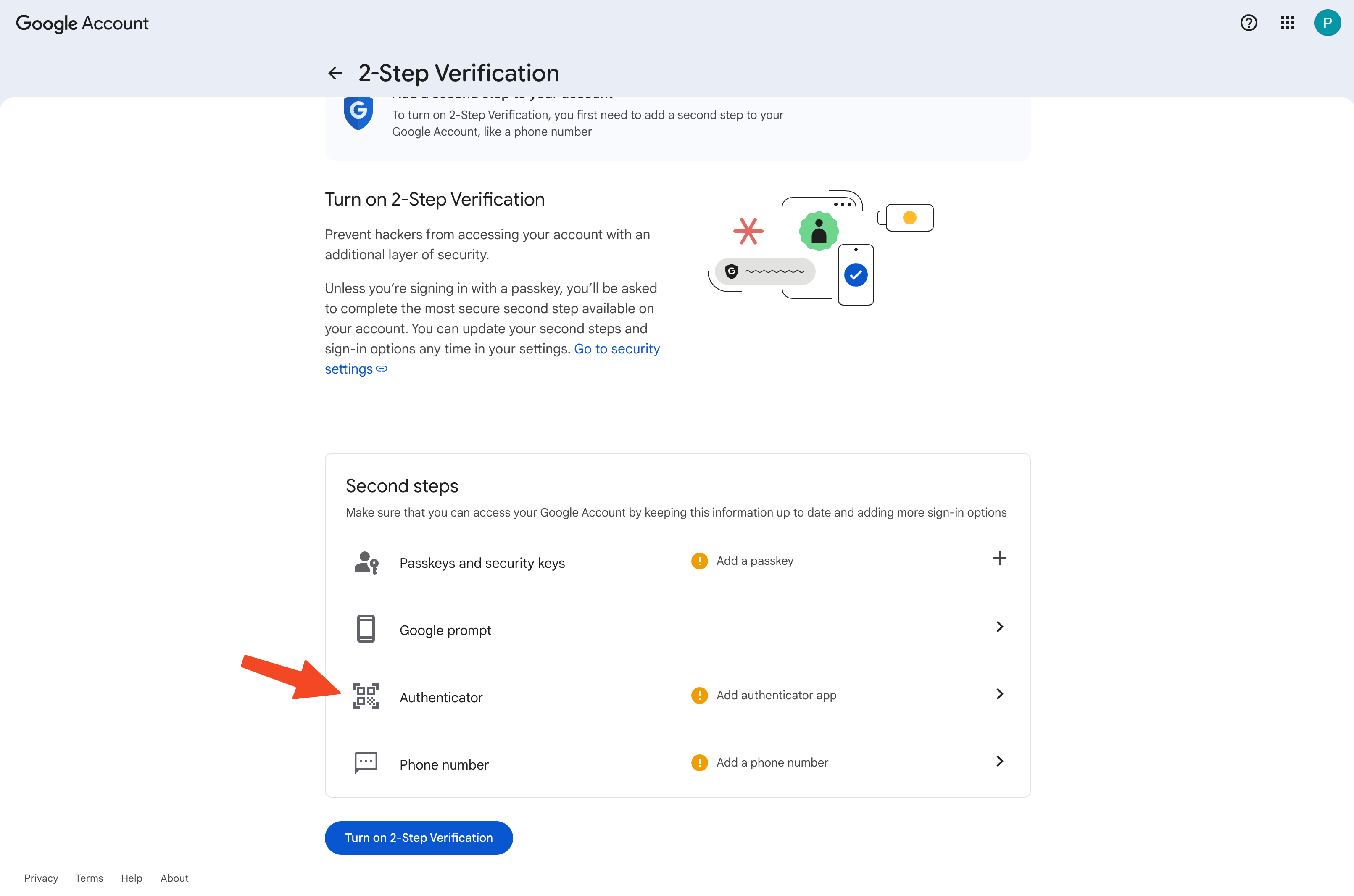
MFA Onboarding
Click on the authenticator app option to configure the MFA.
Get secret instead of code
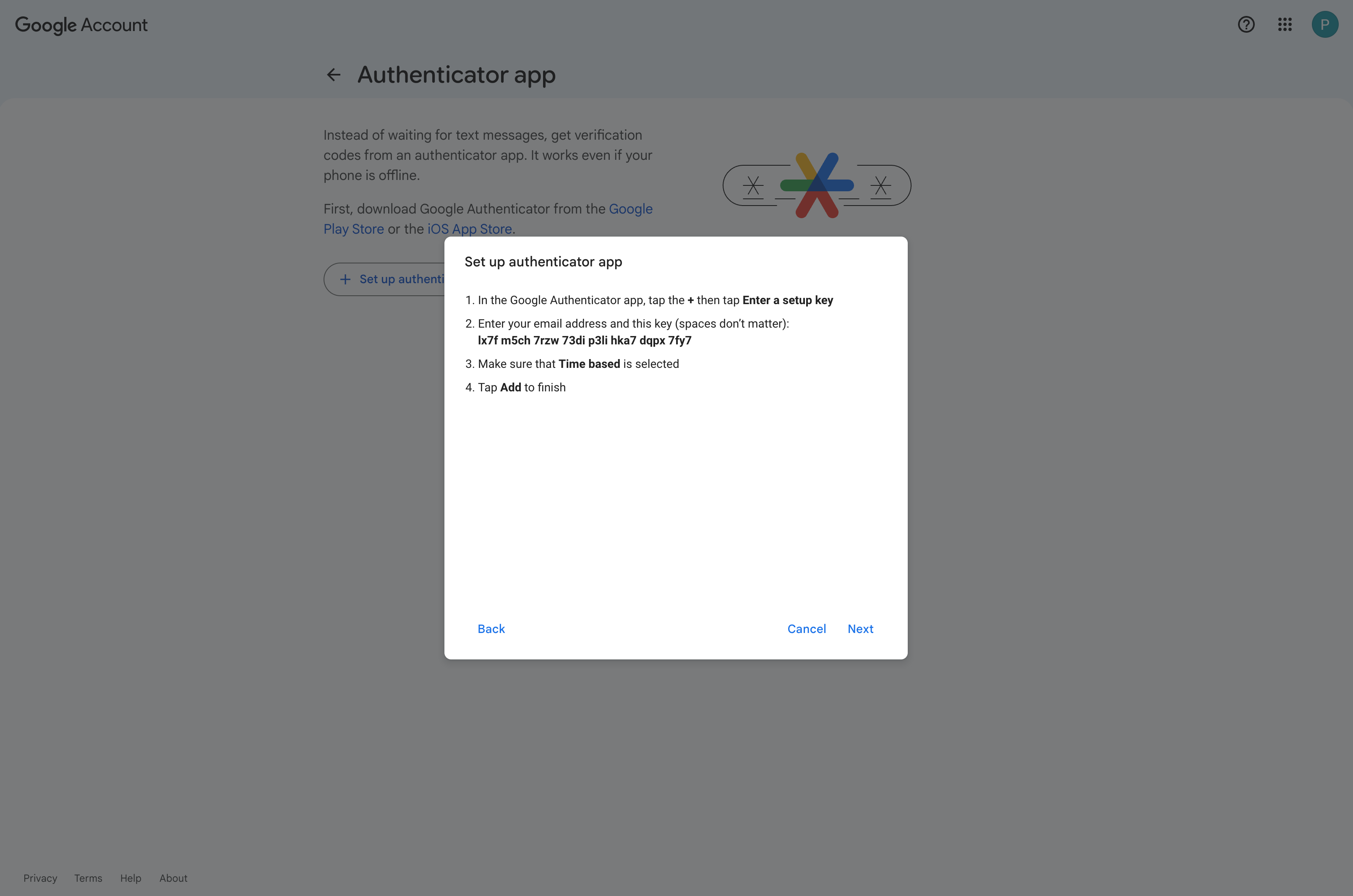
When you see the QR code, select "Can't scan it?"
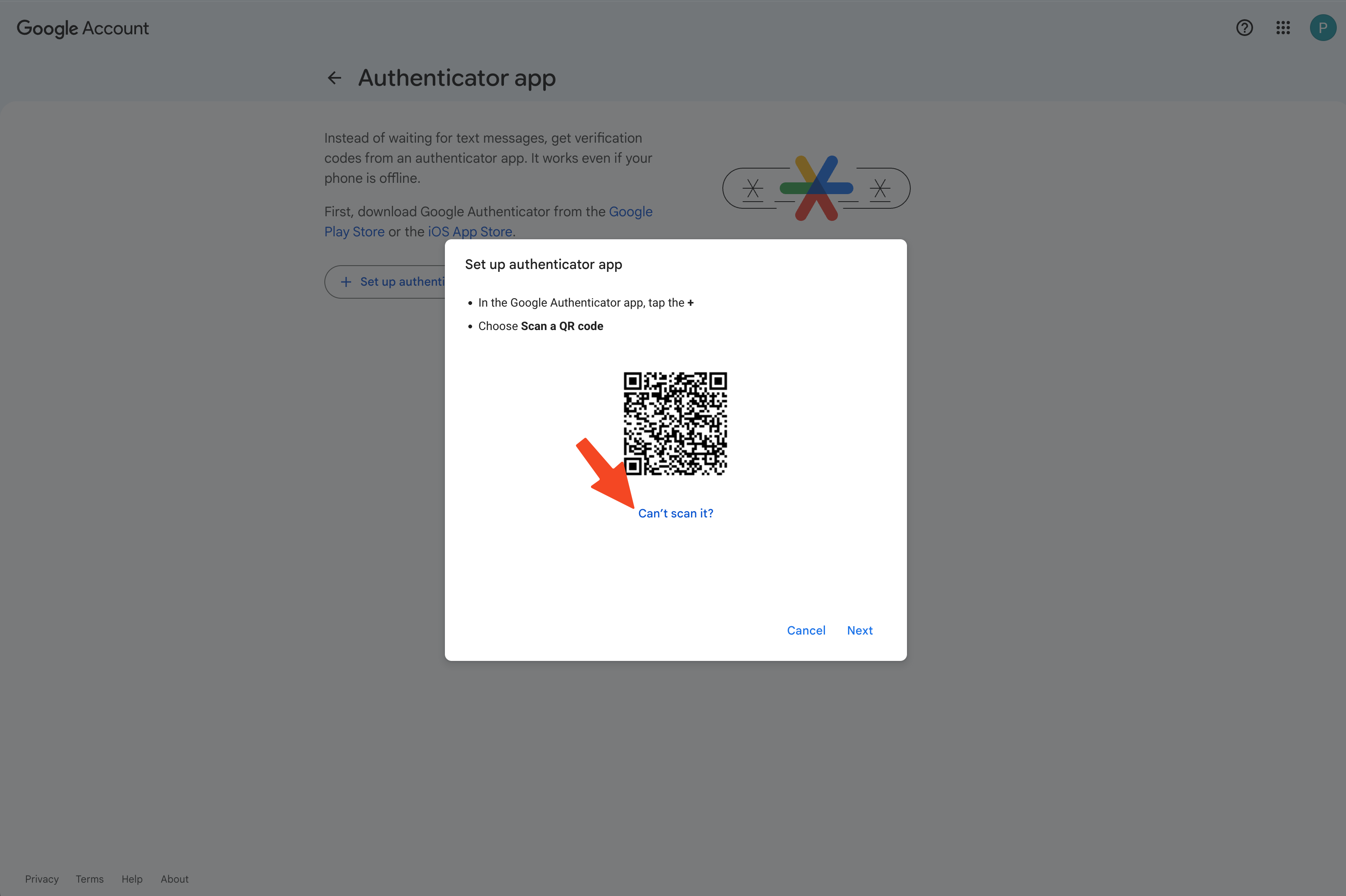
Copy the key
Store key in password manager
Store the key in a password manager of your choice. We recommend one that lets you copy the secret easily, such as 1Password or Bitwarden.
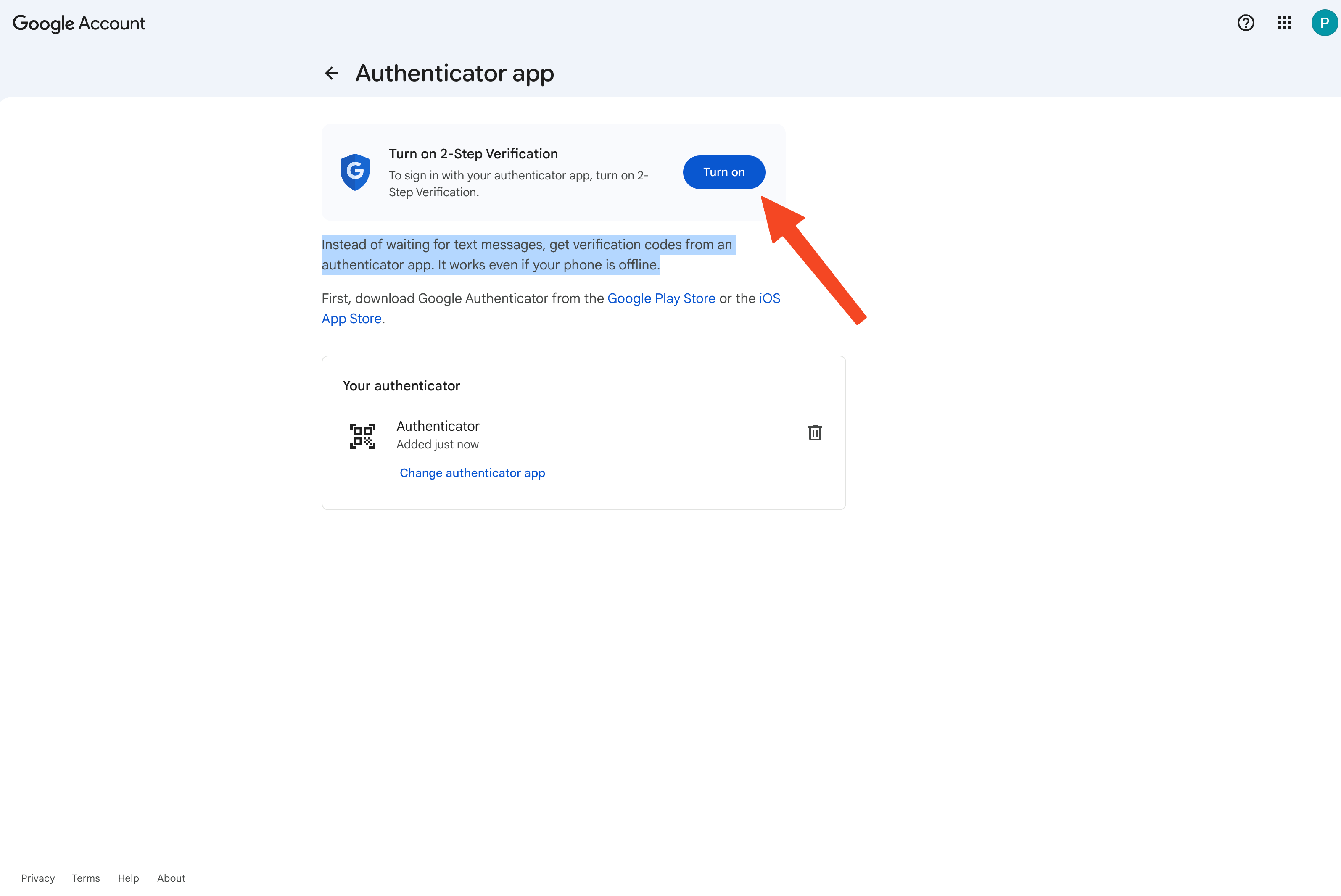
Complete the flow and enable 2-Step Verification
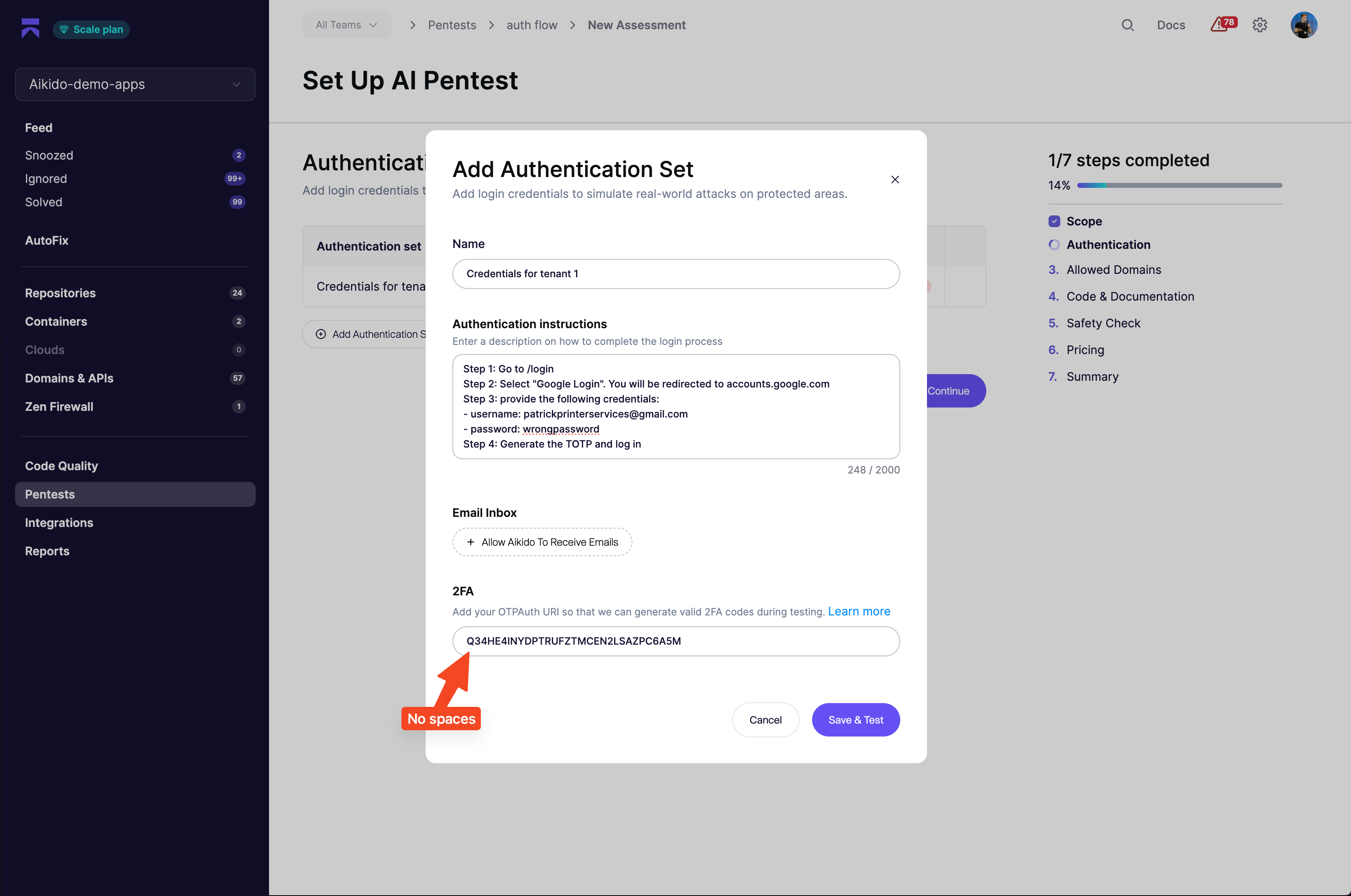
Set up authentication in Aikido Pentest
Write your instructions in a format like this:
Step 1: Go to domain.com/login Step 2: Select "Google Login". You will be redirected to accounts.google.com Step 3: Provide the following credentials: - username: security-test@company.com - password: wrongpassword Step 4: Generate the TOTP and log in Success criteria: When you log in successfully, you will see "Hello Patrick" on the home screenAdd the TOTP URL
Add the key in base32 format. Remove spaces from the Google key before you paste it.