
AutoFix for Pentest and AI Code Analysis
AutoFix writes code fixes for security issues found by Aikido Pentest, AI Code Analysis, and Deep Review, and delivers them as pull requests (PRs). All programming languages are supported.
You can get a fix in 3 ways:
- From the AutoFix page: preview a fix, refine it, and open a PR when you're ready.
- Automatically: Aikido opens a PR as soon as a pentest reports a finding that matches your policy.
- From a pull request comment: reply to a Deep Review finding, and Aikido opens a fix PR on top of your PR.
Prerequisites
- AutoFix is set up with write access to the repository.
- The finding points to a source code file in a connected repository. Findings without a file location, such as a misconfigured web server header, can't be fixed with code.
How it works
Aikido Pentest and AI Code Analysis produce a root-cause analysis for each finding. AutoFix uses that analysis to change the code that causes the issue, not only the endpoint where it was observed.
| AutoFix page | Automated PRs | Pull request comment | |
|---|---|---|---|
| Findings | Aikido Pentest and AI Code Analysis | Aikido Pentest and AI Code Analysis | Deep Review |
| Trigger | You click Create Preview or Create PR | A new finding matches your severity policy | You reply to the finding comment |
| Base branch | Default branch, or a branch you pick | Default branch, or the branch of the preview | The branch of the PR you're reviewing |
| Where you review | Preview in the Aikido app, then the PR | The PR | The PR |
Fix findings from the AutoFix page
Open the findings
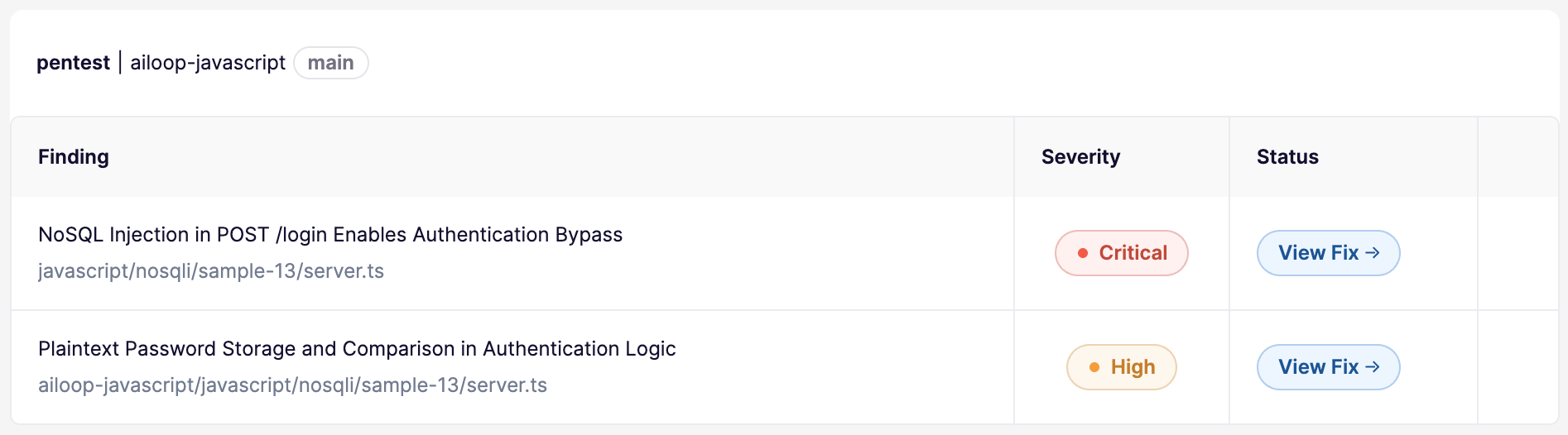
Go to AutoFix → Code and select Pentests or AI Code Analysis. Narrow the list with the Repo, Severity, and Pentest Project filters.
Preview the fix
Click Create Preview on a finding. For critical and high severity findings, Aikido often prepares the preview as soon as the pentest reports them, so you can click View Preview right away.
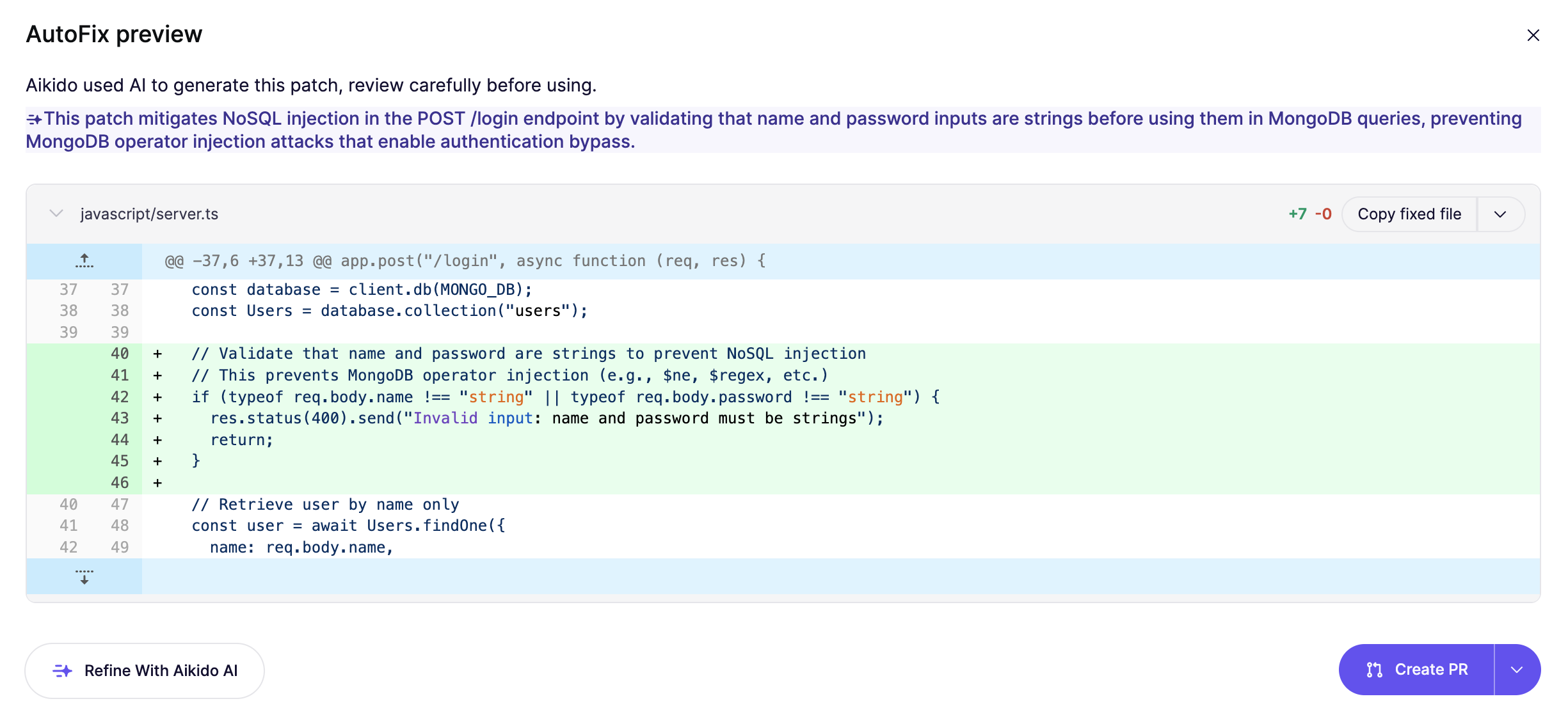
The preview shows extra information when it's available:
- Outdated: the files changed after the preview was made. Click the label to regenerate the preview against the latest code.
- Tests Passed or Tests Failed: the result of running your tests against the fix.
Adjust the fix
If the fix isn't quite right, click Refine with Aikido AI and describe what to change. See Refine AutoFixes with Aikido AI. Click Regenerate to start over, or Mark as Ignored if the finding doesn't need a fix.
Open the pull request
Click Create PR. The dropdown next to it has more options:
- Create PR to Specific Branch: open the PR against a branch other than the default branch, for example a release branch.
- Create PR and Ship it: open the PR and add your repository's deploy label to it.
Create fixes automatically
AutoFix can open a PR for each new pentest or AI Code Analysis finding without anyone clicking a button. Unlike the daily automated PRs for dependencies and static application security testing (SAST), these PRs are created as soon as the finding is reported.
For each new finding, Aikido:
- Generates a fix preview.
- Checks the finding against your repository and severity settings.
- Opens a PR if the preview contains a code change and the finding matches.
Set up automated PRs
Open the automated PR settings
Go to AutoFix → Settings and scroll to Automated PRs.
Turn on fixes for pentest and AI Code Analysis issues
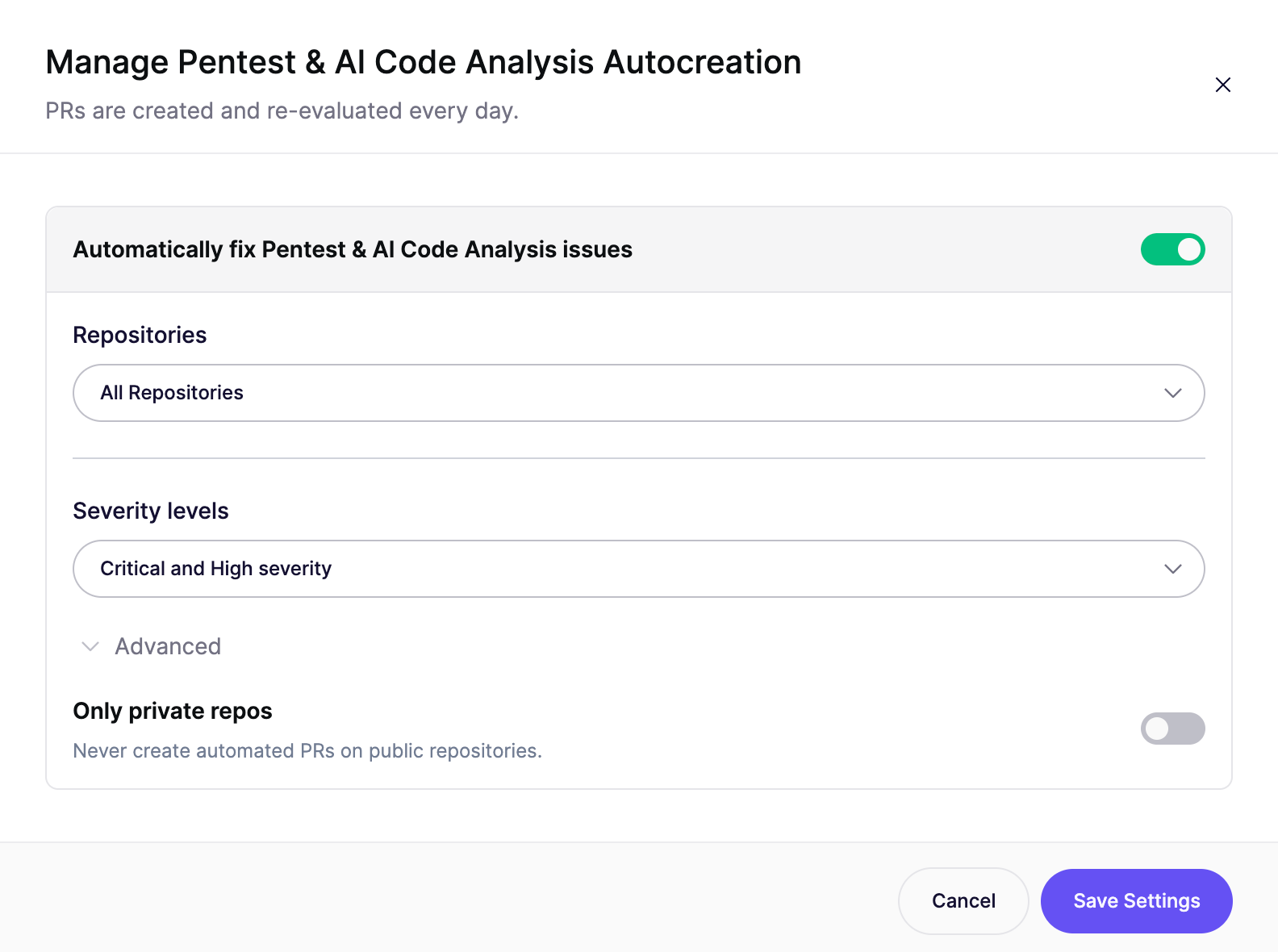
Turn on Automatically fix Pentest & AI Code Analysis issues.
Choose repositories and severity
- Repositories: select all repositories or a subset.
- Severity levels: select Critical and High severity to fix the issues that matter most, or All issues.
- Only private repos (under advanced settings): never open automated PRs on public repositories.
Save the settings
Click Save Settings. The Automated PRs section now shows Pentest & AI Code Analysis Issues with the severity you selected.
Automated PRs follow your PR configuration, such as title prefixes, branch names, and labels.
Override the settings per repository
Add an .aikido file to the root of a repository's default branch to change the severity policy for that repository only. The value in the file takes priority over the Severity levels setting in the Aikido app. Automated PRs must still be turned on and the repository must still be selected in the Aikido app.
autofix:
  automated:
    pentest:
      update_policy: all # or critical_and_high_only
To stop automated pentest PRs for a repository, set disabled: true instead:
autofix:
  automated:
    pentest:
      disabled: true
See Repository-specific configuration for all .aikido options.
Manage the settings with the API
Read and update the same settings with the public API. Reading requires the autofix:read scope, and updating requires autofix:write.
- Get Pentest AutoFix PR creation settings:
GET /api/public/v1/repositories/autofix/pentest/settings - Update Pentest AutoFix PR creation settings:
PUT /api/public/v1/repositories/autofix/pentest/settings
{
  "enabled": true,
  "severity_filter": "critical_and_high_only",
  "repos_scope": "selected",
  "repo_ids": [123, 456]
}
severity_filter accepts all or critical_and_high_only. repos_scope accepts all or selected, and defaults to all. Send {"enabled": false} to turn automated PRs off. The Only private repos option is only available in the Aikido app.
Fix Deep Review findings from a pull request comment
When Deep Review posts a finding on your PR, you can get a fix without leaving the PR. Reply to the finding comment and ask for a fix in plain language. You don't need a command or a tag.
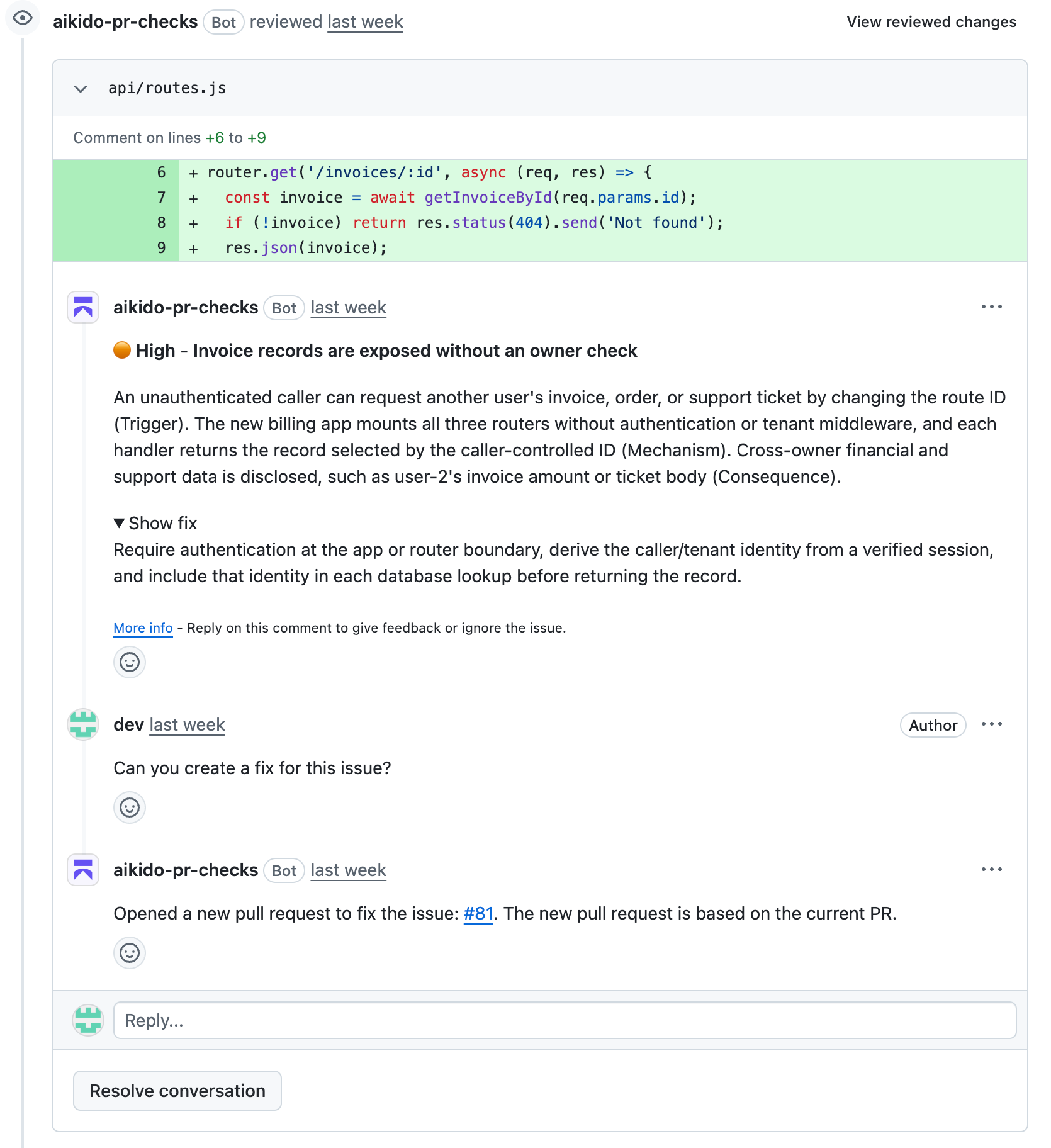
Aikido reads your reply and works out what you want. If you ask for a fix, Aikido:
- Writes a fix for the finding, starting from the latest commit on your PR.
- Opens a new PR that targets your PR's branch, not the default branch. Merge it to bring the fix into your PR.
- Replies to your comment with a link: "Opened a new pull request to fix the issue: #123. The new pull request is based on the current PR."
The fix PR describes the change and links back to the Deep Review finding.
Add context to your request
Aikido gives your whole reply to AutoFix as instructions. Use it to steer the fix:
- "Can you fix this?"
- "Fix this, but use the
sanitizeHtmlhelper we already have inutils/." - "Please fix it and keep the existing error response format."
Aikido only opens a fix PR when you clearly ask for one. A reply like "I'll fix this myself" doesn't trigger a fix.
What happens to the fix pull request
Aikido closes the fix PR for you when it's no longer needed:
- The finding is resolved or ignored: Aikido closes the fix PR.
- Your PR is merged or closed: Aikido closes the fix PRs that are still open for it.
Limitations
Fix requests from pull request comments are available for GitHub, GitHub Enterprise Server, GitLab Cloud, and GitLab Self-Managed. Support for Bitbucket and Azure DevOps is coming soon.
To let only members of your Aikido workspace trigger fixes from comments, turn on Restrict @AikidoSec commands to Aikido users in your PR check settings.
What happens after a fix is merged
When all issues linked to an AutoFix PR are resolved, for example because the fix was merged through another PR, Aikido closes the PR and deletes its branch. If someone else has pushed commits to the PR, Aikido leaves it open.
Language support
AutoFix works with all programming languages. For JavaScript codebases, it also writes new unit tests and updates existing ones. It applies linting rules to the generated code for JavaScript, Python, and .NET.
FAQ
Why is there no fix for a pentest finding?
AutoFix only changes source code, so it needs a finding that points to a file in a connected repository. Findings from pentests that don't have access to your code have no file location. A finding about server or cloud configuration also can't be fixed in code.
Why didn't Aikido open an automated PR?
Check that the repository is selected in the automated PR settings, the finding's severity matches your policy, and the repository's .aikido file doesn't disable pentest fixes. If Only private repos is on, public repositories are skipped. Aikido also skips automated PRs while your wallet has a negative balance.
Why didn't Aikido respond to my fix request on a pull request?
Make sure you replied in the thread of the Deep Review finding comment, not in a new comment on the PR. Check that your repository is on GitHub, GitHub Enterprise Server, GitLab Cloud, or GitLab Self-Managed. If Restrict @AikidoSec commands to Aikido users is on, your SCM account must be linked to a member of the Aikido workspace.