
Send Alerts to Multiple Slack Channels
Introduction
Streamline your security response with Aikido by setting up tailored alerts to be sent to designated Slack channels. This guide will help you ensure that your team receives timely and relevant security notifications.
Setting Up Slack Alerts
Prerequisites: Ensure your Slack integration is active. You can find how to set up the Slack Integration here.
Step 1: Create an Alert
- Navigate to the Slack integration page and click Create alert.
Step 2: Opt for Team-Based Notifications
- Under Team to notify, select All Teams or one team. Link repositories, containers, and other resources to that team first, so the alert only covers what that team owns.
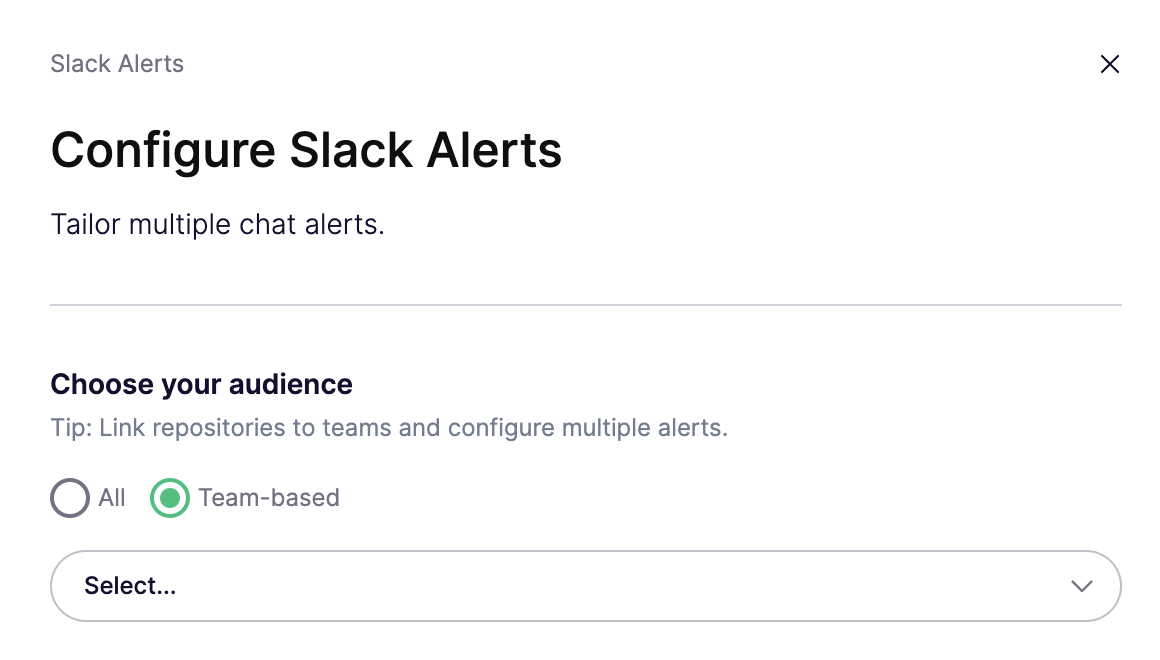
Step 3: Map Channels to Teams
Create a separate alert for each notification. Instant alerts and the weekly digest can be limited to one team. SLA alerts apply to the whole workspace.
See Slack Notifications for every option on each alert type, including issue type, severity, and SLA timing.
Step 4: Save Your Configuration
- Confirm your choices and click 'Save Alert' to activate the alerting system.
Implementation Tips
- Regularly review and correct team settings in Aikido to maintain alert accuracy.
- Confirm that the Slack channels correspond to the correct teams to ensure proper communication