
Aikido Broker for Internal Applications
Use the Aikido Broker to scan and monitor applications that live on internal networks and are not reachable from the internet.
The broker runs inside your infrastructure and forwards Aikido’s requests to the internal URLs you allow. You can deploy it either as a Docker container or on Kubernetes using our Helm chart.
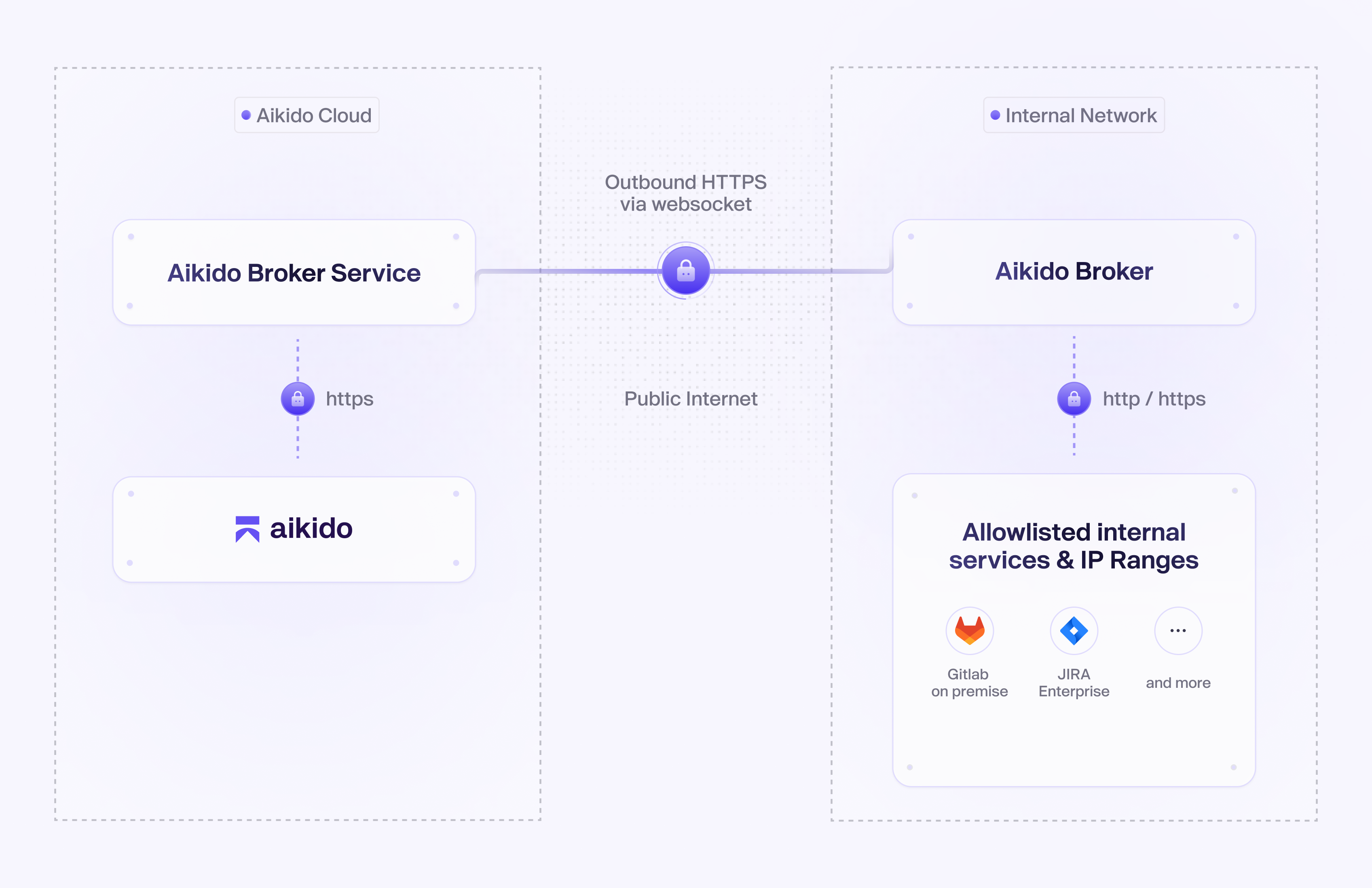
When to use the Broker
Use the broker with any Aikido scan on applications or services that only exists inside your company network, including:
- Code scanning on on-prem GitLab or other local code platforms
- Container scanning on private or on-prem container registries
- AI pentesting on internal applications. See Set Up a Pentest with the Broker.
- Front-end and API testing scans on internal domains or services
Requirements
To run the Aikido Broker you need:
- Docker (20.10+) and Docker compose (1.29+) installed
- Optionally Kubernetes 1.19+
- Network access to the applications you want Aikido to scan
- Outbound HTTPS access to
*.aikidobroker.com, or to your region's broker host - Enough CPU (1 core) and memory (1 GB) to run a small container
Installation
Generate and set a broker client token
Go to Broker Clients page and create a new broker client secret. Save the Client Secret for next step.
If you're unable to access this page, reach out to support in the Aikido dashboard
Add resources (internal URL's)
Define which internal URLs Aikido is allowed to access through the broker.
These are the applications and APIs you want Aikido to scan, for example:
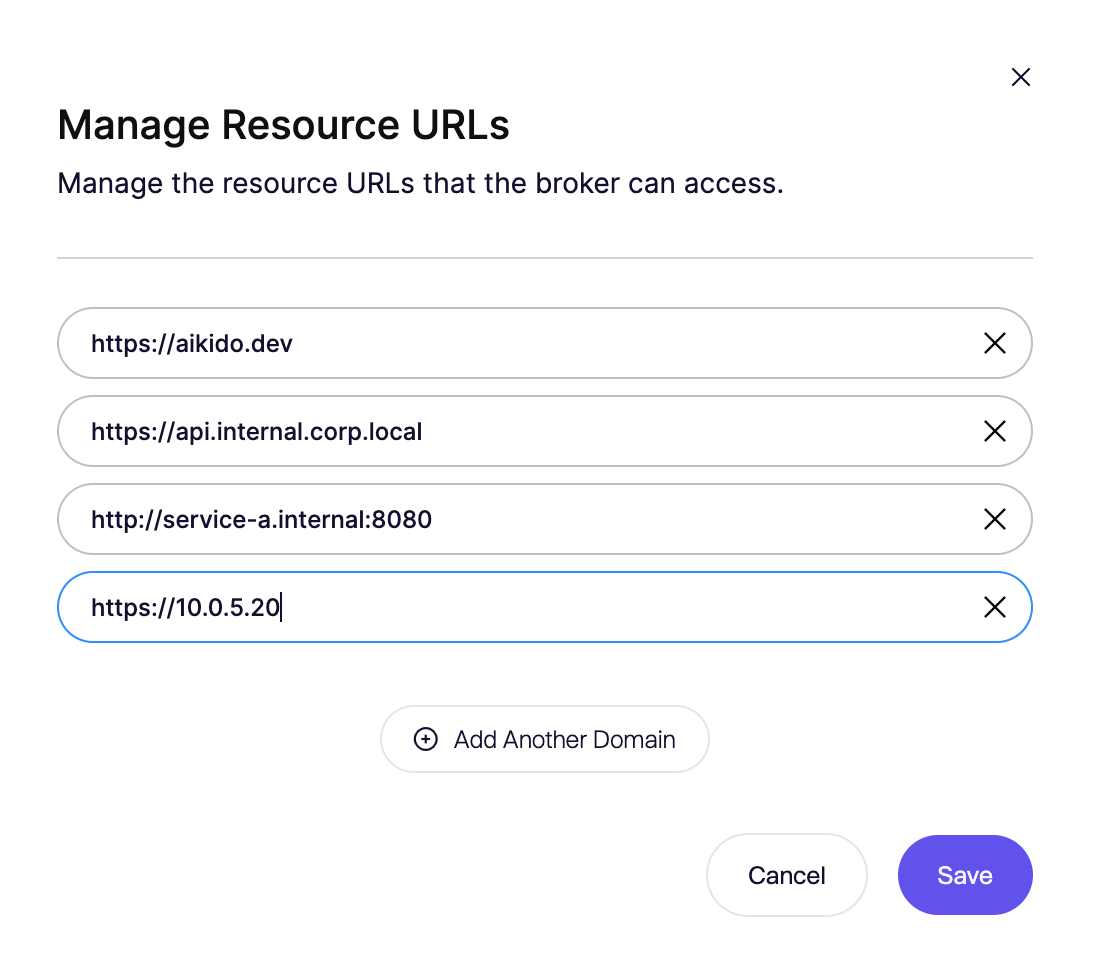
You can manage these resources in the Aikido UI by selecting an existing broker from the list or by creating a new one.
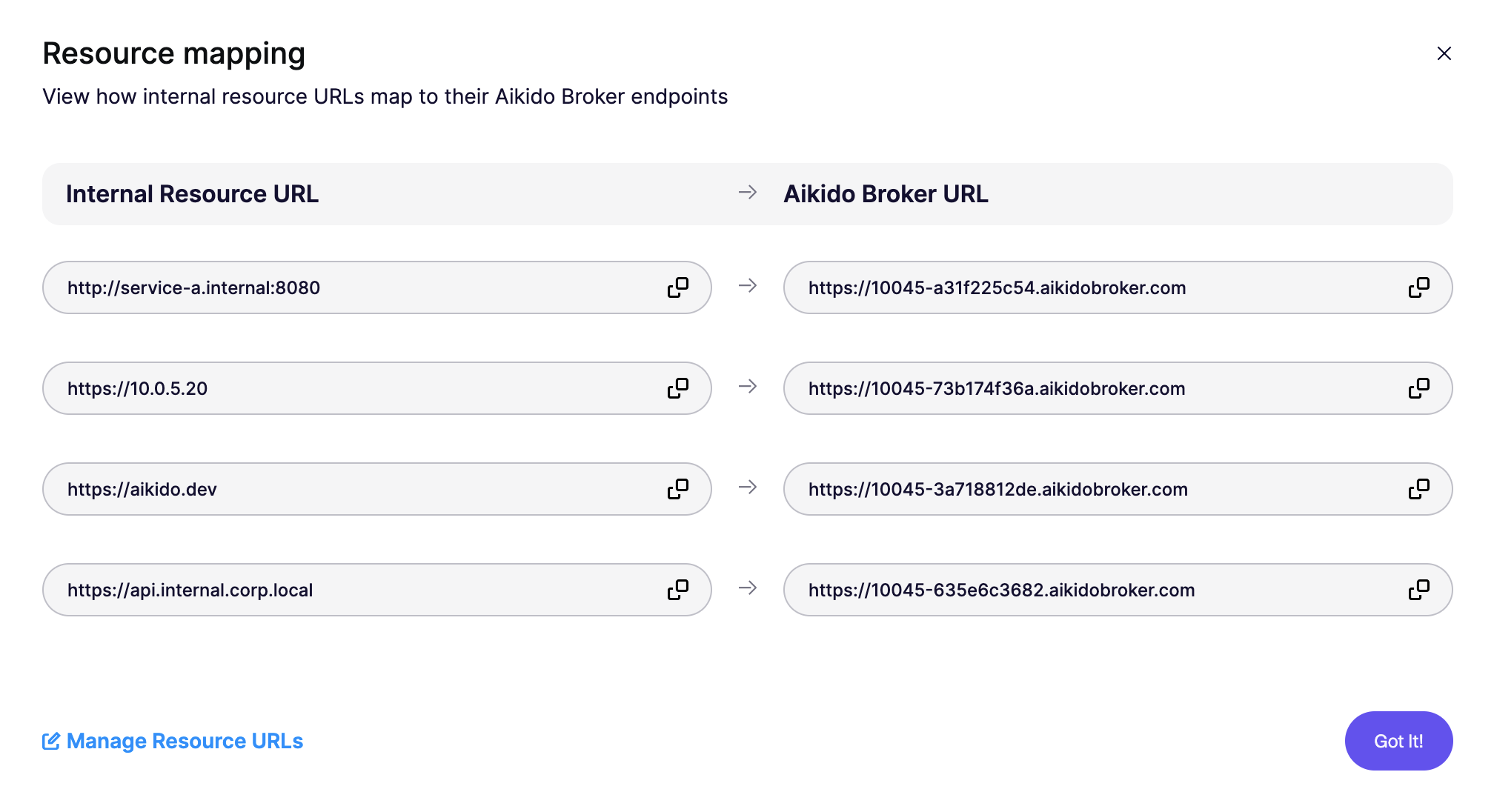
After you save the resources, a unique Broker URL is generated for each resource. Use this Broker URL in place of the original URL within Aikido.
Start the broker
Bring up the broker service on a machine with access to the internal applications you want Aikido to access. Make sure to replace the
CLIENT_SECRETvalue with the one generated on clients page.docker run -d \ --name aikido-broker \ --restart=on-failure:3 \ --network host \ -e CLIENT_SECRET="AIK_BROKER_XXX_YYY_ZZZZ" \ -e ALLOWED_INTERNAL_SUBNETS="192.168.0.0/16,10.0.0.0/8,172.16.0.0/12,127.0.0.0/8" \ aikidosecurity/broker-client:latestYou can check if the Broker is running expected with
docker logs aikido-brokerOn Windows and Mac OS: Use
host.docker.internalinstead oflocalhostor127.0.0.1to connect to local services.Aikido provides a Helm chart to deploy the Broker within a Kubernetes environment.
helm repo add aikido https://aikidosec.github.io/helm-charts
helm repo update
helm install broker-client aikido/broker-client \
  --set config.clientSecret="AIK_BROKER_XXX_YYY_ZZZZ" \
  --namespace aikido \
  --create-namespace
Set additional parameters by using a
values.yamlfile and running the command withhelm install broker-client aikido/broker-client -f values.yamlYou can check if the Broker is running with
kubectl logs -n aikido -l app.kubernetes.io/name=broker-clientWait for broker to stabilize
Give it about 30 seconds to connect to Aikido and register.
Once it is up and connected, Aikido can start reaching the internal resources you configured.
Configuration
You can control which Aikido region the broker connects to, how it reaches your internal services, and how it resolves hostnames.
BROKER_TARGET_URL
The Aikido region the broker connects to. It defaults to the EU region, so if your workspace runs in another region you have to set this or the broker never registers.
| Your Aikido URL | BROKER_TARGET_URL |
|---|---|
| app.aikido.dev (EU, default) | https://broker.aikidobroker.com |
| app.us.aikido.dev (US) | https://broker.us.aikidobroker.com |
| app.me.aikido.dev (ME) | https://broker.me.aikidobroker.com |
| Aikido for Government | https://broker.aikidogov.us |
-e BROKER_TARGET_URL=https://broker.us.aikidobroker.comALLOWED_INTERNAL_SUBNETS
List of CIDR ranges that the broker is allowed to call.
Use this to:
- Limit the broker to specific internal networks
- Prevent accidental access to unrelated infrastructure
Example:
ALLOWED_INTERNAL_SUBNETS=10.0.0.0/8,192.168.1.0/24DNS_SERVERS
Optional list of DNS servers the broker should use to resolve internal hostnames.
Use this if:
- You have internal DNS zones (for example *.corp.local)
- Your internal services are not resolvable with public DNS
Example:
DNS_SERVERS=10.0.0.10,10.0.0.11NODE_EXTRA_CA_CERTS for Custom CA (internal TLS)
If your internal services use certificates signed by a private CA, provide that CA so the broker can validate TLS correctly.
Typical use cases:
- Internal services with self-signed certificates
- Internal PKI for service-to-service encryption
How you configure this depends on your deployment, but at a high level you will:
- Mount your custom CA file into the broker container
- Point the broker to that CA file using the provided environment variable or config option
When you add custom certificates the broker must be able to read them inside the container. Mount the certificate folder into the container with an extra -v flag and point the broker to the certificate file with the NODE_EXTRA_CA_CERTS variable. Here is a short example:
docker run -d \
  --name aikido-broker \
  --restart=on-failure:3 \
  --network host \
  -v /path/to/corporate-ca.crt:/certs/corporate-ca.crt:ro \
  -e CLIENT_SECRET="{secret}" \
  -e ALLOWED_INTERNAL_SUBNETS="192.168.0.0/16,10.0.0.0/8,172.16.0.0/12,127.0.0.0/8" \
  -e NODE_EXTRA_CA_CERTS=/certs/corporate-ca.crt \
  aikidosecurity/broker-client:latest
MTLS_PEM_PATH and MTLS_CA_PATH
If your internal services use mTLS certificates these 2 settings can be used. The CA path is not required if the mTLS certificate is not self-signed.
When you add custom certificates the broker must be able to read them inside the container. Mount the certificate folder into the container with an extra -v flag and point the broker to the certificate file with the MTLS_PEM_PATH and MTLS_CA_PATH variables. Here is a short example:
docker run -d \
  --name aikido-broker \
  --restart=on-failure:3 \
  --network host \
  -v /path/to/corporate-mTLS.pem:/certs/corporate-mTLS.pem:ro \
  -v /path/to/corporate-mTLS-ca.crt:/certs/corporate-mTLS-ca.crt:ro \
  -e CLIENT_SECRET="{secret}" \
  -e ALLOWED_INTERNAL_SUBNETS="192.168.0.0/16,10.0.0.0/8,172.16.0.0/12,127.0.0.0/8" \
  -e MTLS_PEM_PATH=/certs/corporate-mTLS.pem \
  -e MTLS_CA_PATH=/certs/corporate-mTLS-ca.crt \
  aikidosecurity/broker-client:latest
Proxy
If your internal network requires a proxy to reach certain hosts or the internet, configure the broker to use that proxy.
This is useful when:
- Outbound traffic in your network must go through an HTTP or HTTPS proxy
- Internal segments are only reachable via a central proxy
Configure the proxy URL through the broker’s proxy setting or environment variables: HTTP_PROXY, HTTPS_PROXY, ALL_PROXY
You can also configure the client so that requests to certain hosts do not go via the proxy by setting the NO_PROXY environment variable (-e NO_PROXY=noproxy.dev,my-domain.internal). It's value should be a comma separated list of hosts to bypass the proxy.
NODE_TLS_REJECT_UNAUTHORIZED
When the broker keeps running into issues due to self signed TLS certificates, you can tell the broker to disable TLS verification, by passing the 'NODE_TLS_REJECT_UNAUTHORIZED' environment variable with value 0:
docker run -d \
  --name aikido-broker \
  --restart=on-failure:3 \
  --log-opt max-size=20m --log-opt max-file=5 \
  --network host \
  -e CLIENT_SECRET="{secret}" \
  -e ALLOWED_INTERNAL_SUBNETS="192.168.0.0/16,10.0.0.0/8,172.16.0.0/12,127.0.0.0/8" \
  -e NODE_TLS_REJECT_UNAUTHORIZED=0 \
  aikidosecurity/broker-client:latest
FORCE_WEBSOCKET and FORCE_POLLING
The broker by default works with wss traffic which falls back to long polling if that fails. You can force the broker to stick to one of these based on your network requirements by using these environment variables.
-e FORCE_WEBSOCKET=1-e FORCE_POLLING=1How to use Broker resources with Aikido
After you install the broker and add your internal URLs as resources, the broker generates a unique Aikido URL for each resource. These URLs act as secure entry points for Aikido to reach your internal services through the broker.
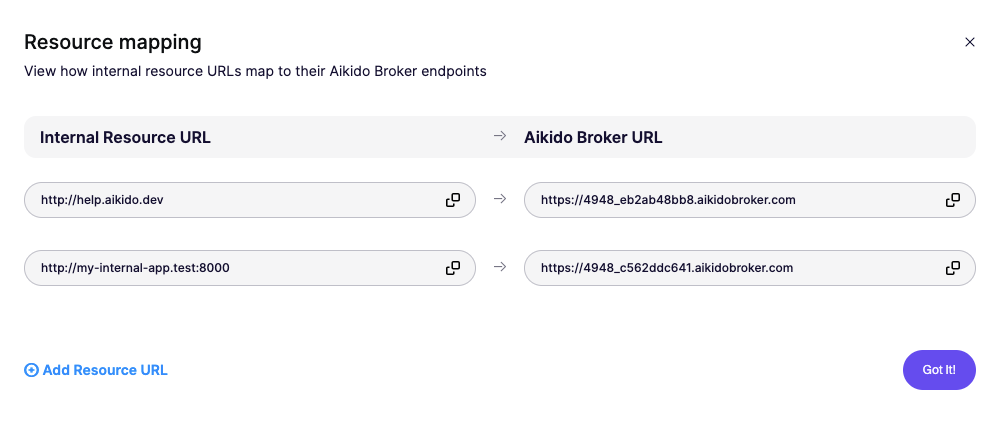
Use these Aikido Broker URLs in all Aikido scans.
This is important because:
- Aikido cannot reach your internal network directly
- The broker maps the Aikido URL to your internal service
- Using the internal URL directly will not work
Example
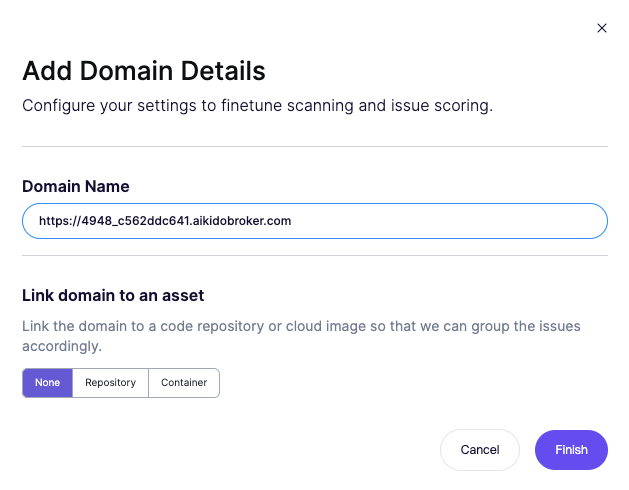
When configuring a Domains and API scan (front-end scan), use the Broker URL instead of the internal address.
For example:
- Do not use http://my-internal-app.test:8000
- Use the generated broker URL, such as: https://4948_c562ddc641.aikidobroker.com
Troubleshooting
Run troubleshooting command
Run this command first. It runs a quick health check on your broker setup (DNS, connectivity, and other common failure points) and usually surfaces the root cause right away.
docker exec -it aikido-broker node /app/diagnostics.cjskubectl exec <pod> -c broker-client -- node /app/diagnostics.cjsCheck logs
Check the Docker logs for warning messages and errors:
docker logs aikido-brokerkubectl logs -n aikido -l app.kubernetes.io/name=broker-clientError: Cannot access another client's resources
The cached client id no longer matches the CLIENT_SECRET organization. Delete the config/client_id file and try again.
Uninstall the broker
Remove the Broker URLs from your scans first. Any scan that still points to a Broker URL will fail once the broker is gone.
Then stop and remove the broker:
docker stop aikido-broker
docker rm aikido-broker
docker rmi aikidosecurity/broker-client:latest
If you mounted certificates or a config folder into the container, those files stay on the host. Delete them manually if you no longer need them.
helm uninstall broker-client --namespace aikidoIf the namespace was created for the broker only, you can remove it as well:
kubectl delete namespace aikidoFinally, go to the Broker Clients page and delete the client. This revokes the client secret and removes its resources and Broker URLs.