
Testing MCP Servers
Scope a remote MCP server as a Web Application pentest, then authenticate with an endpoint URL and a bearer token.
Aikido Pentest tests a remote Model Context Protocol (MCP) server as a Web Application. Enter the MCP endpoint, provide a bearer token, and the agents handle the rest.
On Select Pentest Target, select Web Application. For copilots, chat, RAG, and other LLM features inside an application, see Testing AI Capabilities.
Run MCP server pentests on a staging or test environment. Agents send requests to your endpoint and may create, modify, or delete data through it.
What gets tested
Aikido probes the tools, resources, and prompts your server exposes. Typical focus areas:
- Tool discovery – which tools, resources, and prompts the server exposes, and whether any should not be reachable
- Authorization – whether unauthenticated or low-privilege callers can invoke tools or read resources they shouldn't
- Unsafe tool use – parameter injection, SSRF-style behavior, command execution, and data exfiltration through tool calls
- Sensitive data exposure – secrets, tokens, or cross-tenant data returned by tools or resources
- Integration risk – weak trust boundaries between the MCP server and the downstream systems its tools reach
For background on agent- and tool-specific risks, see OWASP Top 10 for Agentic Applications.
What you need
- A remote endpoint for the MCP server, including the
/mcppath (for example,https://mcp.staging.example.com/mcp). - A bearer token for that endpoint, valid for the whole assessment. See Authenticate with MCP.
- Ownership of the domain so it can be verified.
- Aikido's pentest IP addresses added to your firewall, WAF, or API gateway allowlist so agents can reach the endpoint.
Set up the pentest
Select Web Application
Go to Pentests, open your Project, and click Create Assessment. On Select Pentest Target, select Web Application.
Add the endpoint to scope
On the Scope step, enter the MCP server's endpoint as the target. Include
/mcpat the end, such ashttps://mcp.staging.example.com/mcp. A URL without that path still works, and the agent spends extra time finding the endpoint.Complete domain verification for the host serving the endpoint. If the server is only reachable on an internal network, use the Aikido Broker: add the internal MCP URL as a broker resource and select that broker URL in scope.
Provide authentication
On the Test Users step, click Add Test User → MCP. Provide:
- URL of the MCP endpoint (prefilled from scope). End it with
/mcp. - Bearer Token. Paste the token value. Aikido sends it as
Authorization: Bearer <token>. Set the token to stay valid for the whole pentest. 24 hours is a good lifetime, and it is usually the default.
Keep the default Authentication instructions unless your server needs extra steps. Type
@to reference the URL and token above.Click Save & Test to confirm the agent can authenticate and receive a successful MCP initialization response.
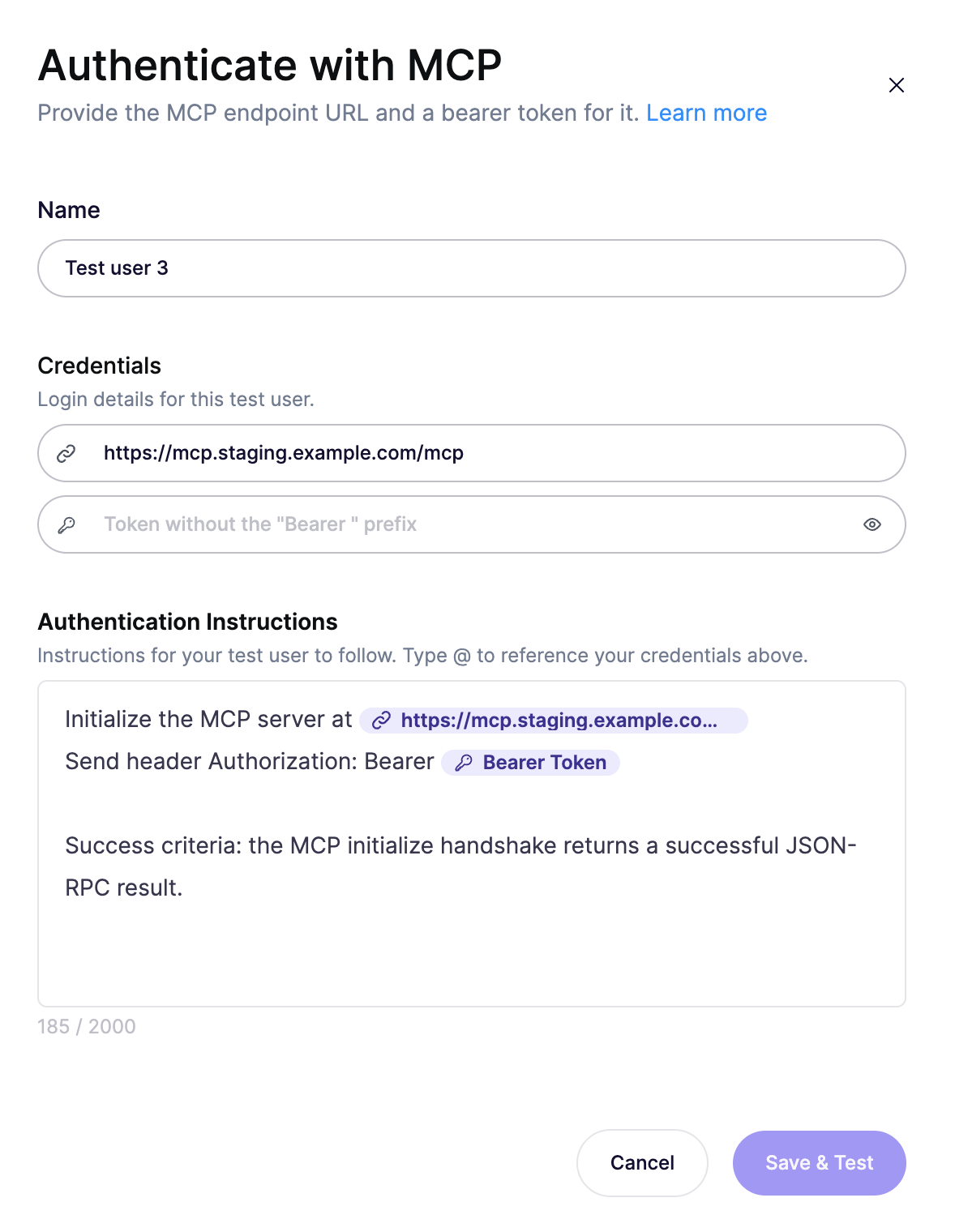
See Authenticate with MCP for field-by-field setup.
- URL of the MCP endpoint (prefilled from scope). End it with
Add context, then launch
For the best results, link the MCP server's code repository in the Code & Documentation step. This promotes the run to a whitebox pentest and gives the agents the maximum context to uncover deeper logic-flow vulnerabilities. Aikido reads the source to map the tools, their callers, and the downstream systems they reach.
If you can't link the repository, use Additional context to describe the actions the server exposes, which callers or roles should reach each one, and the downstream systems they touch (databases, internal APIs, file storage).
Finish the remaining Safety Check, Pricing, and Summary steps, then start the run. If the server is sensitive to high request volume, lower the Maximum Requests Per Second on the Safety Check step to ease load.
Tips
- Use a dedicated test instance with non-production data, and mock or disable destructive actions where you can.
- Issue a dedicated test token that stays valid for the whole assessment (24 hours is a good lifetime), and rotate or revoke it after the run.
- Match production. The endpoint, path, and auth you scope should be what real clients use.
Need help?
If agents can't reach your endpoint or authentication fails, open the Intercom chat in the bottom right corner. Our team is here to help!