
Pentesting Android Apps
Set up Aikido Pentest to test a native or hybrid Android app.
Aikido Pentest assesses native and hybrid Android apps on a Mobile Application assessment. Testing is whitebox, so connect the repository that contains the Android app source code.
You can watch the walkthrough below, or follow the step-by-step guide further down.
Test one app or both
On the Scope step, upload the mobile apps this assessment should cover and add the web app or API they call.
| What you include | What Aikido tests |
|---|---|
| IPA and the web URL | The iOS app and that web app or API. See Pentesting iOS Apps. |
| APK and the web URL | The Android app and that web app or API |
| APK, IPA, and the web URL | Both apps and the shared web app or API |
Add the web URL when the app has a backend. Upload both apps when you have Android and iOS, so one assessment tests that shared web app or API once and covers both clients. Separate assessments repeat that work.
A website or API with no mobile app is a Web Application assessment. See How to Setup a Pentest.
Run the assessment against a test environment that closely mirrors production. Don't use production data or accounts.
Prerequisites
- Manage Pentests permission
- Sufficient credits in your wallet
- Your Android app source code in a repository you can connect to Aikido
- A test APK (500 MB max) with no certificate pinning, root detection, or emulator detection
Prepare the APK
Upload a test APK of the app you want assessed (500 MB max).
In that test build:
- Turn off certificate pinning.
- Turn off root detection and emulator detection.
Create an Android assessment
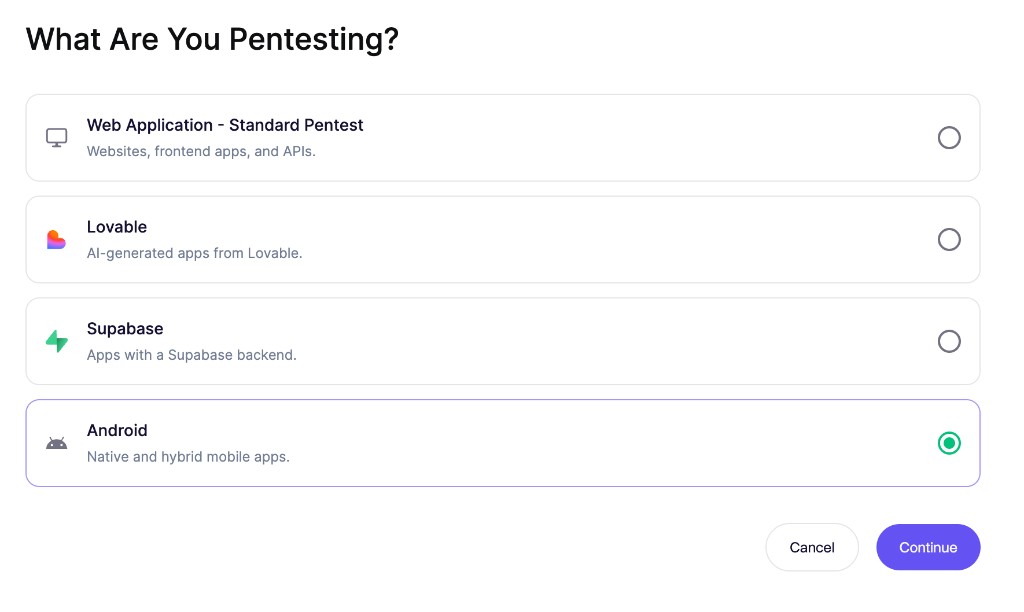
Select Mobile Application
Go to Pentests, open your Project, and click Create Assessment. On the Select Pentest Target step, select Mobile Application.
Define test scope
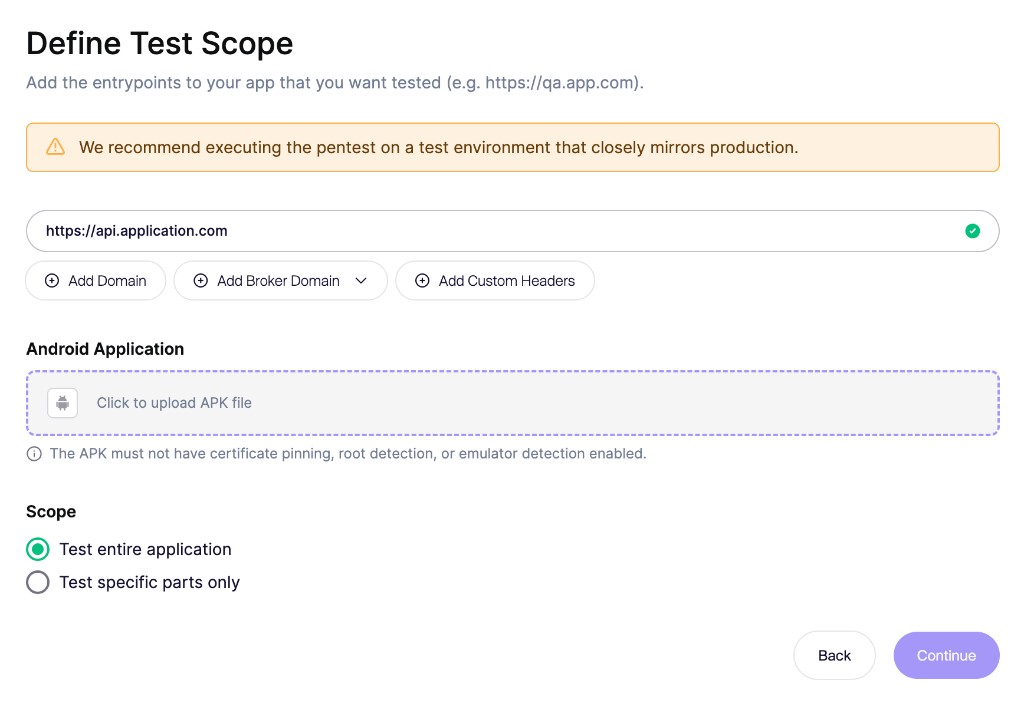
On the Scope step, add the web app or API URL (for example,
https://api.application.com) so Aikido can test those endpoints.Under Android Application, upload the APK (500 MB max). Aikido reads the package name from the file. The APK must not use certificate pinning, root detection, or emulator detection.
Upload the APK on its own for an Android-only run. Upload the IPA on this step as well when the assessment should cover both apps. See Pentesting iOS Apps.
Choose Test entire application or Test specific parts only.
Add test users
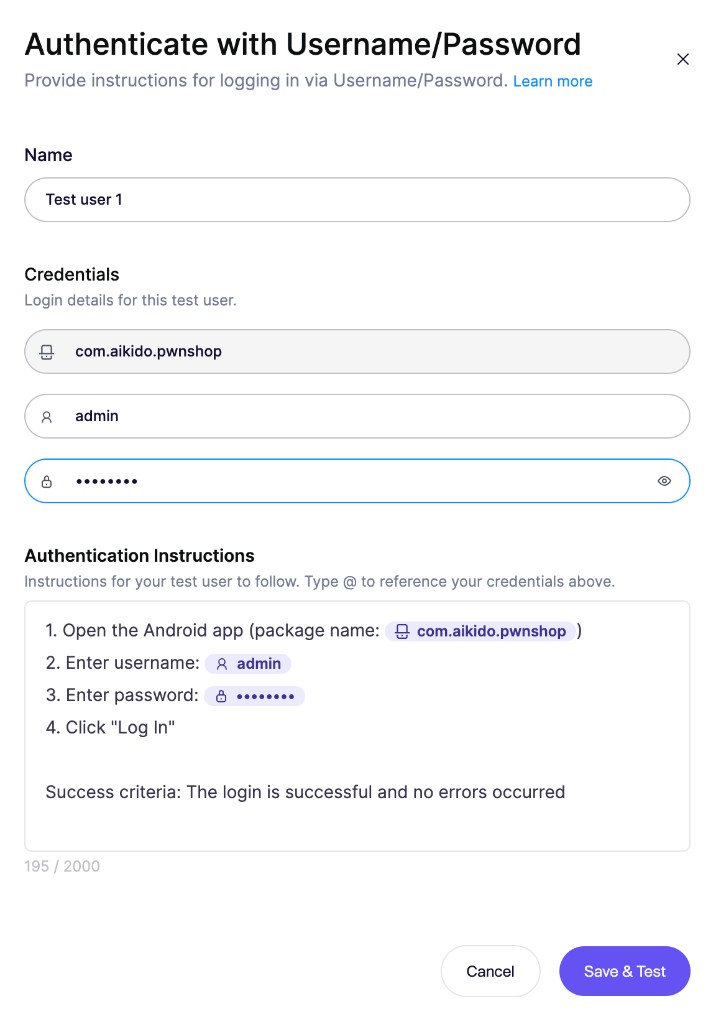
Add a test user for each role you want Aikido to test, such as an admin, a standard user, or a user from another tenant.
If the assessment includes both apps, set Platform to Android for the Android user. For username and password authentication, Aikido uses the package name instead of a login URL.
You can run the login preflight check before you launch. See Setting Up Test Users.
Configure access, context, and safety
Configure the remaining steps in the wizard:
- Allowed Domains: Allow domains that the app needs to reach during testing.
- Code & Documentation: Connect the repository that contains the Android app source code. Aikido only supports whitebox testing for mobile apps, so the assessment needs that repository. You can also link backend repositories and add documentation. See Leveraging Code and Documentation.
- Safety Check: Set the request rate and permitted testing hours. See Safety Measures.
- Pricing: Select the assessment profile and review the credit cost. See Pentest Pricing.
Review and launch
On the Summary step, confirm the Android App package name and the rest of the configuration, then click Run Assessment.
Review results
Open the assessment to follow progress and review its Issues tab. Android findings can cover sensitive data handling, network security, platform interactions, WebView security, client-side authentication, cryptography, and build configuration.
When the assessment is complete, download a PDF from the assessment. See Pentest Reports.
Before you retest a finding in the app, upload a new APK from the assessment overview. See Retest Pentest Findings.