
Generic OCI-Compatible Registry
Use this guide to connect any Docker/OCI-compatible registry to Aikido for image scanning.
Aikido only needs read (pull) access. We never push, modify, or delete images.
Prerequisites
-
An OCI-compatible registry endpoint (e.g. registry.example.com).
-
A user with pull permissions for the repositories you want scanned.
Scope it to the minimum set of repos or namespaces.
-
(Optional) If your registry is behind a firewall, allowlist Aikido’s egress IPs.
Set-up
Step 1: Create credentials in your registry
Create a username and access token/password that can pull images.
How you create these depends on the provider. Look for one of the following in your registry docs:
- “Personal access token” or “Robot/Service account”
- “Read-only token” / “Pull-only token”
- “Password for Docker login”
Step 2: Verify with docker login
Before connecting to Aikido, confirm the credentials work locally.
docker logout registry.example.com 2>/dev/null || true
docker login registry.example.com
# Username: <your-username-or-service-account>
# Password: <your-access-token-or password>
Then try pulling a known image to confirm permissions:
docker pull registry.example.com/namespace/image:tagIf this fails, adjust the token scope or repository permissions in your registry.
Step 3: Add the registry in Aikido
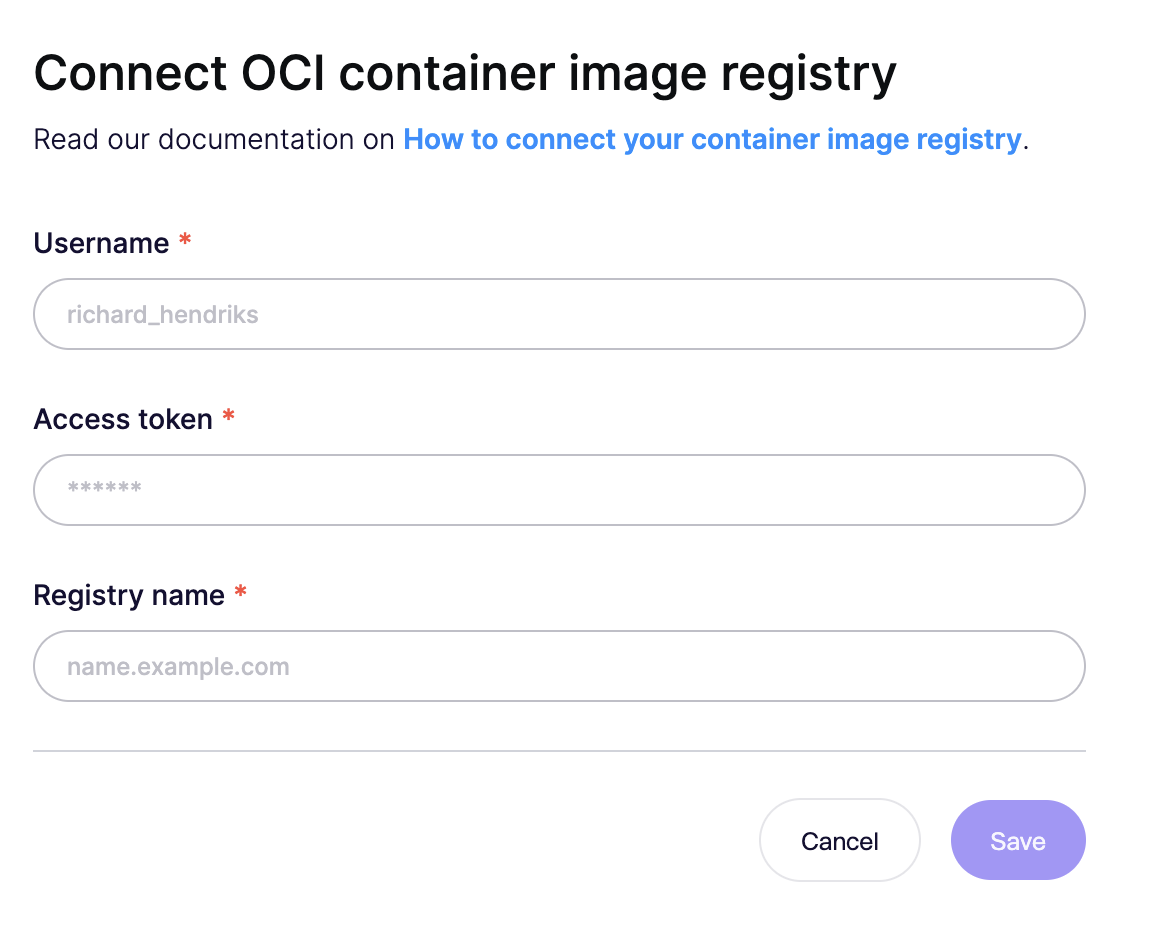
In Container image registry connection, enter:
| Field in Aikido | What to enter | Example |
|---|---|---|
| Username | The username or service/robot account you created | robot_aikido |
| Access token | The token/password used with docker login | •••••••• |
| Registry name | Your registry hostname (no protocol) | registry.example.com |
Click Save.