
Code Scanning for Azure DevOps with an Entra Service Principal
Let Aikido scan your Azure DevOps organization as a Microsoft Entra service principal instead of a personal access token.
Code Scanning for Azure DevOps with an Entra Service Principal
Instead of a personal access token (PAT), you can let Aikido scan your Azure DevOps organization as a Microsoft Entra service principal that you own. No token or secret is created or stored: for every scan, Aikido proves its identity to Microsoft Entra, which issues a short-lived access token for your service principal. Nothing expires and nothing needs rotating.
Your workspace must already be connected to Azure DevOps Services (dev.azure.com) with a PAT, and your Azure DevOps organization must be connected to a Microsoft Entra tenant (Organization settings → Microsoft Entra). You need to be able to register applications in that tenant and to add users to your Azure DevOps organization. Azure DevOps Server, the Aikido broker, and the local scanner keep using a PAT.
First, go to General Settings, click Update Personal Access Token and, on the Code Scanning tab, click Use An Entra Service Principal Instead.
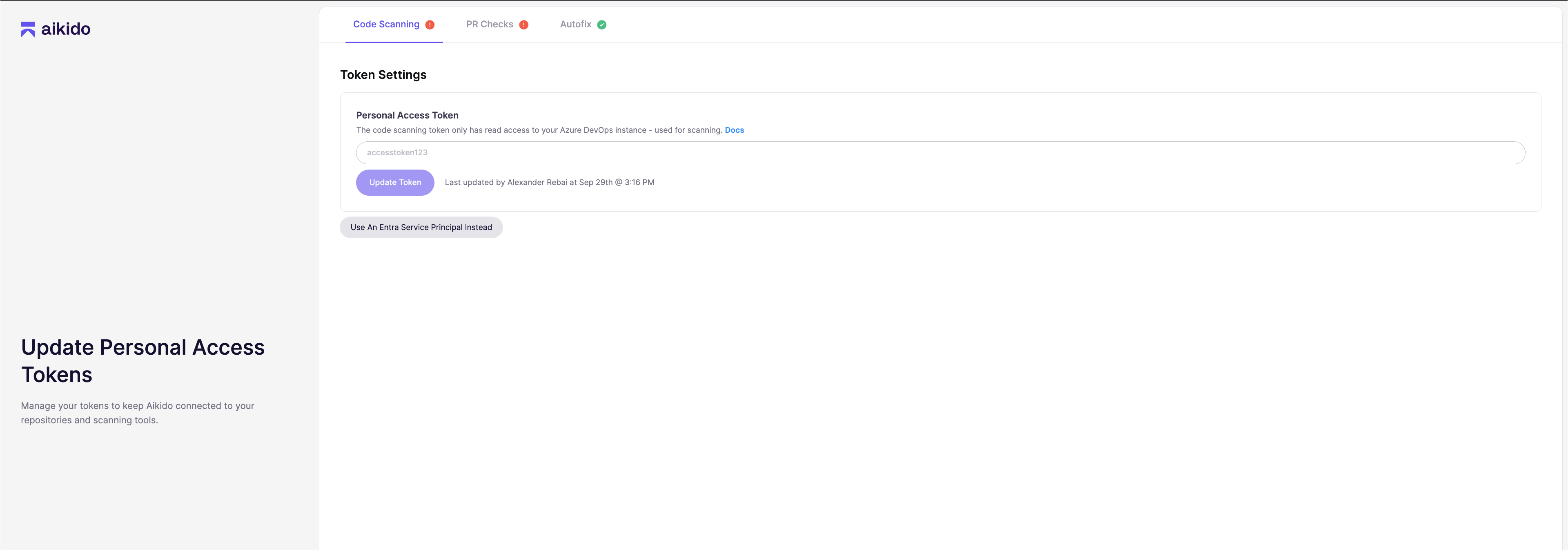
You end up on the service principal management page, which can also be found at Manage Azure DevOps Scanning service principal. Keep this page open: it shows the Issuer, Subject identifier, and Audience you need in the next section.
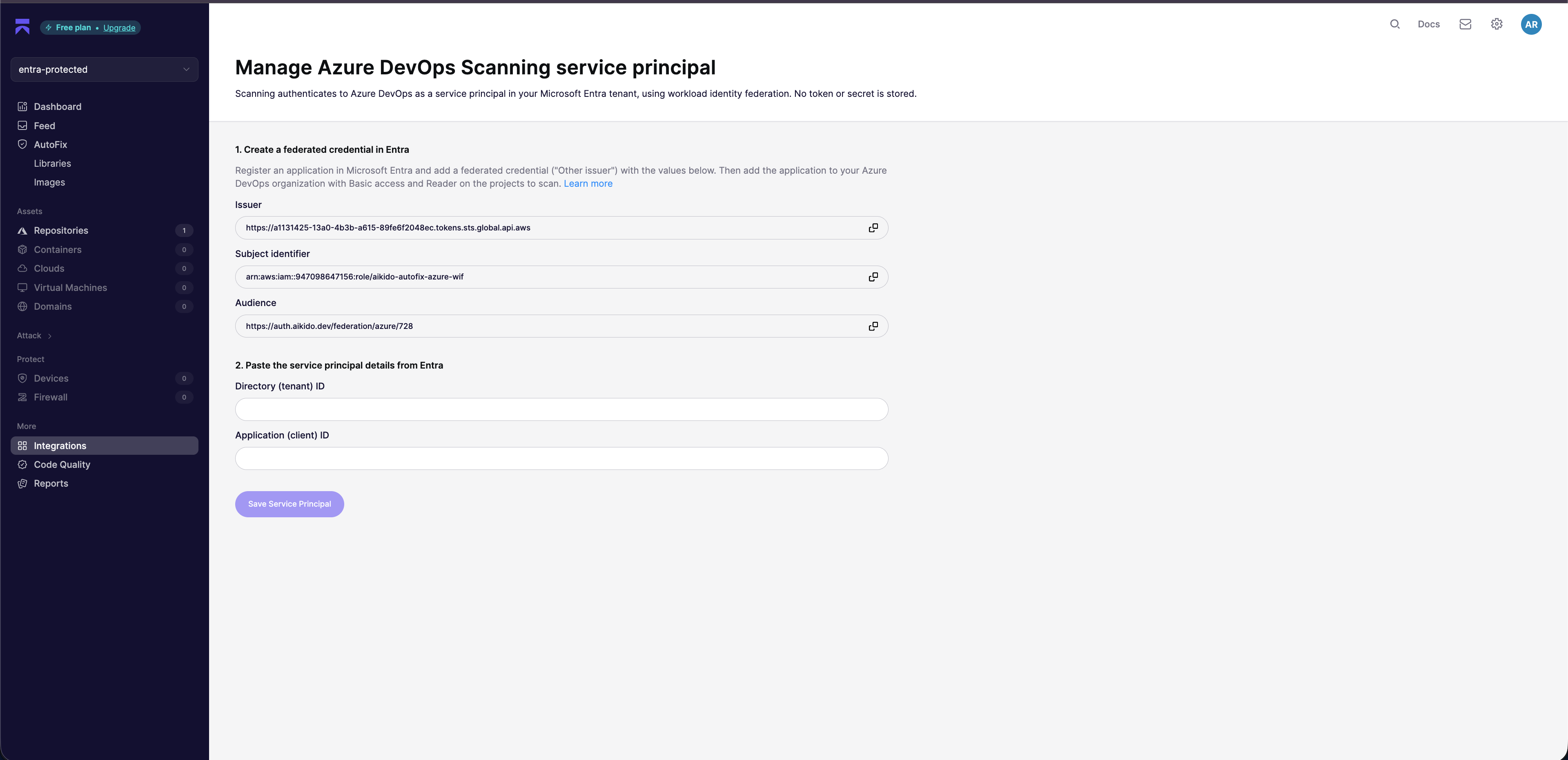
Create a separate application for code scanning, even if you already set up AutoFix with an Entra service principal. The Issuer and Audience are the same, but the Subject identifier is different because scanning uses its own Aikido identity, and the AutoFix application has write access to your projects.
Next, follow the instructions below to create the service principal in Microsoft Entra and give it read access in Azure DevOps.
Register the application in Microsoft Entra
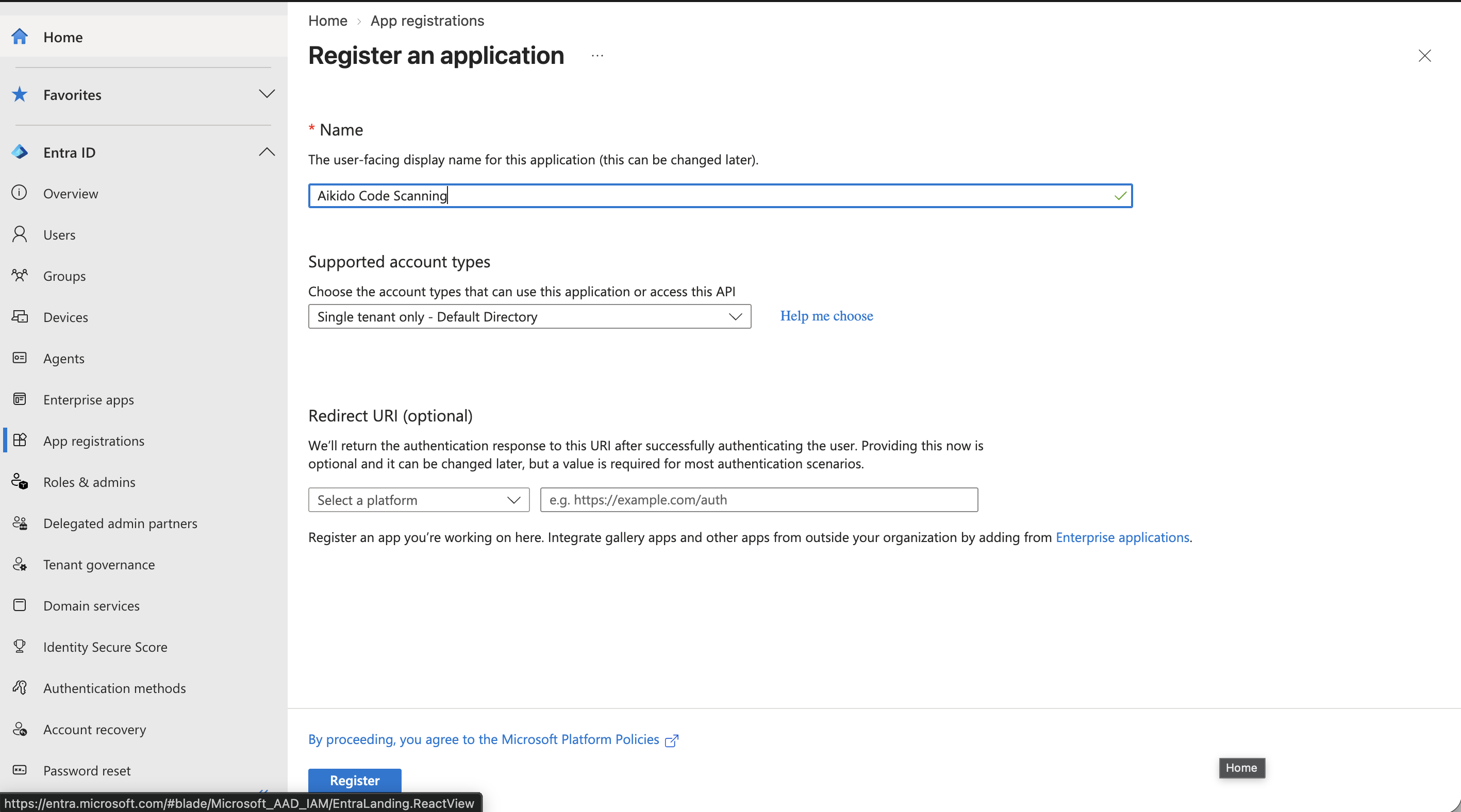
- Open the Microsoft Entra admin center, go to Entra ID → App registrations and click New registration.
- Give the application a name, for example Aikido Code Scanning, keep Single tenant only selected, leave the redirect URI empty and click Register.
- On the Overview page of the application, copy the Application (client) ID and the Directory (tenant) ID. You insert both in Aikido later.
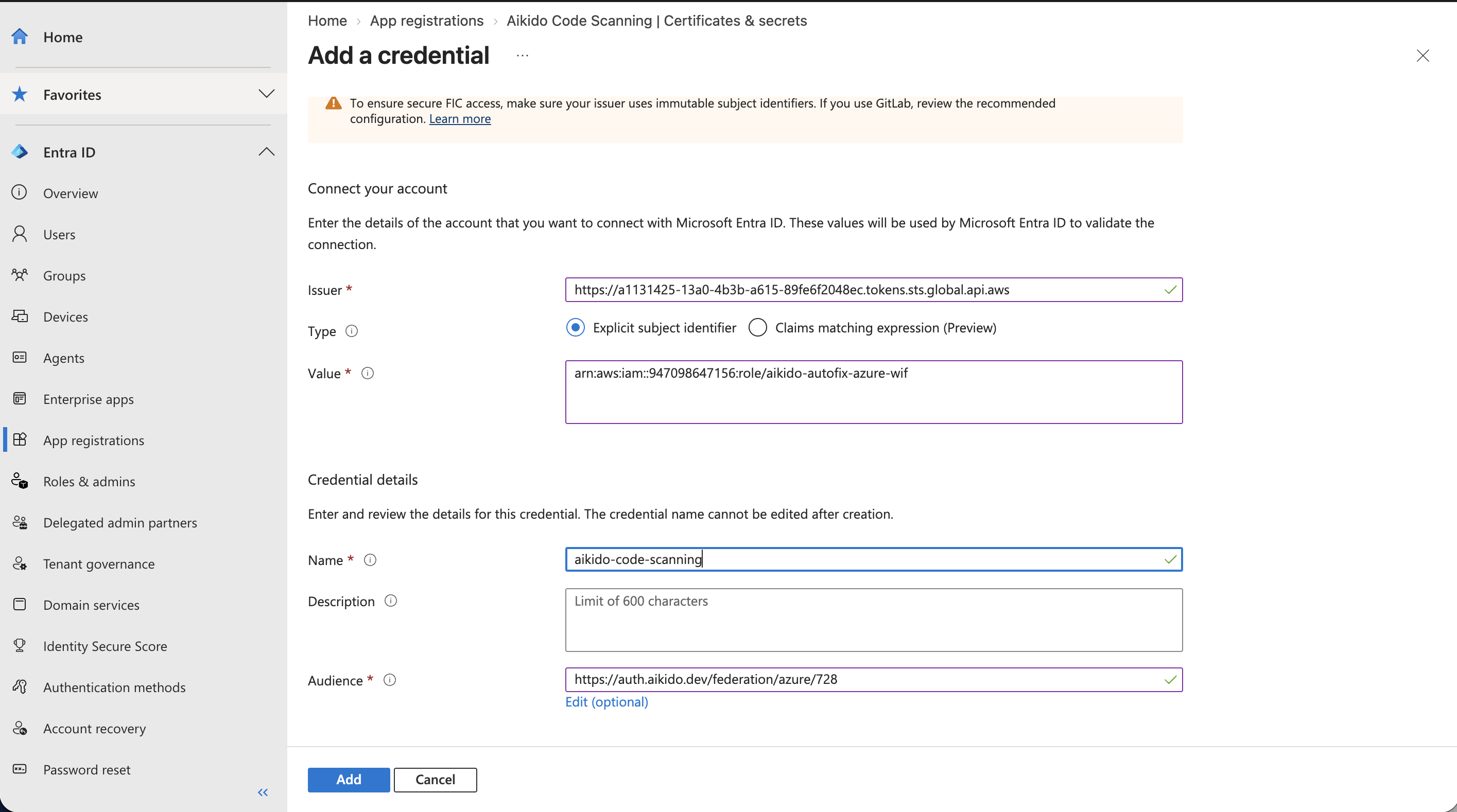
- Go to Certificates & secrets → Federated credentials and click Add credential.
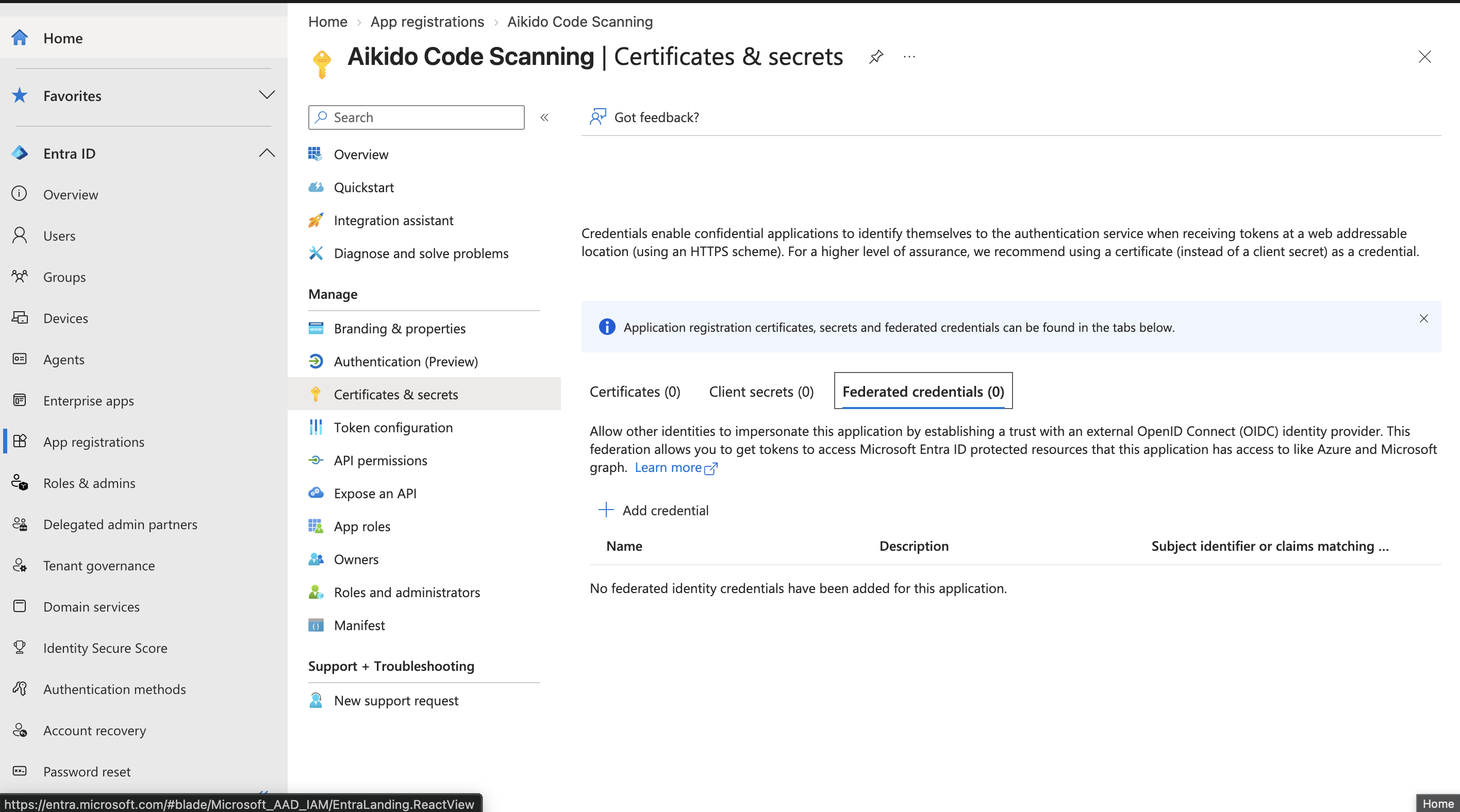
- Select Other issuer and fill in the values exactly as shown on the service principal management page in Aikido:
- Issuer: the Issuer shown in Aikido
- Type: Explicit subject identifier
- Value: the Subject identifier shown in Aikido
- Audience: click Edit and replace the default with the Audience shown in Aikido. It contains your workspace id, so only tokens Aikido mints for your workspace are accepted. Give the credential a name, for example aikido-code-scanning, and click Add. You don't need a client secret or certificate.
Grant read access in Azure DevOps
- In Azure DevOps, go to Organization settings → Users and click Add users.
- Search for the application name (Aikido Code Scanning), set the Access level to Basic, and add it to the projects Aikido should scan. If the application doesn't show up yet, wait a minute and search again.
- Under Azure DevOps Groups, select Project Readers. Then click Add.
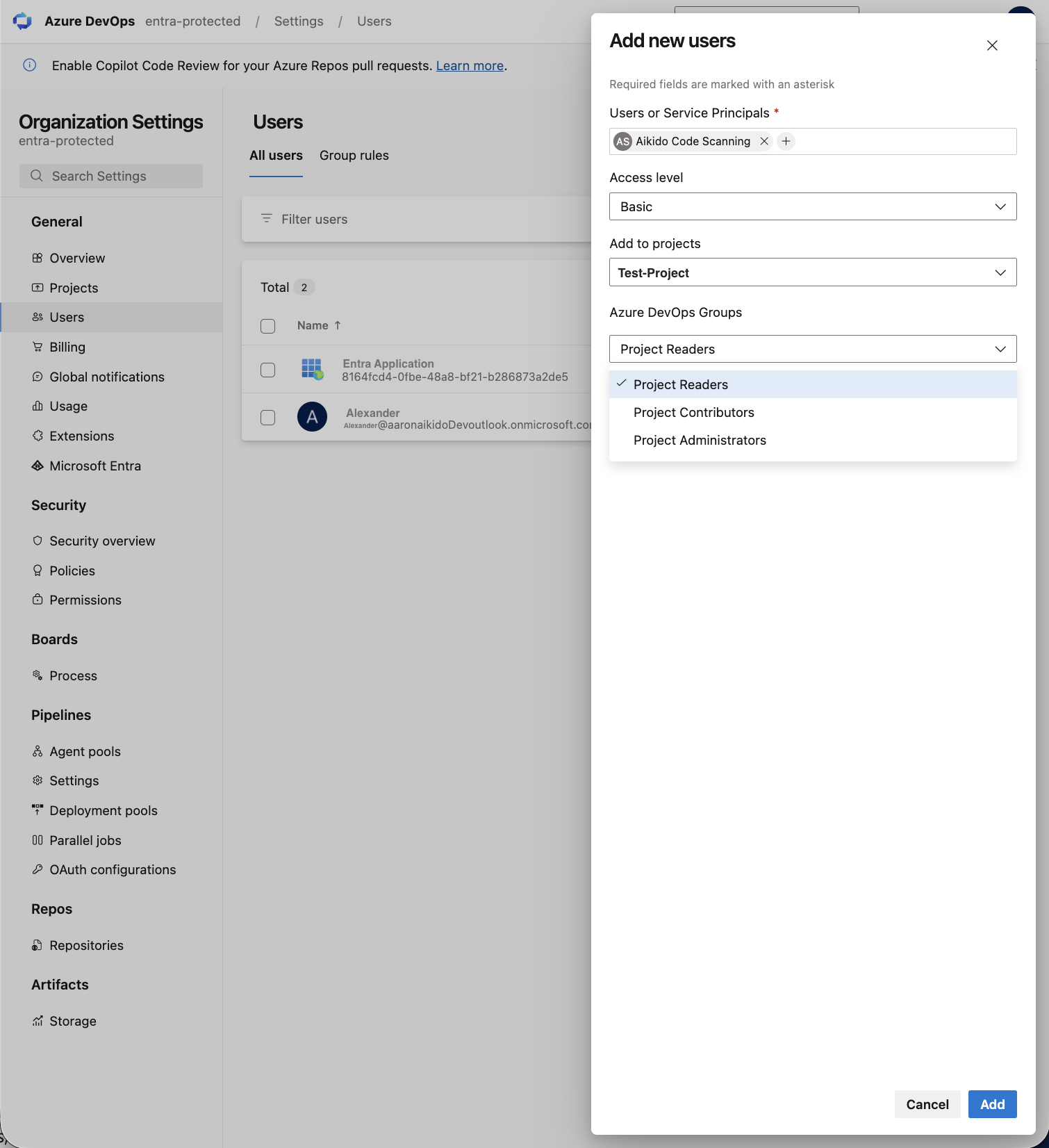
The default group is Project Contributors, which grants write access. Select Project Readers so the service principal can only read your code.
Connect in Aikido
- Go back to the service principal management page in Aikido.
- Insert the Directory (tenant) ID and the Application (client) ID you copied earlier and click Save Service Principal. Aikido requests a token from Microsoft Entra and verifies that it can access the repositories of your Azure DevOps organization before saving.
You are all set. Scanning now authenticates as the service principal, and the Code Scanning tab shows which application is in use.
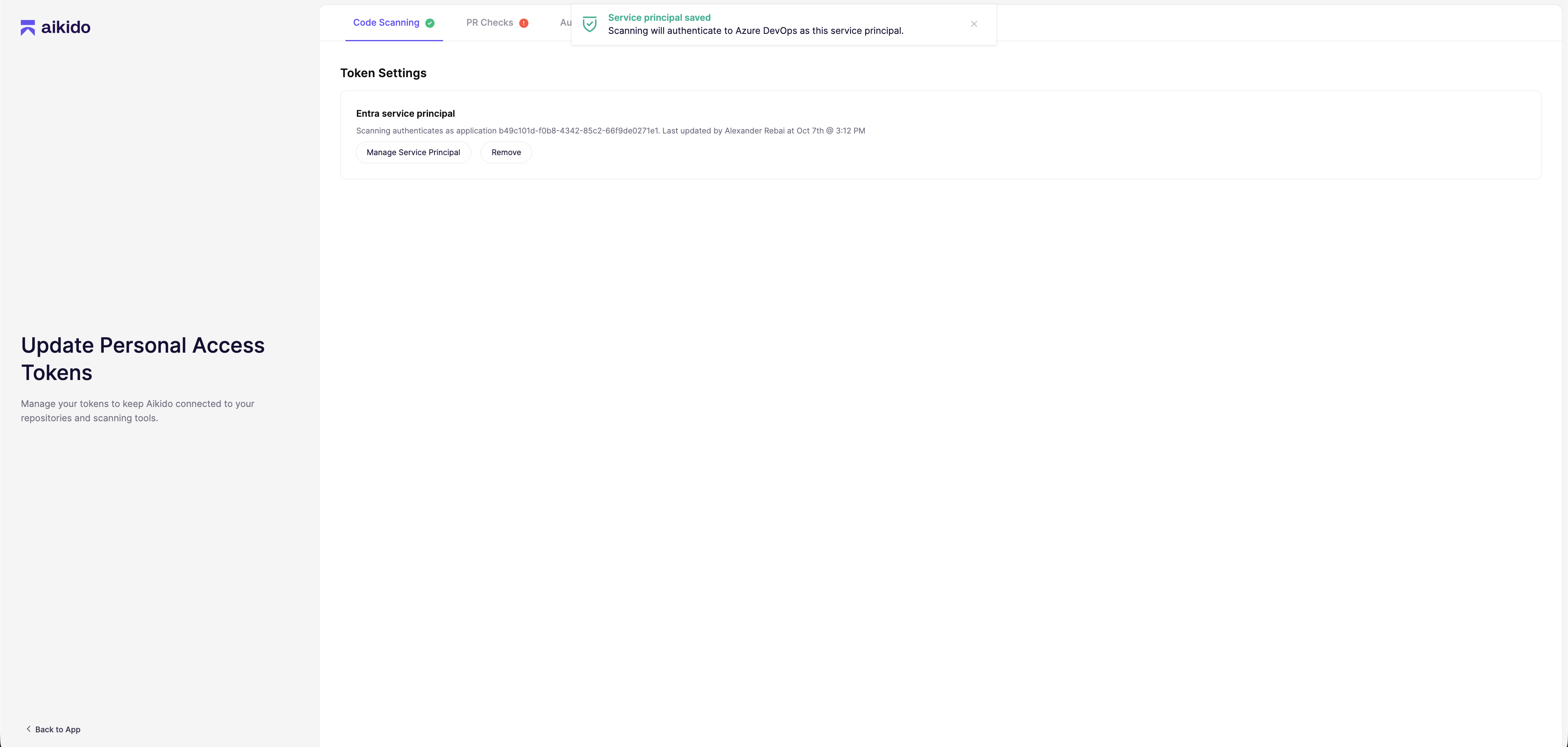
Your PAT stays stored but is no longer used. To switch back, click Remove on the Code Scanning tab: scanning then uses the stored PAT again, so update it first if it has expired. Deleting the federated credential in Microsoft Entra or removing the service principal from your Azure DevOps organization revokes the service principal only.