
FrankenPHP worker
This guide will walk you through installing and setting up Zen Firewall by Aikido for your application. Follow the steps below to protect your application.
If you encounter any issues or problems, don't hesitate reach out on support chat or Github issues
https://github.com/AikidoSec/firewall-php
Requirements
- FrankenPHP 8.2+ (tested up to FrankenPHP 8.5).
- No framework / custom middleware.
- Aikido account & Zen Firewall token
Installation & Configuration
Install Zen Firewall by Aikido
Zen for FrankenPHP is installed as a system package.
Prerequisites:
- Ensure you have
sudoprivileges. - Use a supported FrankenPHP version (8.2+).
For Red Hat-based systems (RHEL, CentOS, Fedora):
rpm -Uvh --oldpackage https://github.com/AikidoSec/firewall-php/releases/latest/download/aikido-php-firewall.x86_64.rpmFor Red Hat-based arm64 / aarch64:
rpm -Uvh --oldpackage https://github.com/AikidoSec/firewall-php/releases/latest/download/aikido-php-firewall.aarch64.rpmFor Debian-based systems (Debian, Ubuntu):
curl -L -O https://github.com/AikidoSec/firewall-php/releases/latest/download/aikido-php-firewall.x86_64.deb
dpkg -i -E ./aikido-php-firewall.x86_64.deb
For Debian-based arm64 / aarch64:
curl -L -O https://github.com/AikidoSec/firewall-php/releases/latest/download/aikido-php-firewall.aarch64.deb dpkg -i -E ./aikido-php-firewall.aarch64.deb- Ensure you have
Start Zen Firewall in dry / detection-only mode
Set the token as in your
Caddyfileso the Aikido Zen agent can pick it up. If you don't have a token yet, follow instructions here.Caddyfile example.com { root * /var/www/html/public php_server { env AIKIDO_TOKEN "AIK_RUNTIME_...." env AIKIDO_BLOCK "True" worker { // your worker parameters } } file_server }We recommend to start your app in dry mode to ensure it works as expected without blocking any requests. We advise running Zen Firewall in staging for two weeks to avoid false positives.
env AIKIDO_BLOCK "False"You can define an environment variable
AIKIDO_DEBUG=trueto enable debug mode for more detailed information about what the agent is doing. For more information about your environment variables: configuration-via-environment-variables.mdFor example
AIKIDO_TOKEN=AIK_RUNTIME_...
AIKIDO_BLOCK=false
Restart your FrankenPHP process manager/web server after changes.
Update Octane worker script
Call \aikido\worker_rinit() and \aikido\worker_rshutdown() in Octane worker script
<?php require __DIR__ . '/../vendor/autoload.php'; $app = require_once __DIR__ . '/../bootstrap/app.php'; while (frankenphp_handle_request(function () use ($app) { \aikido\worker_rinit(); // Your application logic \aikido\worker_rshutdown(); })) { // keep looping }Enable Rate limiting and User blocking
Use
set_userandshould_block_requestin your request pipeline:if (extension_loaded('aikido')) { \aikido\set_user('123', 'John Doe'); $decision = \aikido\should_block_request(); if ($decision->block) { if ($decision->type === 'ratelimited') { http_response_code(429); header('Retry-After: ' . $decision->retry_after); exit('You are rate limited by Zen.'); } http_response_code(403); exit('You are blocked by Zen.'); } }Test your app
Browse to your application and perform a couple of actions or open a couple of pages. Zen will automatically discover the routes in your application.
Zen sends data back to Aikido every 10 minutes
You can verify a working agent by looking at the following pages of your Zen application:
- Events: Should show an "Application started" event.
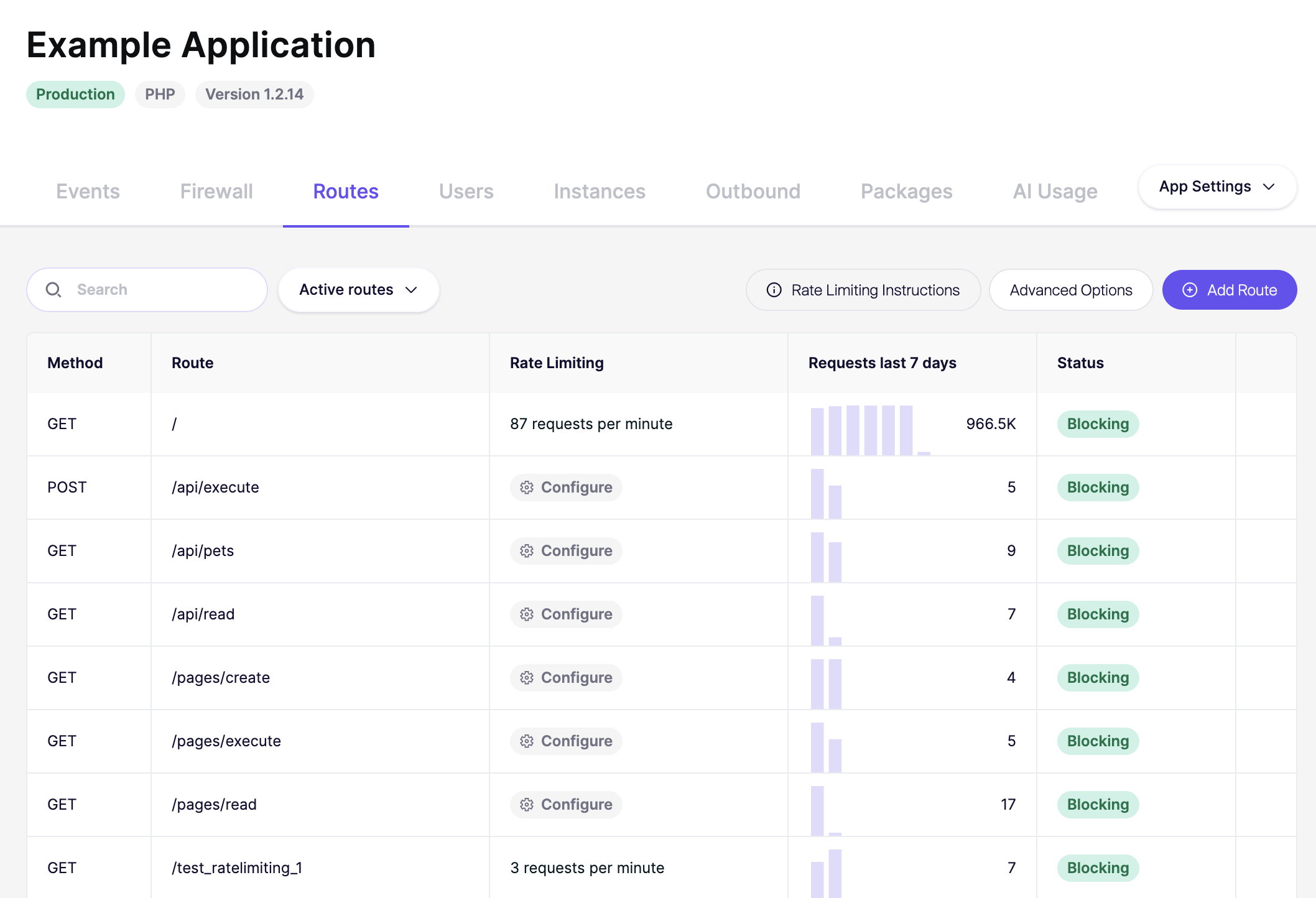
- Routes: After some time your application routes will start showing here with the method, route and requests.
- Instances: Should show the number of active instances for your application where Zen is installed.
Setup rate limiting in the dashboard
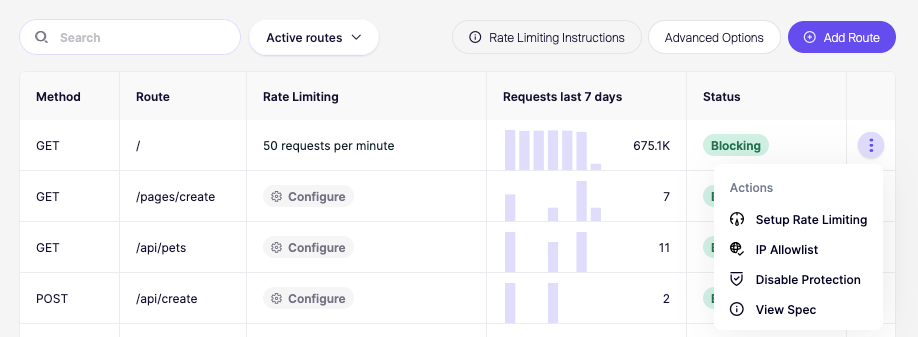
When you've added the Zen Firewall middleware you can test protecting a route from brute force attacks, you do this by setting up rate limit in the Aikido Dashboard:
- Click on the created app.
- Go to the Routes tab.
- Find the route you would like to limit and click Setup rate limiting.
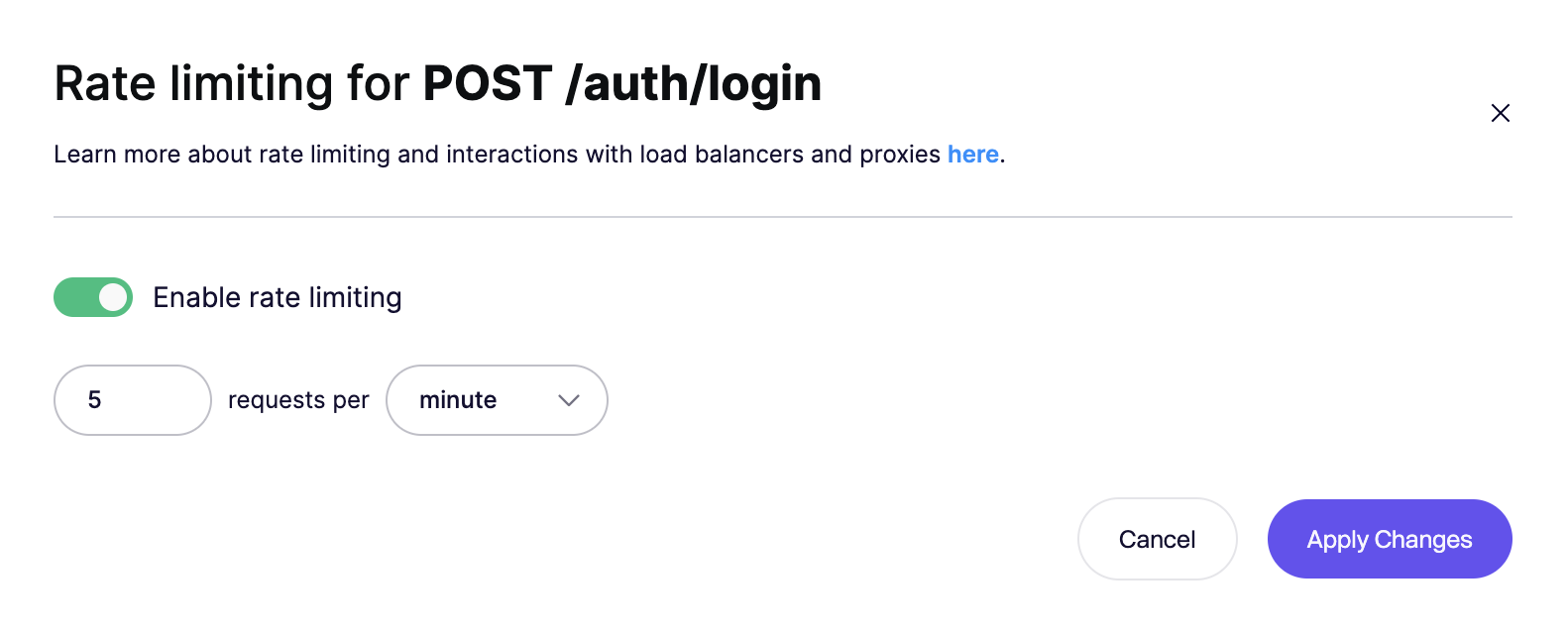
- Follow the instructions to configure the rate limit (e.g., 5 requests per minute).
Verify Rate Limiting
Start your app and try to access the route you've rate limited 5 times within a minute. After the fifth attempt, you should receive a rate limit error:
You are rate limited by Aikido firewall. (Your IP: 1.2.3.4)Next steps
Congrats you've successfully installed Zen Firewall. If you encountered any problems, have concerns or feature requests, don't hesitate to reach out to support.
You can now go and explore the many features that Zen Firewall provides:
- blocking-bot-traffic-with-zen-firewall.md
- blocking-tor-traffic-with-zen-firewall.md
- blocking-users-with-zen-firewall.md
- blocking-known-threat-actors-with-zen-firewall.md
- blocking-traffic-by-country-with-zen-firewall.md
- setting-up-rate-limiting-for-routes.md
- monitor-outbound-domains.md
Additional information: