
Configuring Installation Policies
You can set installation policies for each ecosystem independently. This lets you control what happens when someone on your team tries to install a new package.
Accessing policy settings
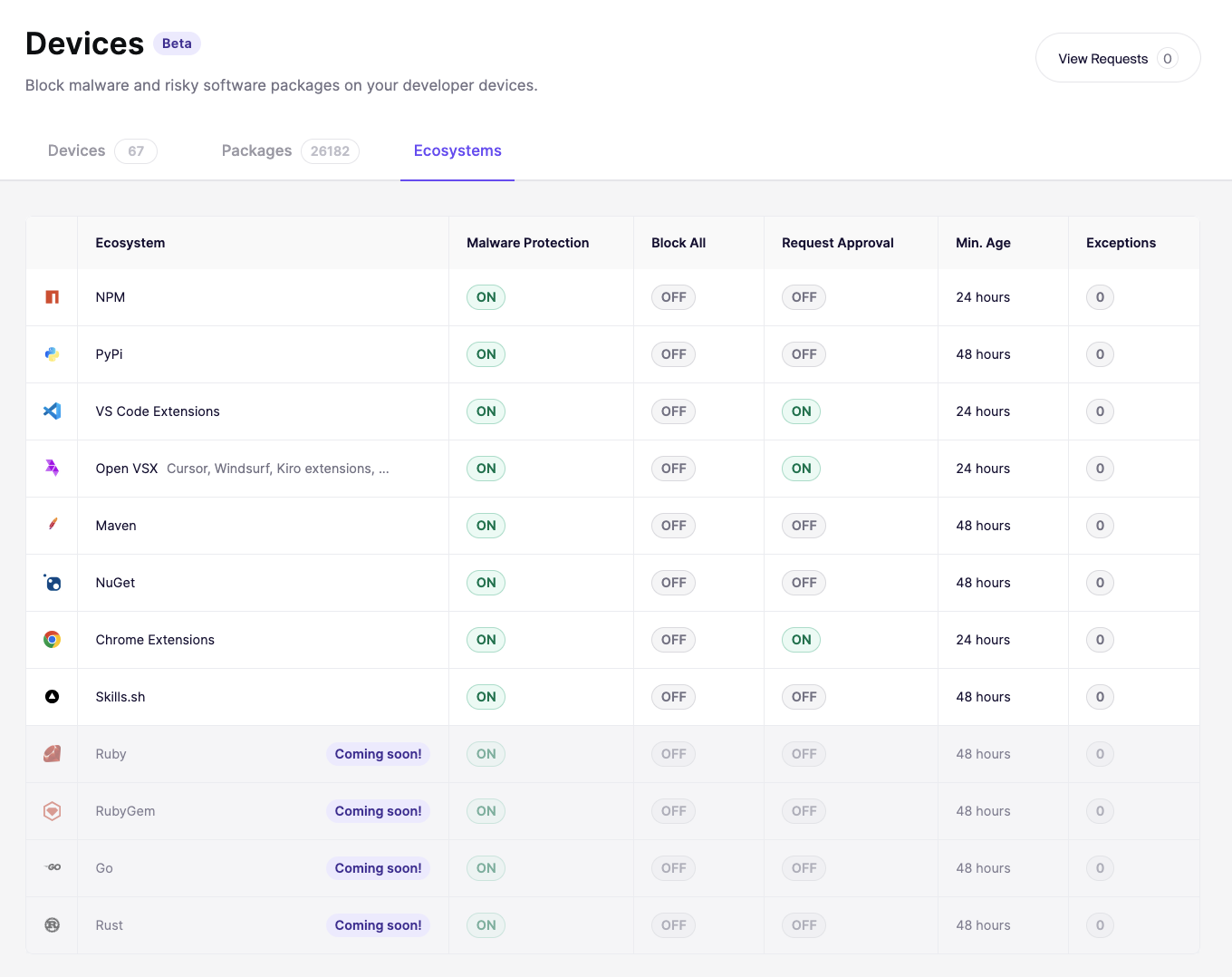
Go to Device Protection and open the Settings tab. You will see a list of all supported ecosystems with their current policy status. Click on any ecosystem to configure its settings.
How Aikido decides to block or allow a package
When a package is installed, Aikido checks it against a set of rules in order. The first rule that matches decides the outcome.
| Priority | Rule | Outcome |
|---|---|---|
| 1 | Package is identified as malware | Always blocked. No exceptions. |
| 2 | Your group has an exception that blocks this package | Blocked |
| 3 | Your group has an exception that allows this package, or an admin previously approved it | Allowed |
| 4 | Block All Installs is enabled for this ecosystem | Blocked |
| 5 | Force Requests is enabled and the package has not been requested yet (or was previously denied) | Held for approval. The person on the device requests access, and that request goes to the Inbox. |
| 6 | No rules match | Allowed |
Group exceptions always take priority over default settings. If you're unsure why an install was blocked or allowed, check your group exceptions first.
Available controls
It can take up to 10 minutes for changes to sync to all devices
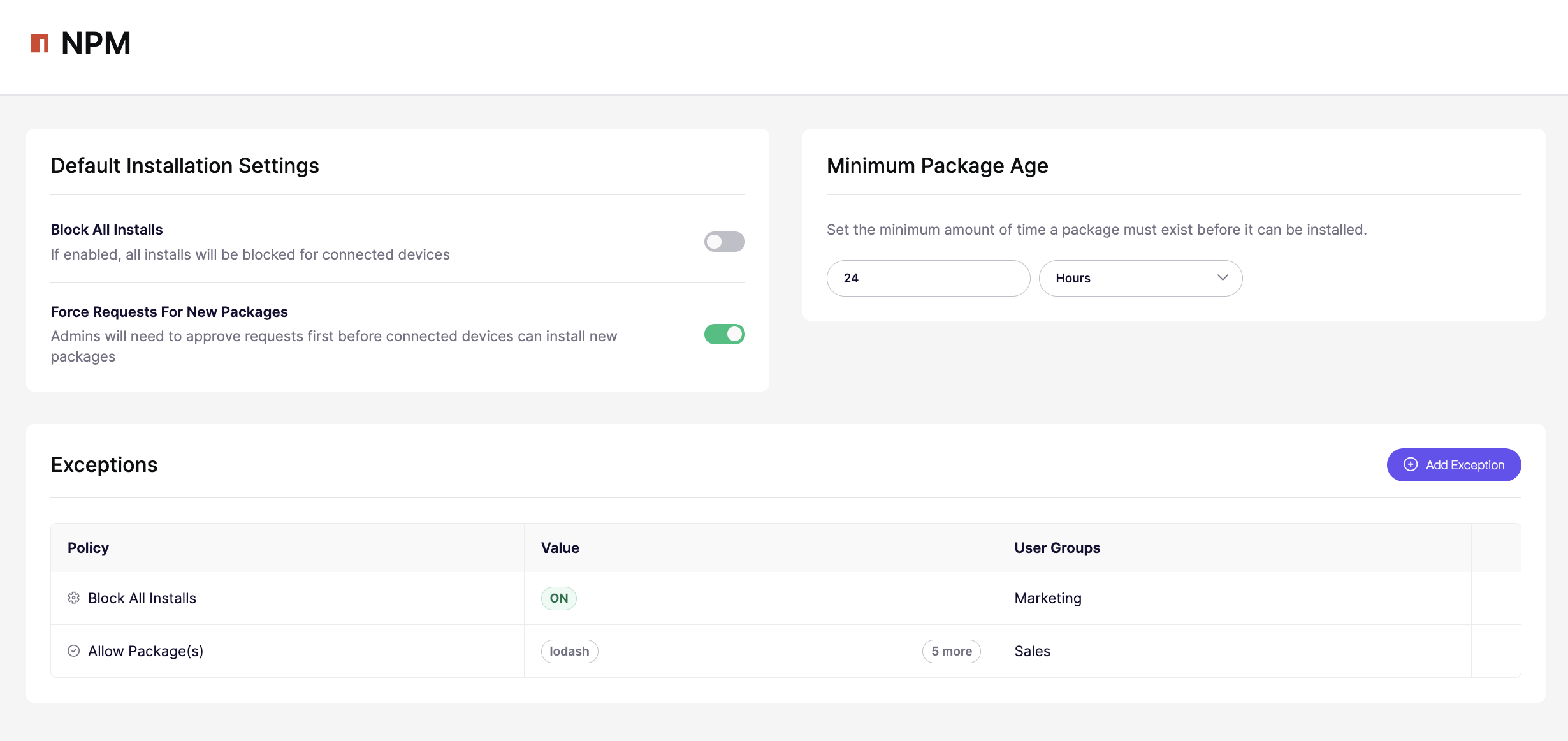
Block All Installs
When enabled, all installations from that ecosystem are blocked on connected devices. No new packages can be installed until you turn this off or create an exception.
Use this when you want to fully lock down an ecosystem for your organization.
Force Requests for New Packages
When enabled, team members cannot install new packages on their own. Instead, their install attempt is sent to the Inbox for admin approval. The admin can then approve or reject it.
This is a good middle ground when you want oversight without completely blocking installs.
Skills are an exception. Block All Installs and Force Requests do not apply to Skills. Skills are hosted on GitHub rather than a dedicated registry Aikido can isolate, so there is no way to block or hold skill installs without blocking or force-requesting all GitHub traffic.
Minimum Package Age
Sets how long a package must have existed before it can be installed. For example, if set to 24 hours, any package published less than 24 hours ago will be blocked.
This helps protect against supply chain attacks, where an attacker publishes malicious code to a public registry and tries to get people to install it before the community can flag it.
Versions that fix a critical vulnerability are allowed through even when they are too new, provided Aikido scanned them and found no malware. See Minimum Package Age & Version Fallback for what happens when a version is too new.
Exceptions
Exceptions let you override your default policies for specific packages or user groups. This is useful when your default policy is strict but certain teams need access to specific tools.
Adding an exception
- Go to Device Protection and open the Settings tab.
- Click on the ecosystem you want to configure.
- Scroll down to the Exceptions section.
- Click Add Exception.
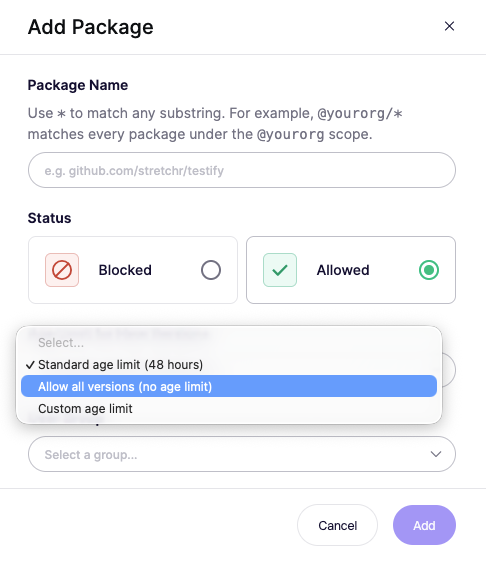
In the Add Package dialog you set:
- Package Name: the package this exception applies to. Use
*to match any substring, so@yourorg/*matches every package under the@yourorgscope. - Status: whether the package is Blocked or Allowed.
- Age limit: Standard age limit (48 hours), Allow all versions (no age limit), or Custom age limit to set your own.
- Permission Group: the group this exception applies to.
Package identifiers vary by ecosystem. Double-check the correct identifier before adding an exception.
Use cases
- Removing the minimum package age: add a new exception and set the age limit to Allow all versions (no age limit)