
Azure DevOps Artifacts
Route your registry traffic through Aikido's registry proxy by configuring Azure DevOps Artifacts as an intermediary. Artifacts pulls packages from Aikido instead of the public registries, so every package your team installs is checked for malware, age restrictions, and known vulnerabilities.
Azure DevOps Artifacts only supports custom upstream sources for NPM.
Get your Aikido proxy URL
Go to Settings > Registry Proxy, select NPM, and copy the upstream proxy URL.
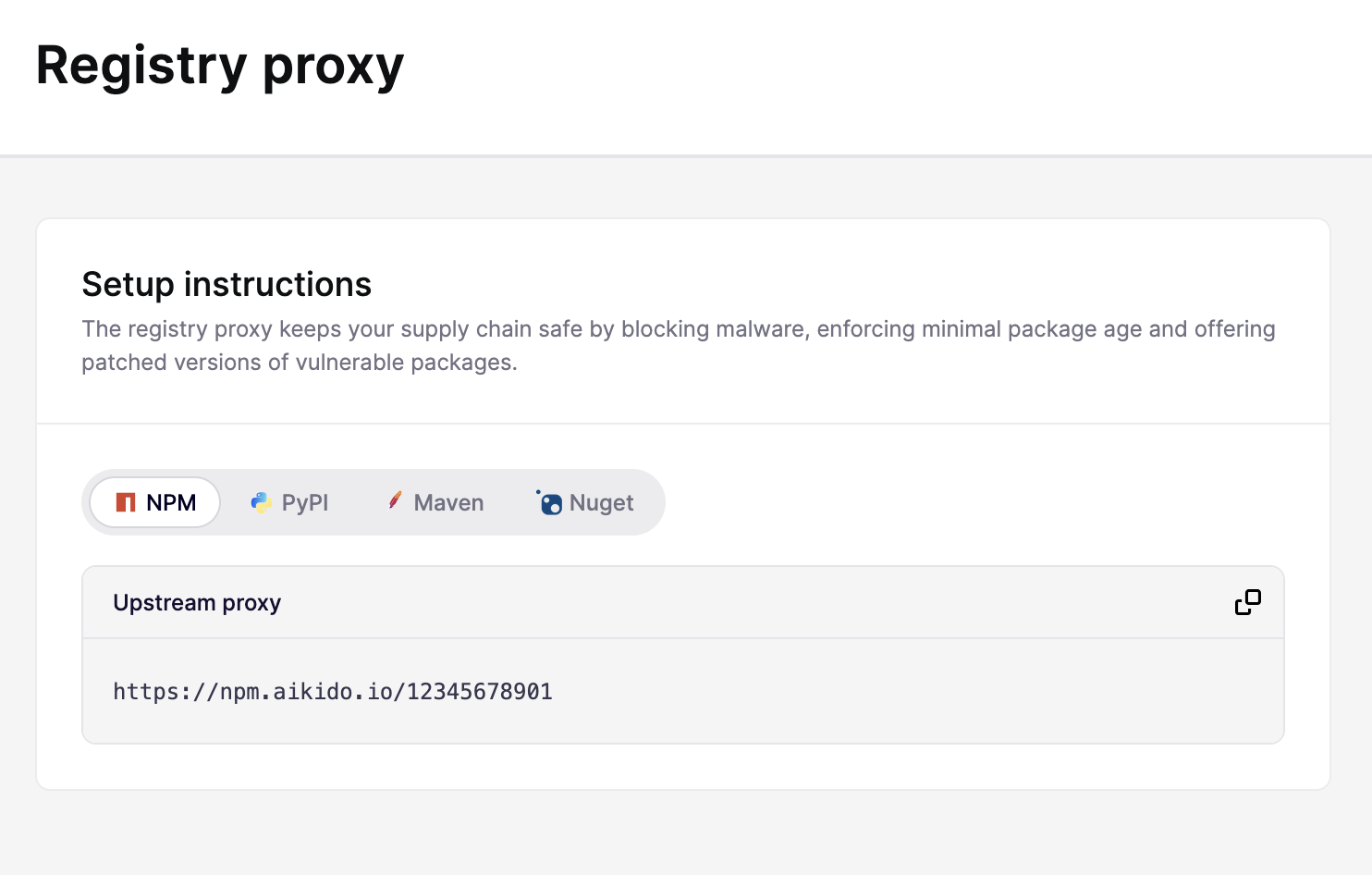
Add Aikido as an upstream source
- In Azure DevOps Project, go to Artifacts and open your feed.
- Click Feed settings (the gear icon).
- Go to the Upstream sources tab and click Add upstream.
- Select Public source as the source type
- Fill in the configuration:
- Public source:
Custom registry - Public source URL: paste your Aikido proxy URL from step 1
- Package type:
npm - Upstream source name:
aikido
- Public source:
- Enter
@aikidosec/mcpin the Validation field and click Validate to confirm the connection works. - Click Validate, and then Add.
- Click Save
Remove the default npm upstream source
To ensure all npm traffic goes through Aikido instead of the public registry directly:
- In the same Upstream sources tab, find the existing
npmjsupstream source. - Click the delete icon next to it and confirm removal.
- In the same Upstream sources tab, find the existing
Configure Developer Machines to use Azure Artifacts
Point each developer's npm client at the Artifacts feed. See Microsoft's documentation for the exact steps:
(Optional) Block the public registry with Device Protection
Once Artifacts is in place, developers can still bypass it by pointing npm directly at the public registry. Deploy Aikido Device Protection to enforce that all traffic goes through your private registry.
Block Public Package Registries